

Appearance
Content Slider
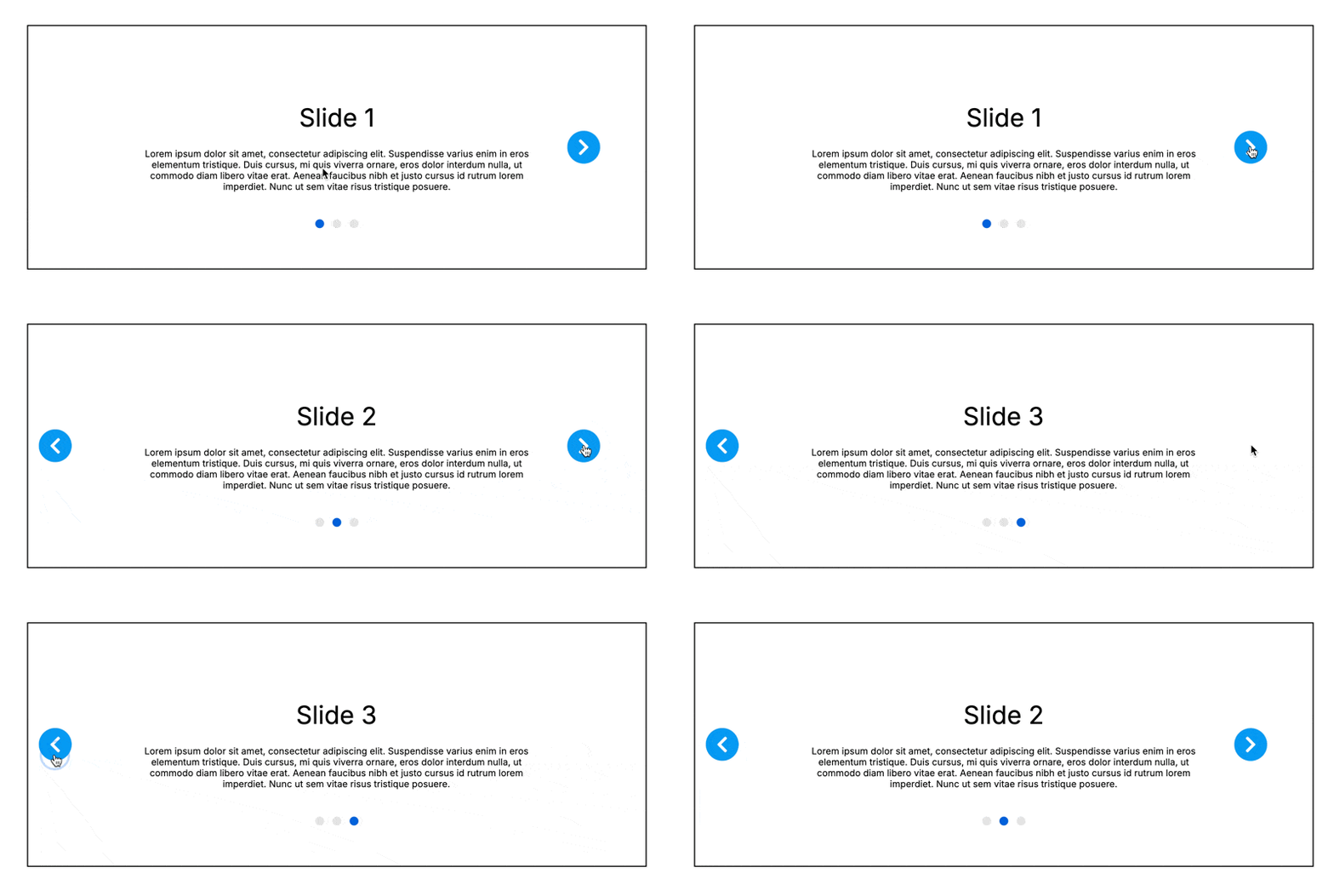
Incorporate a horizontal slideshow into your web application.
Configuring the slider
The Content Slider utilizes a flexbox layout for each slide, allowing you to incorporate multiple elements within each slide's flexbox.
To configure the slider, follow these steps:
- Slides: Add slides manually by clicking the
+symbol in the editor. Alternatively, bind the slider to a list, ensuring that the fields within the flexbox align with the values in the repeating fields. - Slides per View: Specify the number of slides visible at once.
- Space Between: Define the spacing between slides in pixels.
- Effect: Choose from various transition effects, including:
- Slide: A basic horizontal sliding effect.
- Fade: A smooth fading transition between slides.
- Coverflow: A 3D effect where slides appear to be stacked.
- Flip: A 3D flip effect for transitioning slides.
- Cards: A card-stacking effect for a unique transition.
- Transition Duration: Set the duration of transitions in milliseconds.
- Navigation: Enable or disable arrow navigation.
- Pagination: Toggle the display of page indicators.
- Loop: Enable or disable continuous looping of slides.
- Autoplay: Activate autoplay and configure the following properties:
- Timing: Set the autoplay interval in seconds.
- Linear Transition: Toggle linear transition for autoplay.
- Mousewheel Control: Enable or disable control via mousewheel.