Appearance
Image
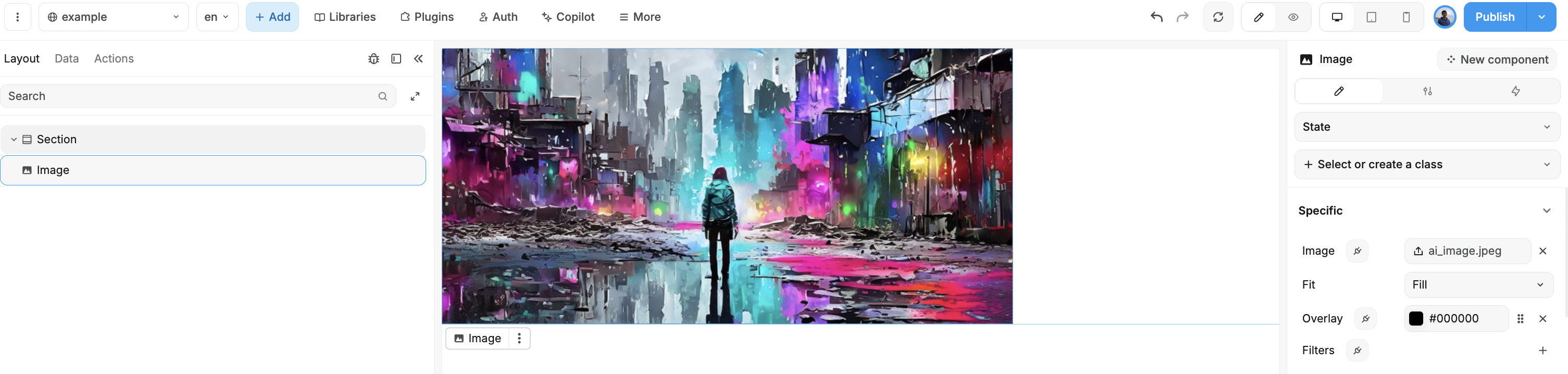
Easily add an image to your website by choosing one from WeWeb's local storage or linking to an online source.
Configuring the Image
Styling Options:
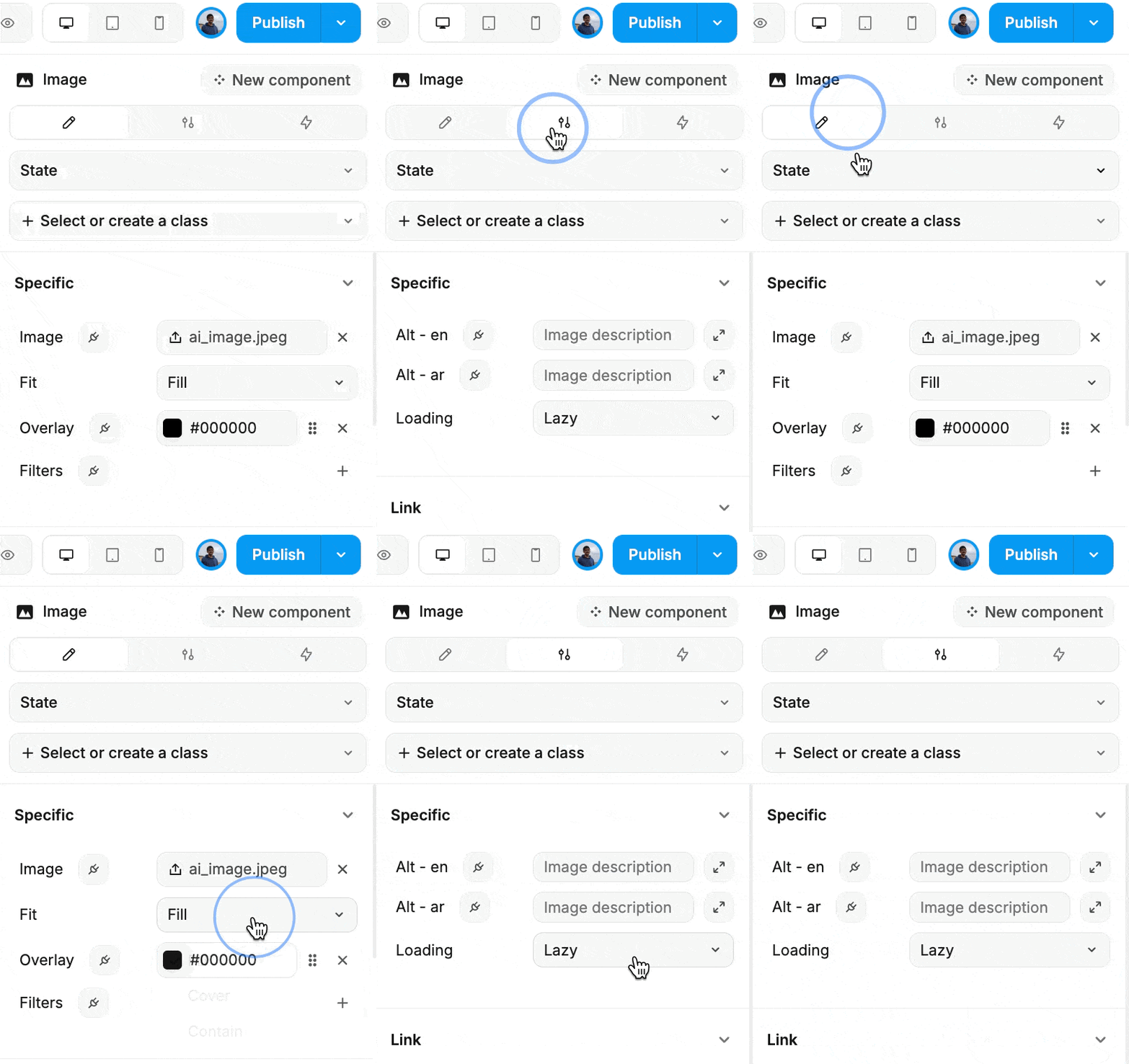
- Image Link: Choose where your image comes from—either a local path or a URL from the web.
- Fit: Decide how your image fits within its container:
- Fill: Stretches the image to fill the space.
- Cover: Scales the image to cover the container while maintaining aspect ratio.
- Contain: Ensures the entire image is visible, fitting within the container.
- Overlay: Add a color overlay to your image for a unique effect. Possible options include solid colors, gradients, or patterns.
- Filters: Apply various filters to enhance your image's appearance, such as brightness, contrast, and grayscale.
Configuration Settings:
- Alt Text: Provide alternative text that appears if the image fails to load.
- Loading: Choose how your image loads:
- Lazy: Loads the image only when it enters the viewport.
- Eager: Loads the image as soon as possible.