

Appearance
APITemplate.io integration
APITemplate.io is an API-based service for generating PDFs and images from reusable templates using JSON data. This integration lets your WeWeb backend create documents (invoices, reports) and images (banners, social posts) programmatically.
Use cases
- Generate invoices, quotes, and reports from template data
- Create image assets for marketing and social media
- Automate document workflows and deliver links via email
- Store generated files on APITemplate’s CDN with optional S3 post-actions
Setup
- Sign in to APITemplate.io.
- Open the
API Integrationtab. - Click
Copy API Key/Textand copy your API key. - In WeWeb, open
Data & API→Integrationsand add your APITemplate API key to the environment(s) you use (Editor,Staging, and/orProduction). - Test with the simplest action (for example,
Create PDF) using a known-good template and minimal JSON data to verify authentication and data shape. - If the test fails, check template availability and IDs, verify your plan limits, then retry the same test.
Inserting dynamic content
APITemplate works by taking a template (your PDF or image design) and a JSON object (Template Data). When you generate a PDF or image from WeWeb, you send Template Data with the values you want to show (for example a person’s name, a course title, or a hashtag).
The exact JSON structure depends on the type of template you are using. The safest workflow is always:
- Copy the example JSON from APITemplate for the template you are using.
- Paste it into
Template Datain WeWeb. - Replace the example values with your API inputs or variables.
PDFs
PDF templates usually expect a simple JSON object where each key matches a field in your template (for example name or course_name).
How to get the JSON
In APITemplate.io, open your PDF template.
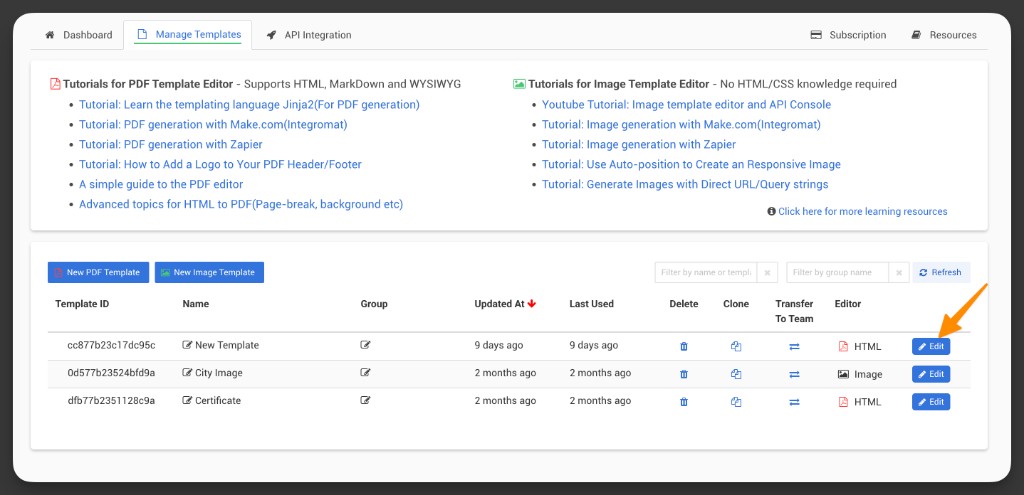
Open the
JSONtab.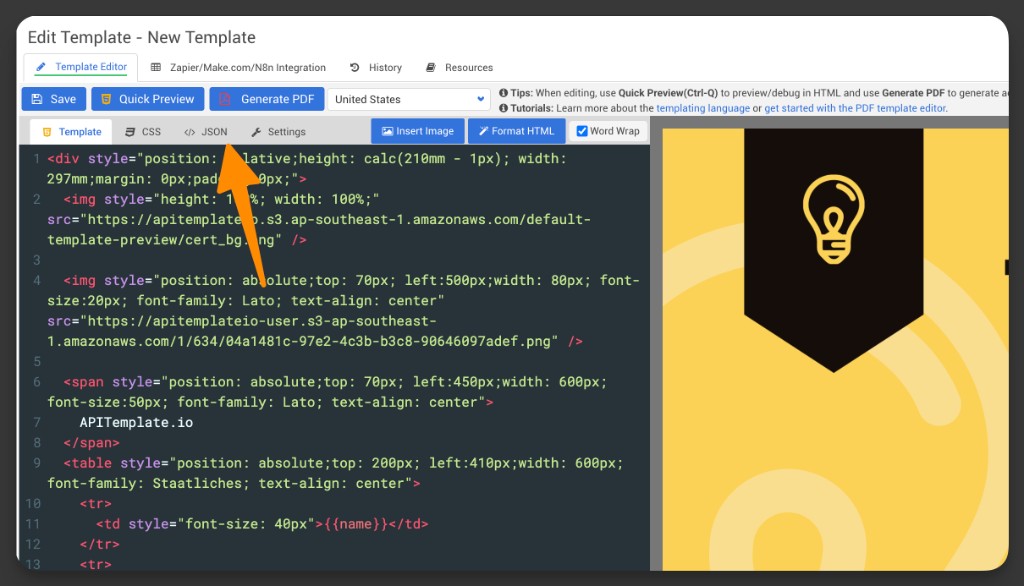
Copy the example JSON.
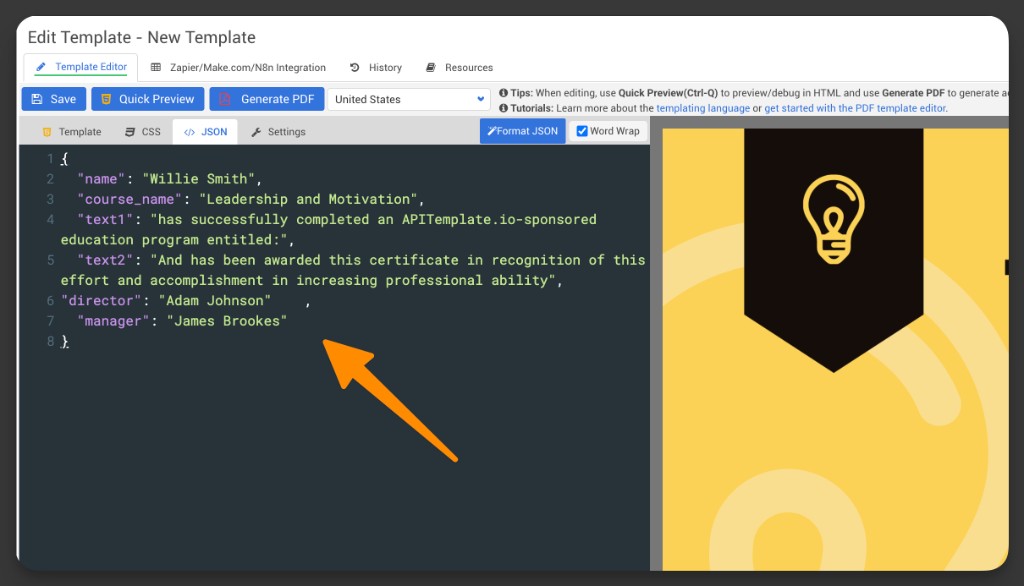
What the JSON means
- The keys (for example
name,course_name) are the fields your template can display. - The values are the example data APITemplate uses for previewing the PDF.
How to use it in WeWeb
- In WeWeb, paste the JSON into
Template Data. - Replace the example values with:
- API inputs (for example the
nameandcourseyour interface sends). - Variables (for example a value from a table record).
- API inputs (for example the
Example certificate JSON:
json
{
  "name": "Willie Smith",
  "course_name": "Leadership and Motivation",
  "text1": "Has successfully completed an APITemplate.io-sponsored education program entitled:",
  "text2": "And has been awarded this certificate in recognition of this effort and accomplishment in increasing professional ability",
  "director": "Adam Johnson",
  "manager": "James Brookes"
}
Images
Image templates often use an overrides array where each item targets a specific layer in the image (for example a text layer).
How to get the JSON
In APITemplate.io, open your image template.
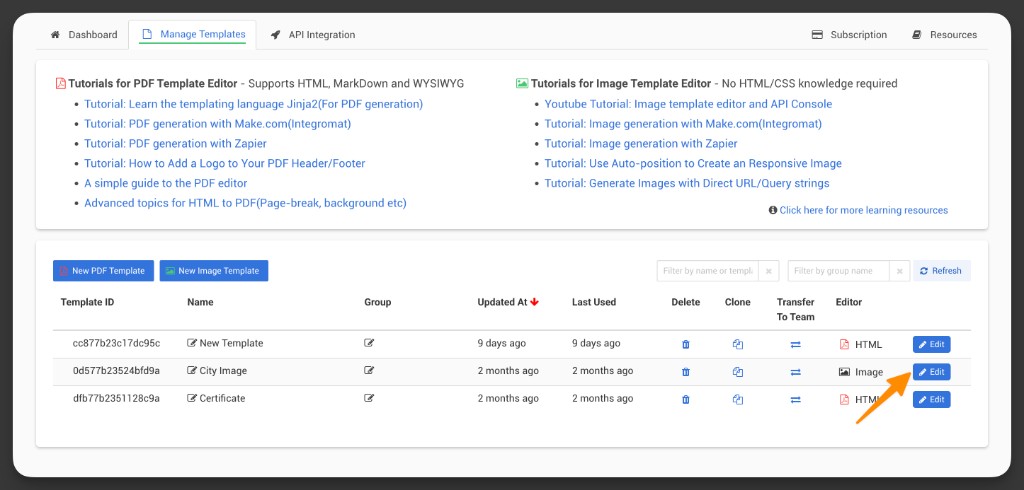
Click
Preview/API Console.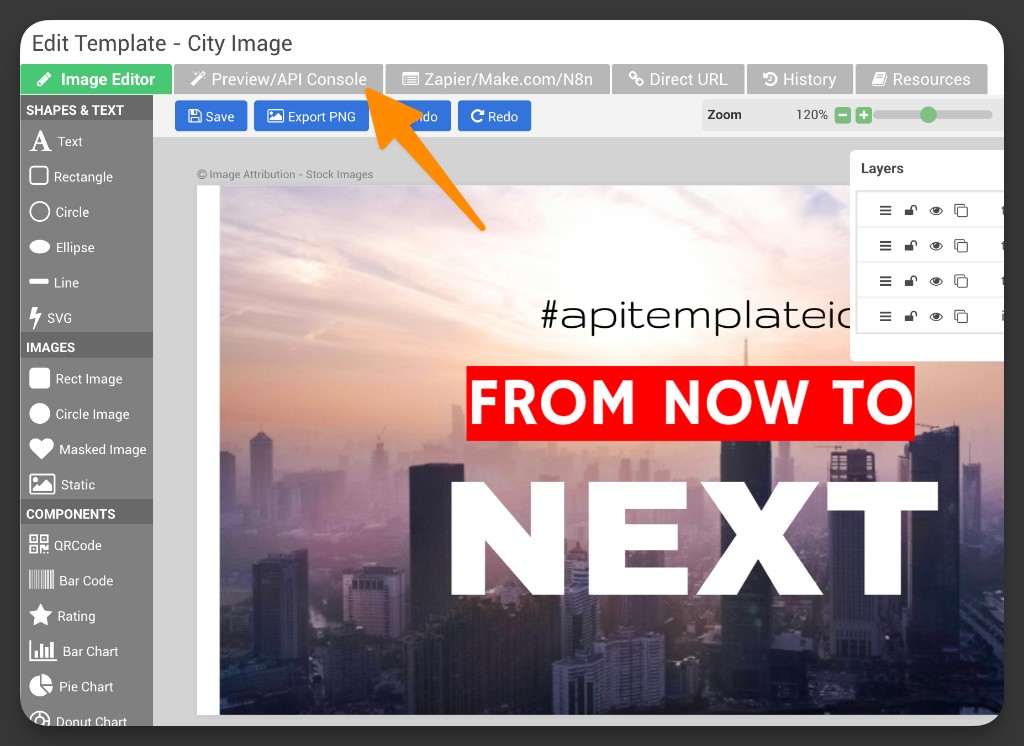
Copy the example JSON.
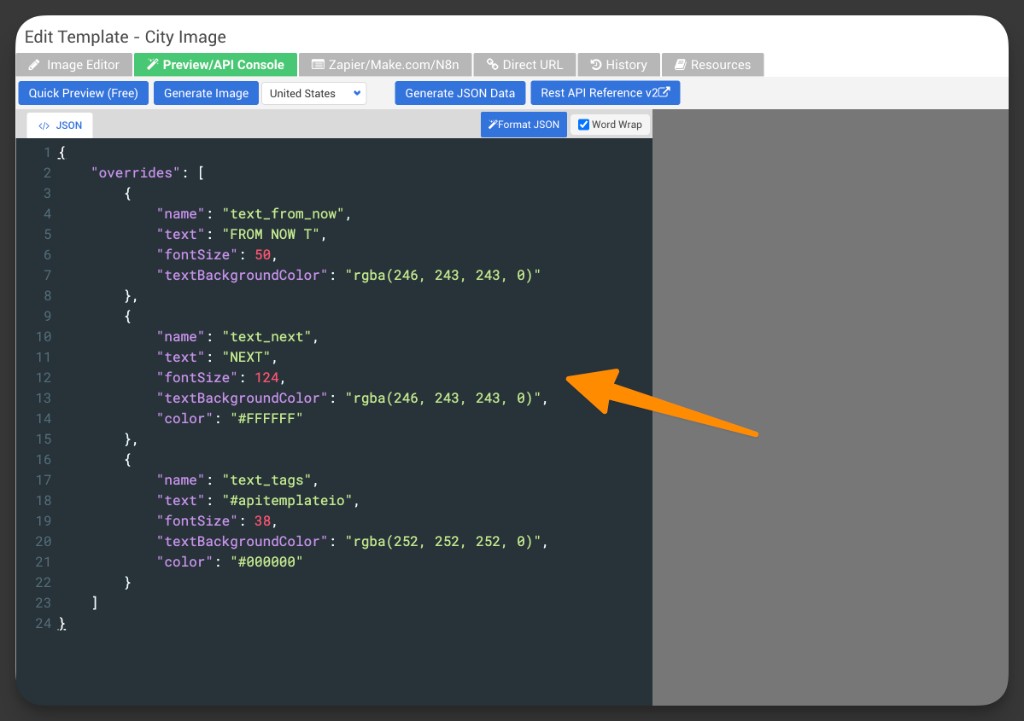
What the JSON means
- Each object inside
overridestargets one layer using itsname. - The
textvalue is what will be displayed for that layer. - Optional settings like
fontSizeandcolorlet you control the appearance.
How to use it in WeWeb
- In WeWeb, paste the JSON into
Template Data. - Replace the example values with your own:
- API inputs (for example, a headline, label, or hashtag).
- Variables (for example, data from a record).
Example image overrides JSON:
json
{
  "overrides": [
    {
      "name": "text_from_now",
      "text": "FROM NOW",
      "fontSize": 50,
      "textBackgroundColor": "rgba(246, 243, 243, 0)"
    },
    {
      "name": "text_next",
      "text": "NEXT",
      "fontSize": 64,
      "textBackgroundColor": "rgba(246, 243, 243, 0)",
      "color": "#FFFFFF"
    },
    {
      "name": "text_tags",
      "text": "#apitemplateio",
      "fontSize": 16,
      "textBackgroundColor": "rgba(252, 252, 252, 0)",
      "color": "#000000"
    }
  ]
}
Common pitfalls (setup & usage)
Invalid or inaccessible Template ID
If Template ID is wrong or inaccessible, the request will fail. Use the built-in template picker or fetch templates to ensure the ID exists in your account.
Missing or mismatched Template Data
The Template Data JSON must match your template variables (often in an overrides array). Start with a single small field, confirm success, then expand.
Async enabled without Webhook URL
If Async is enabled, you must provide a valid Webhook URL. Otherwise, the request will be rejected.
All Actions
This integration provides three actions powered by APITemplate.io’s REST API.
| Action | Description |
|---|---|
| Create PDF | Generate a PDF from a template and JSON data |
| Create Image | Generate an image from a template and JSON data |
| Merge PDFs | Merge multiple PDF files into a single PDF |
Action details
Create PDF
Generate a PDF from a template and JSON data.
Inputs
| Display Key | Example Input | Description | Restrictions |
|---|---|---|---|
Template ID | "79667b2b1876e347" | Template identifier from APITemplate console | Must be a valid template ID you own |
Template Data | {"overrides":[{"name":"text_1","text":"Hello World"}]} | JSON payload to populate the template | Valid JSON, matches template structure |
Expiration (minutes)Optional | 0 | Expiration for generated file | Valid: 0 (permanent) or 1–10080 |
Export TypeOptional | "json" | Return format of the response | Valid: json, file |
Output HTMLOptional | false | Return HTML content URL along with PDF | Boolean |
FilenameOptional | "invoice-2024.pdf" | Custom filename for the generated PDF | Valid filename string |
Cloud StorageOptional | true | Upload the generated file to APITemplate’s storage CDN. When off, the S3 Storage (Post Action) section becomes available. | Boolean |
AsyncOptional | On | Enable asynchronous generation with webhook callback. | On / Off |
Webhook URLOptional | "https://example.com/callback" | Callback URL when Async is enabled. | Required if Async is On |
S3 File KeyOptional | "invoices/invoice-123" | Custom S3 filename (Post Action). Only available when Cloud Storage is off. | String |
S3 BucketOptional | "my-bucket" | Override AWS bucket (Post Action). Only available when Cloud Storage is off. | String |
Meta ReferenceOptional | "order-12345" | External reference for tracking | String identifier |
Example output
json
{
  "status": "success",
  "download_url": "https://cdn.apitemplate.io/pdf/abc123.pdf",
  "meta": "order-12345"
}
Documentation of API endpoint that powers action: APITemplate API – Create PDF (POST /v2/create-pdf)
Create Image
Generate an image from a template and JSON data.
Inputs
| Display Key | Example Input | Description | Restrictions |
|---|---|---|---|
Template ID | "79667b2b1876e347" | Template identifier from APITemplate console | Must be a valid template ID you own |
Template Data | {"overrides":[{"name":"text_1","text":"hello world"}]} | JSON payload to populate the template | Valid JSON with expected overrides array |
Output Image TypeOptional | "all" | Output image format | Valid: all, jpegOnly, pngOnly |
Expiration (minutes)Optional | 0 | Expiration for generated file | Valid: 0 (permanent) or 1–10080 |
Cloud StorageOptional | true | Upload the generated file to APITemplate’s storage CDN. When off, the S3 Storage (Post Action) section becomes available. | Boolean |
S3 File KeyOptional | "images/banner-123" | Custom S3 filename (Post Action). Only available when Cloud Storage is off. | String |
S3 BucketOptional | "my-bucket" | Override AWS bucket (Post Action). Only available when Cloud Storage is off. | String |
Meta ReferenceOptional | "campaign-456" | External reference for tracking | String identifier |
Example output
json
{
  "download_url": "https://pub-cdn.apitemplate.io/2026/01/3a7e4efb-174d-4d06-9a2e-b45594241d93.jpeg",
  "download_url_png": "https://pub-cdn.apitemplate.io/2026/01/3a7e4efb-174d-4d06-9a2e-b45594241d93.png",
  "template_id": "0d577b23524bfd9a",
  "transaction_ref": "3a7e4efb-174d-4d06-9a2e-b45594241d93",
  "status": "success",
  "post_actions": []
}
Documentation of API endpoint that powers action: APITemplate API – Create Image (POST /v2/create-image)
Merge PDFs
Merge multiple PDF files into a single PDF.
Inputs
| Display Key | Example Input | Description | Restrictions |
|---|---|---|---|
PDF URLs | ["https://example.com/file1.pdf","https://example.com/file2.pdf"] | Array of publicly accessible PDF URLs | Valid HTTPS URLs or data:application/pdf;base64,... |
Expiration (minutes)Optional | 0 | Expiration for merged file | Valid: 0 (permanent) or 1–10080 |
Export TypeOptional | "json" | Return format of the response | Valid: json, file |
Cloud StorageOptional | On | Upload the merged file to APITemplate’s storage CDN. When On, the S3 Storage (Post Action) section is disabled. | On / Off |
Enable Post ActionOptional | On | Enable Post Actions (upload to your own S3/Cloudflare R2/Azure Storage). Only available when Cloud Storage is Off. | On / Off |
S3 File KeyOptional | "merged/merged-123" | Custom S3 filename (Post Action). Only shown when Enable Post Action is on. | String |
S3 BucketOptional | "my-bucket" | Override AWS bucket (Post Action). Only shown when Enable Post Action is on. | String |
Meta ReferenceOptional | "order-12345" | External reference for tracking | String identifier |
Example output
json
{
  "status": "success",
  "download_url": "https://cdn.apitemplate.io/pdf/merged-123.pdf"
}
Documentation of API endpoint that powers action: APITemplate API – Merge PDF (POST /v2/merge-pdf)
Error handling
| Error code and type | Reason |
|---|---|
| 401 Unauthorized | Invalid or missing API key (X-API-KEY). |
| 400 Bad Request | Invalid parameters or payload (e.g., missing template_id, malformed JSON, invalid urls). |
| 404 Not Found | Invalid template or endpoint. |
| 413 Payload Too Large | Request body too large. Reduce payload size. |
| 429 Too Many Requests | Rate limit reached; retry with backoff. |
| 500 Internal Server Error | Provider-side error; retry with backoff. |
FAQs
Why can’t I see my templates in the Template picker?
Common causes:
- Your API key is missing or added to a different environment than the one you are running (
Editor,Staging, orProduction). - You’re using Create PDF but trying to select an image template (or the other way around).
- Your APITemplate account doesn’t have any templates yet.
Try clicking the refresh icon next to Template ID, then run the action again.
My output is missing text (or shows the wrong values). What should I check?
This usually means your Template Data doesn’t match what the template expects.
- Copy the example JSON from the template’s
JSONtab. - Change one value only, run again, then expand step by step.
- For image templates using
overrides, make sure eachnamematches the layer name in your template.
How do I keep generated files permanently?
Set Expiration (minutes) to 0.
Any value from 1 to 10080 expires the file after that many minutes.
What’s the difference between Cloud Storage and S3 Storage (Post Action)?
Cloud StorageUploads the generated file to APITemplate’s storage CDN and returns a download link.S3 Storage (Post Action)Is used when you want APITemplate to upload the file to your own storage (for example S3, Cloudflare R2, or Azure Storage).
In WeWeb:
- For Create PDF and Create Image, the
S3 Storage (Post Action)section is available whenCloud Storageis off. - For Merge PDFs,
S3 Storage (Post Action)is available whenCloud Storageis Off.
I turned on S3 Storage (Post Action) but I don’t see S3 File Key / S3 Bucket
In Merge PDFs, those fields only appear when:
Cloud StorageIs Off, andEnable Post ActionIs On.
If Cloud Storage is on, the whole S3 Storage (Post Action) section is disabled.
Should I use Export Type = json or file?
Most of the time, use json so you get a download link in the response.
Use file only when you specifically need the raw file data returned by the action.
Why am I not receiving webhook calls?
Check these points:
AsyncMust be enabled.Webhook URLMust be set and publicly reachable.- Your webhook endpoint must respond successfully (check your workflow logs).
If you changed settings, run the action again to trigger a new callback.
Why does “Merge PDFs” fail even though my URLs work in my browser?
PDF URLs must point to files APITemplate can retrieve directly.
If the PDFs are behind sign-in, private permissions, or IP restrictions, APITemplate won’t be able to access them. In that case, upload the PDFs to a public location (or use a different approach) and try again.
What is Meta Reference used for?
Meta Reference is a simple way to attach your own identifier (for example order-12345) to a run.
Use it to:
- Match the result back to a record in your app.
- Recognize which run a webhook callback belongs to.
How do I find my Template ID?
Use the APITemplate web console to copy the template’s ID, or use the template picker in WeWeb which fetches templates from your account.
What should my Template Data look like?
It must match the fields your template expects. The simplest way is to open your template in APITemplate.io, click Preview/API Console, then copy the example from the JSON tab.
Depending on your template, the structure can look like:
- A JSON object with keys like
nameandcourse_name. - An
overridesarray (often used for image text layers).
When should I enable webhooks?
Enable Async when you want APITemplate to call you back at your Webhook URL after the file is generated.
Keep Async disabled if you want the action to wait and return the result right away.