

Appearance
Supabase integration
Supabase is a platform for storing data, managing sign in, hosting files, and running server logic. The Supabase integration lets you connect your Supabase project to WeWeb so you can use it as a data source and call Supabase features from workflows.
What this integration supports
Once connected, you can:
- Create WeWeb tables that use a Supabase table as the data source.
- Read and update Supabase rows in workflows.
- Upload and retrieve files from Supabase Storage.
- Call Supabase Edge Functions and Postgres functions.
- Use Supabase Auth actions (sign up, sign in, sign out, and OAuth sign in).
WHERE YOU CAN USE SUPABASE ACTIONS
Most Supabase actions are available in both places:
- In
Data & APIworkflows (API Endpoints). - In
Interfaceworkflows (for example when a user clicks a button).
This gives you a choice:
- Use an
Interfaceworkflow when you want a quick action that happens directly from the app (for example upload a profile picture). - Use an API Endpoint when you want the safest setup for access control and data rules (recommended for anything sensitive).
Supabase Auth actions like Login, Sign Up, and Login with Provider are only available in Interface workflows.
Setup in Supabase
Before connecting Supabase to WeWeb, make sure you have:
- A Supabase account.
- A Supabase project with at least one table (if you want to use it as a data source).
- The right permissions to connect that project (you’ll be asked to authorize WeWeb).
If you use Supabase Branching, decide which branch you want WeWeb to use (for example main for production).
Connect Supabase in WeWeb
- Go to the
Data & APItab, then open theIntegrationssubtab. - Select
Supabase. - Click
Add Integration. - Click
Add Connection. - Click
Connect Supabase, then follow the steps to authorize WeWeb. - Select your
Project. - (Optional) Select a
Branch(if your Supabase project uses branches). - Select a
Secret Key.- If you don’t have one yet, choose
Create new secret key.
- If you don’t have one yet, choose
- (Optional) If you use a Supabase
Custom Domain, paste it inCustom Domain.
WeWeb stores the connection settings per environment (for example Editor, Staging, and Production), so you can connect different Supabase projects or branches for each environment.
Use Supabase as a table data source
You can create a WeWeb table that reads and writes data through Supabase. When you create your first Supabase table, WeWeb asks how you want that connection to work.
Choose how you want to use Supabase
When Supabase is already connected and you create your first Supabase table, WeWeb shows a step titled How do you want to use Supabase? before the normal table setup.
You’ll see two cards:
| Option | Flow | Best when |
|---|---|---|
Supabase as data source only (Recommended) | Browser → WeWeb server → Supabase | You want WeWeb to manage API Endpoints, workflows, and access control, and keep Supabase as the database |
Supabase as backend | Browser → Supabase | You want the browser to talk to Supabase directly, and you’ll secure data with Supabase Row Level Security (RLS) |
Your choice becomes the default for future Supabase tables in that project. The mode step does not appear again unless you open it with Change default.
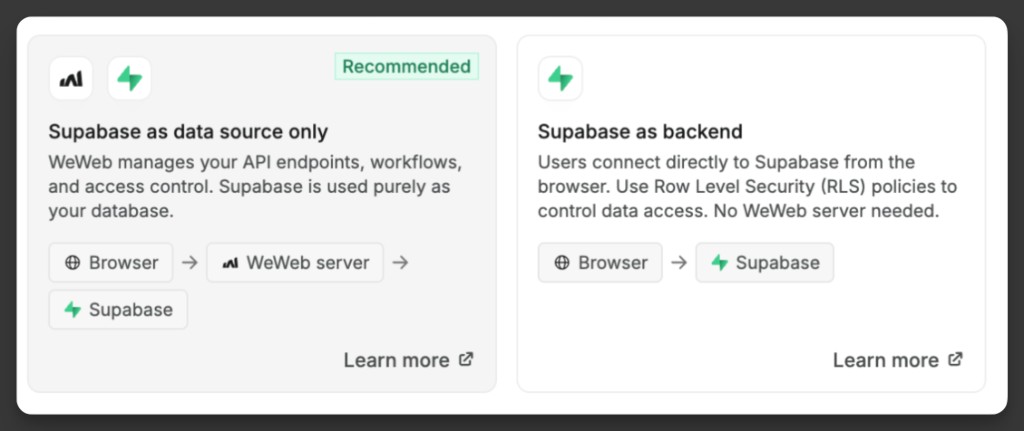
Supabase as data source only (recommended)
In this mode, WeWeb sits between the browser and Supabase:
- Table views and API Endpoints run through your WeWeb server.
- You control access with WeWeb
Securitysettings (and Middleware if needed). - Supabase is used as the database. Users do not connect to it directly from the browser for those table views.
During table setup, you can enable Create API endpoints on your WeWeb server to access or update table data so WeWeb creates starter API Endpoints for that table.
For a practical walkthrough of this pattern, see Use WeWeb as an API layer on top of Supabase.
Create a Supabase table
- Go to the
Data & APItab, then open theTablessubtab. - Click
Add Table. - In
Select a data source, chooseSupabase. - Choose the Supabase connection you want to use.
- If this is your first Supabase table, choose a mode in
How do you want to use Supabase?, then clickContinue. - Select the Supabase
Table, set theName, and review the toggles for your mode. - Finish setup.
After setup, WeWeb creates an All Rows view so you can start retrieving data right away.
On Supabase-backed tables and views, use the Columns, Filter, and Sort controls above the data grid to include related tables, filter rows, and sort results. This uses the same column picker as the Database | Select workflow action.
Depending on your setup choices, WeWeb can also create a set of starter API Endpoints for that table (for example “Get row by ID”, “Create row”, “Update row by ID”, and “Delete row by ID”).
Change your default later
On the Supabase table setup step (and when editing a Supabase table’s configuration), next to the frontend fetch toggle you’ll see Change default.
Click it to reopen How do you want to use Supabase? and update the project default for future Supabase tables.
The frontend fetch toggle label for Supabase is: Fetch data directly from Supabase, bypassing WeWeb server. RLS applies.
Other integrations keep the original wording: Fetch all views via the frontend (advanced).
Front-end and Back-end badges
In the tables list, Supabase tables show a Front-end or Back-end badge:
Front-end: Data is fetched directly from the browser, bypassing the WeWeb server. RLS applies.Back-end: Data is fetched through your WeWeb server.
Hover the badge to see that explanation in a tooltip.
Use Supabase as backend
Choose Supabase as backend when you want users to connect to Supabase from the browser, without sending those table fetches through the WeWeb server.
In this mode:
- The flow is Browser → Supabase.
- You secure data with Supabase Row Level Security (RLS) policies.
- No WeWeb server is required for those table fetches.
- You typically call Supabase actions from
Interfaceworkflows when you need custom reads or writes.
This is a good fit if you already manage access in Supabase with RLS, and you want the client to talk to Supabase directly.
RLS IS REQUIRED FOR SECURITY
When the browser talks to Supabase directly, your RLS policies are what protect the data. Enable RLS on the table and add policies that match how your app should allow select, insert, update, and delete.
If RLS feels hard to manage for your app, prefer Supabase as data source only and secure access in WeWeb instead.
Learn more about using WeWeb as the API layer →
Use WeWeb as an API layer on top of Supabase
This is the deeper pattern behind Supabase as data source only.
Supabase has a feature called Row Level Security (RLS). It can be powerful, but it can also be hard to set up correctly for real apps.
If you prefer, you can keep Supabase as your database, and use WeWeb as the API layer that controls access.
One pattern some teams use is:
- Turn on RLS for your Supabase tables.
- Don’t add any RLS policies.
- With no policies, Supabase will block all user access to that table.
- In WeWeb, create the views and API Endpoints you need on top of those Supabase tables.
- Secure those views and API Endpoints using WeWeb
Securitysettings (and Middleware workflows if needed).
This works because the Supabase connection in WeWeb includes a Secret Key, so WeWeb can retrieve the data server-side and then apply your WeWeb security rules before returning anything to the app.
When you create the table in the recommended mode, keep Create API endpoints on your WeWeb server to access or update table data enabled if you want WeWeb to generate those starter endpoints for you.
Quick guide: Set up backend logic on top of Supabase →
Backend workflows and Supabase
If your project has Supabase connected (as a data source or as the Authentication System), WeWeb reminds you that backend workflows always run on your WeWeb server.
That means:
- API Endpoints, Middleware, Event Triggers, and Functions are created and executed on WeWeb.
- They are not created on your Supabase project, and they are not Supabase Edge Functions.
- You can still call Supabase actions from those workflows (for example
Database | Select) when you want server-side logic on top of your Supabase data.
You may see:
- A one-time modal the first time you open a backend workflow:
Backend workflows run on your WeWeb server - A persistent warning in the backend workflow sidebar:
This workflow runs on your WeWeb server, not on Supabase.
These reminders help you avoid confusing WeWeb backend workflows with logic hosted inside Supabase.
Common pitfalls
The wrong project or environment is connected
If things work in preview but fail in production (or the other way around), check that you connected the right Supabase project and branch for each environment in the connection settings.
“Permission denied” or missing rows
This is usually caused by your Supabase Row Level Security (RLS) setup.
In Supabase, check:
- Whether RLS is enabled for the table.
- Whether you have policies that allow the operation you’re trying to do (select, insert, update, delete).
- Whether the policy conditions match the user you’re testing with.
If RLS feels too complex for your use case, you can keep Supabase as your database and use WeWeb as the layer that secures access instead.
All actions
LOOKING FOR HOW TO USE SUPABASE?
- If you chose
Supabase as backend(browser connects directly to Supabase), you typically call these actions fromInterfaceworkflows and secure data with RLS. Learn how that mode works → - If you opened this from a backend workflow warning: those workflows always run on your WeWeb server, not on Supabase. Learn more →
- If you chose
Supabase as data source only, start with Use Supabase as a table data source →
This integration provides actions you can use in workflows.
| Action | Description |
|---|---|
| Database | Select | Retrieve rows from a Supabase table, with related data, filters, sorting, pagination, and optional count. |
| Database | Insert | Insert one or more rows into a Supabase table. |
| Database | Update | Update one or more rows in a Supabase table (requires filters). |
| Database | Upsert | Insert rows, or update them if they already exist (based on conflict columns). |
| Database | Delete | Delete one or more rows from a Supabase table (requires filters). |
| Storage | List Files | List files inside a Supabase Storage bucket. |
| Storage | Upload File | Upload a file to Supabase Storage. |
| Storage | Download File | Download a file from Supabase Storage. |
| Storage | Update File | Replace an existing file in Supabase Storage. |
| Storage | Move File | Move/rename a file in Supabase Storage. |
| Storage | Copy File | Copy a file in Supabase Storage. |
| Storage | Delete Files | Delete one or more files from Supabase Storage. |
| Storage | Create Signed URL | Create a time‑limited URL for a private file. |
| Storage | Get Public URL | Get a public URL for a file in a public bucket (optional image transform). |
| Call Postgres Function | Call a Postgres function (RPC) in your Supabase project. |
| Invoke Edge Function | Call a Supabase Edge Function. |
| Sign up with email | Create a user with email and password (Supabase Auth). |
| Sign in with email | Sign in a user with email and password (Supabase Auth). |
| Sign in with provider | Sign in using a social provider configured in Supabase Auth. |
| Fetch user | Retrieve the currently signed‑in user from Supabase Auth. |
| Sign out | Sign out the currently signed‑in user from Supabase Auth. |
| Supabase realtime | Learn how realtime channels, broadcast, presence, and database changes work. |
Action details
Select
Retrieve rows from a table, with optional related data, filters, sorting, pagination, and count.
Inputs
| Field | Description |
|---|---|
Table | The table to retrieve rows from. |
Columns | Which columns to return. Use the Columns flyout to pick fields, include related tables (References / Referenced by), set aliases, and choose a join type (Left or Inner). |
Filters | Conditions to limit which rows you retrieve. Supports grouped And / Or logic and columns from related tables. |
Sort | One or more sort rules (column + direction). Can include columns from related tables. |
Limit | Maximum number of rows to return. |
Offset | Number of rows to skip (useful for pagination). |
Single row | Returns one object instead of an array (error if no row found). |
Maybe single | Returns one object or null (no error if no row found). |
Count | Row count mode: Exact count, Planned count, Estimated count, or No count. |
Learn more about configuring Select →
Insert
Insert one or more rows into a table.
Inputs
| Field | Description |
|---|---|
Table | The table to insert into. |
Data | Array of row objects to insert. Keys are column names. |
Return columns | Which columns to return after insert. Leave empty for all columns. |
Update
Update one or more rows in a table.
Inputs
| Field | Description |
|---|---|
Table | The table to update. |
Filters | At least one filter is required (safety measure). |
Data | The columns to update and their new values. |
Return columns | Which columns to return after update. Leave empty for all columns. |
Upsert
Insert rows, or update them if they already exist.
Inputs
| Field | Description |
|---|---|
Table | The table to upsert into. |
Data | Array of row objects to upsert. |
On conflict columns | Columns to check for conflicts. Defaults to the primary key if left empty. |
Ignore duplicates | If enabled, duplicate rows are ignored instead of updated. |
Return columns | Which columns to return after upsert. Leave empty for all columns. |
Delete
Delete one or more rows from a table.
Inputs
| Field | Description |
|---|---|
Table | The table to delete from. |
Filters | At least one filter is required (safety measure). |
Return columns | Which columns to return from deleted rows. Leave empty for all columns. |
List Files
List files in a bucket (optionally inside a folder).
Inputs
| Field | Description |
|---|---|
Bucket | The bucket to list files from. |
Path | Optional folder path inside the bucket. |
Limit | Maximum number of files to return. |
Offset | Number of files to skip. |
Search | Only return files that match this search string. |
Sort by | Sort files by name, created date, updated date, or size. |
Upload File
Upload a file to a bucket.
Inputs
| Field | Description |
|---|---|
Bucket | The bucket to upload to. |
Path | Full path including filename (for example users/123/avatar.png). |
File | The file you want to upload (for example from a file input). |
Upsert | Overwrite the file if it already exists. |
Content type | File type (MIME type). Usually auto‑detected. |
Cache control | Cache duration in seconds. |
Download File
Download a file from a bucket.
Inputs
| Field | Description |
|---|---|
Bucket | The bucket to download from. |
Path | Full path to the file. |
Update File
Replace an existing file in a bucket.
Inputs
| Field | Description |
|---|---|
Bucket | The bucket containing the file. |
Path | Full path to the existing file to update. |
File | The new file content. |
Content type | File type (MIME type). Usually auto‑detected. |
Cache control | Cache duration in seconds. |
Move File
Move (rename) a file in a bucket.
Inputs
| Field | Description |
|---|---|
Bucket | The bucket containing the file. |
From path | Current path of the file. |
To path | New path for the file. |
Copy File
Copy a file in a bucket.
Inputs
| Field | Description |
|---|---|
Bucket | The bucket containing the file. |
From path | Path of the file to copy. |
To path | Destination path for the copy. |
Delete Files
Delete one or more files from a bucket.
Inputs
| Field | Description |
|---|---|
Bucket | The bucket containing the files. |
File paths | An array of file paths to delete. |
Create Signed URL
Create a time‑limited URL for a file (useful for private buckets).
Inputs
| Field | Description |
|---|---|
Bucket | The bucket that contains the file. |
Path | File path inside the bucket. |
Expires in (seconds) | How long the link should work for. |
Transform | Optional image resizing/quality options (requires Supabase Pro plan). |
Get Public URL
Get a public URL for a file in a public bucket.
Inputs
| Field | Description |
|---|---|
Bucket | The bucket (must be public). |
Path | File path inside the bucket. |
Download | If enabled, the URL triggers a download. |
Transform | Optional image resizing/quality options (requires Supabase Pro plan). |
Call Postgres Function
Call a Postgres function (RPC) from Supabase.
Inputs
| Field | Description |
|---|---|
Function name | The Postgres function you want to call. |
Parameters | Key/value parameters for the function. |
Single result | Return a single object instead of an array. |
Invoke Edge Function
Call a Supabase Edge Function.
Inputs
| Field | Description |
|---|---|
Function | The Edge Function to invoke. |
Method | HTTP method to use (for example POST). |
Body | Data you want to send (for POST, PUT, PATCH). |
Custom headers | Optional headers to send with the request. |
Login
Sign in a user with email and password (Supabase Auth).
Inputs
| Field | Description |
|---|---|
Email | The user’s email. |
Password | The user’s password. |
Sign Up
Create a user with email and password (Supabase Auth).
Inputs
| Field | Description |
|---|---|
Email | The user’s email. |
Password | The user’s password. |
User metadata | Optional extra profile data to store on the user. |
Email redirect URL | Optional redirect after the user confirms their email. |
Login with Provider
Sign in with a social provider configured in Supabase Auth.
Inputs
| Field | Description |
|---|---|
Provider | The OAuth provider (for example Google or GitHub). |
Redirect URL | Where to send the user after sign in. |
Scopes | Optional extra scopes (space‑separated). |
Query parameters | Optional extra settings to pass to the provider. |
Fetch User
Retrieve the currently signed‑in user.
Inputs
This action has no inputs.
Sign Out
Sign out the currently signed‑in user.
Inputs
This action has no inputs.
Reference
Connection settings
| Setting | What it means | Where it comes from |
|---|---|---|
Project | Which Supabase project WeWeb should use. | Selected after you authorize WeWeb. |
Branch | Which Supabase branch WeWeb should use. | Selected in the connection (only if your project uses branches). |
Publishable Key | A key used for safe, public requests. | Filled automatically based on the selected project/branch. |
Secret Key | A key used for actions that need higher permissions. | Selected (or created) in the connection. |
Custom Domain | A custom API domain for your Supabase project. | Optional value from your Supabase dashboard. |
FAQs
Do I need different connections for Editor, Staging, and Production?
It depends. Many teams use separate Supabase projects (or branches) for each environment so tests don’t affect real data. WeWeb lets you set this up in the Supabase connection settings.
What’s the difference between “Supabase as data source only” and “Supabase as backend”?
Supabase as data source only (recommended) sends table fetches through your WeWeb server so you can manage API Endpoints and access control in WeWeb. Supabase as backend lets the browser talk to Supabase directly, so you secure data with Supabase RLS instead.
Can I keep using Supabase as the source of truth?
Yes. When you create a WeWeb table from Supabase, Supabase remains the data source. In the recommended mode, WeWeb also gives you a way to build views, API Endpoints, and access controls on top.
Do backend workflows run on Supabase?
No. Backend workflows (API Endpoints, Middleware, Event Triggers, and Functions) always run on your WeWeb server, even if Supabase is connected. You can still call Supabase actions from those workflows.
Where do I set redirect URLs for Supabase OAuth sign in?
If you use Login with Provider, set the Redirect URL in the action. This is the page you want the user to land on after they finish signing in.
CONTINUE LEARNING
Browse all available integrations and learn how connections work.