

Appearance
Loops
A loop is a way to repeat an action multiple times without having to write it out each time. Instead of doing the same thing over and over manually, loops automate the repetition for you.
WeWeb offers two types of loops for handling repetitive actions in your API Endpoints: Iterator (for loop) and While.
Iterator (for loop)
An Iterator is like a helper that repeats an action for each item in a list. You pass a list of data and it automatically performs the same action on each item, one after another, until it has processed every item in your list.
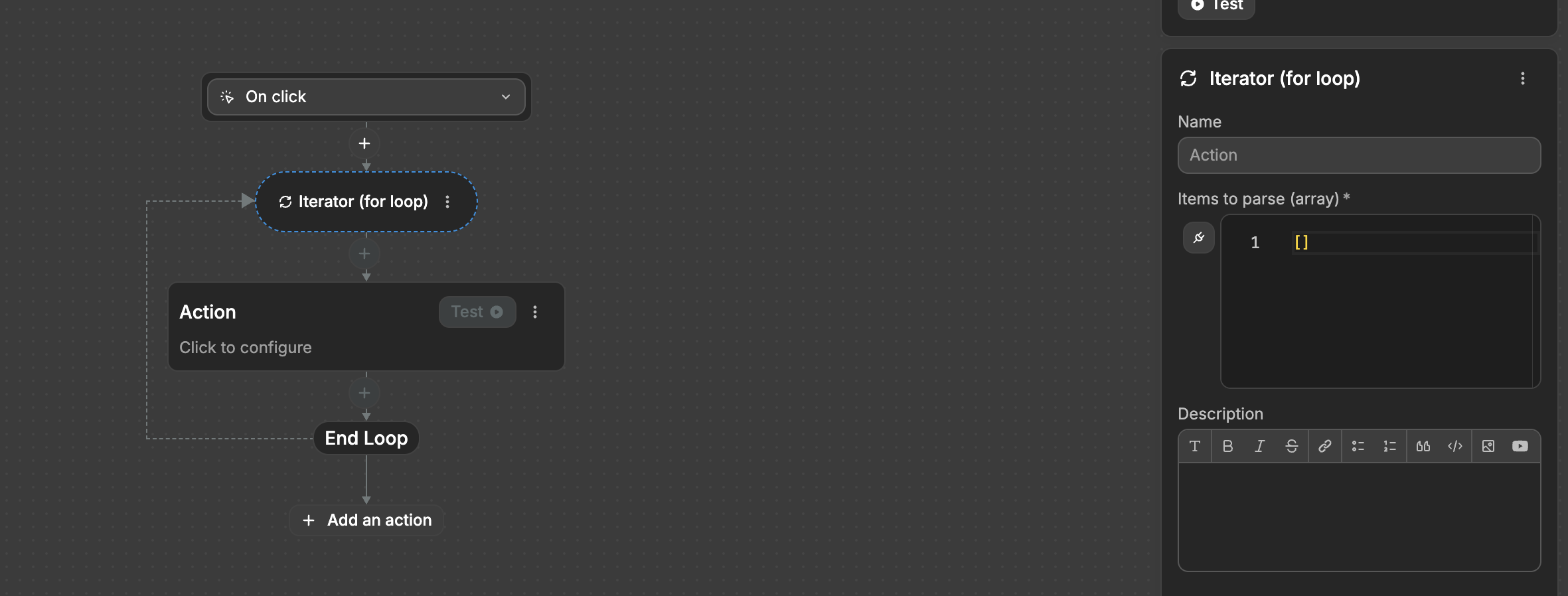
Example: Processing multiple records
Imagine you're building an API Endpoint that needs to send notifications to multiple users. Your Iterator would:
- Take the first user from the list
- Call an external notification API for that user
- Log the result
- Move on to the second user and do the same thing
- Continue until all users have been processed
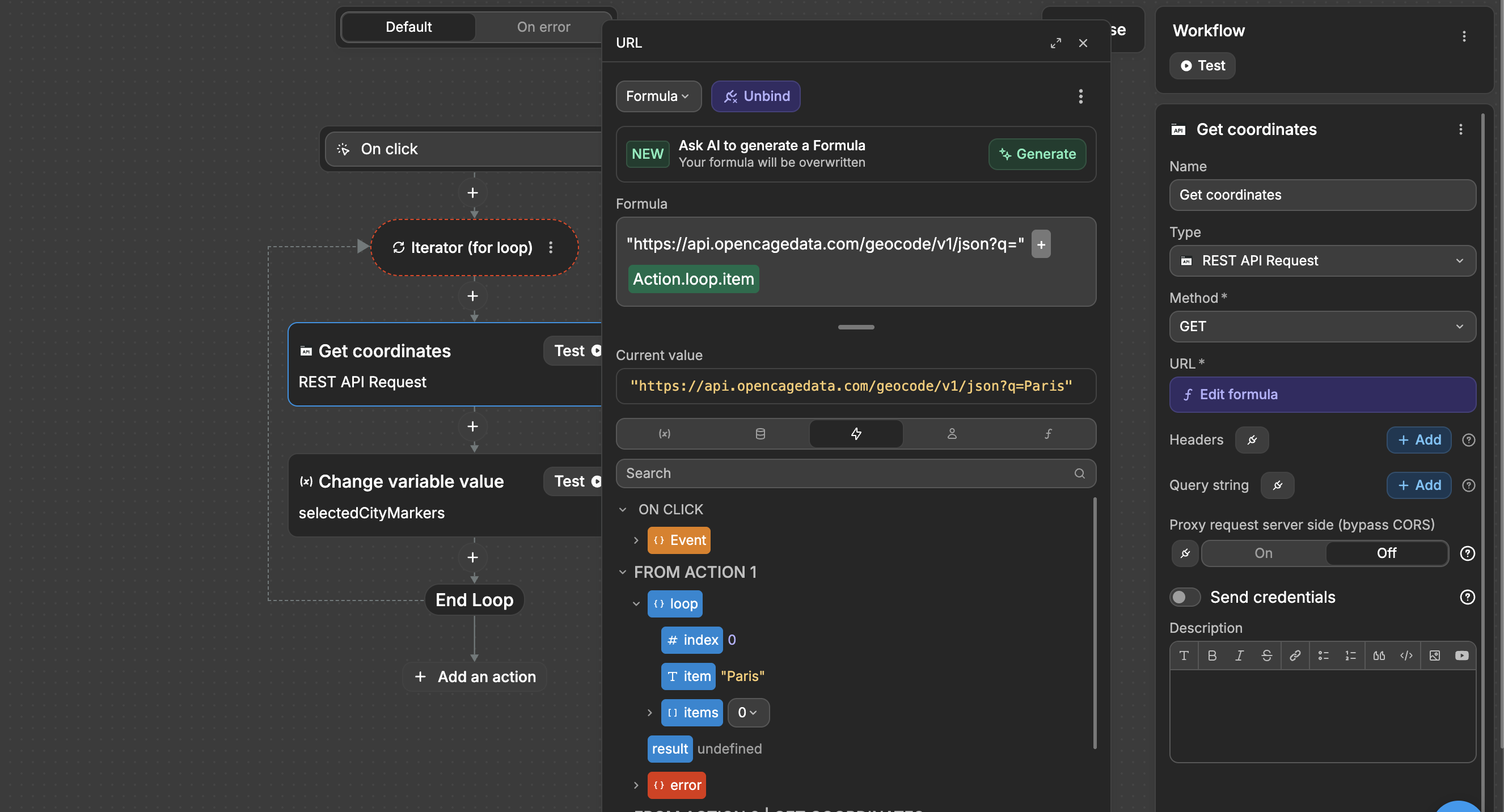
In the example above, you can see that:
- We loop through a list of user IDs
- Based on the current item we are looping through which can be accessed through the
Eventstab, we make a dynamic API call to send a notification - We update a results variable to track which notifications were sent successfully
Without an Iterator, you'd need to do this manually for each user. The Iterator automates this repetitive process, handling each user in your list one after another.
Accessing loop information
Inside an Iterator loop, you can access information about the current iteration through the Events tab. Click on the Events tab in your formula editor to see these loop-specific values:
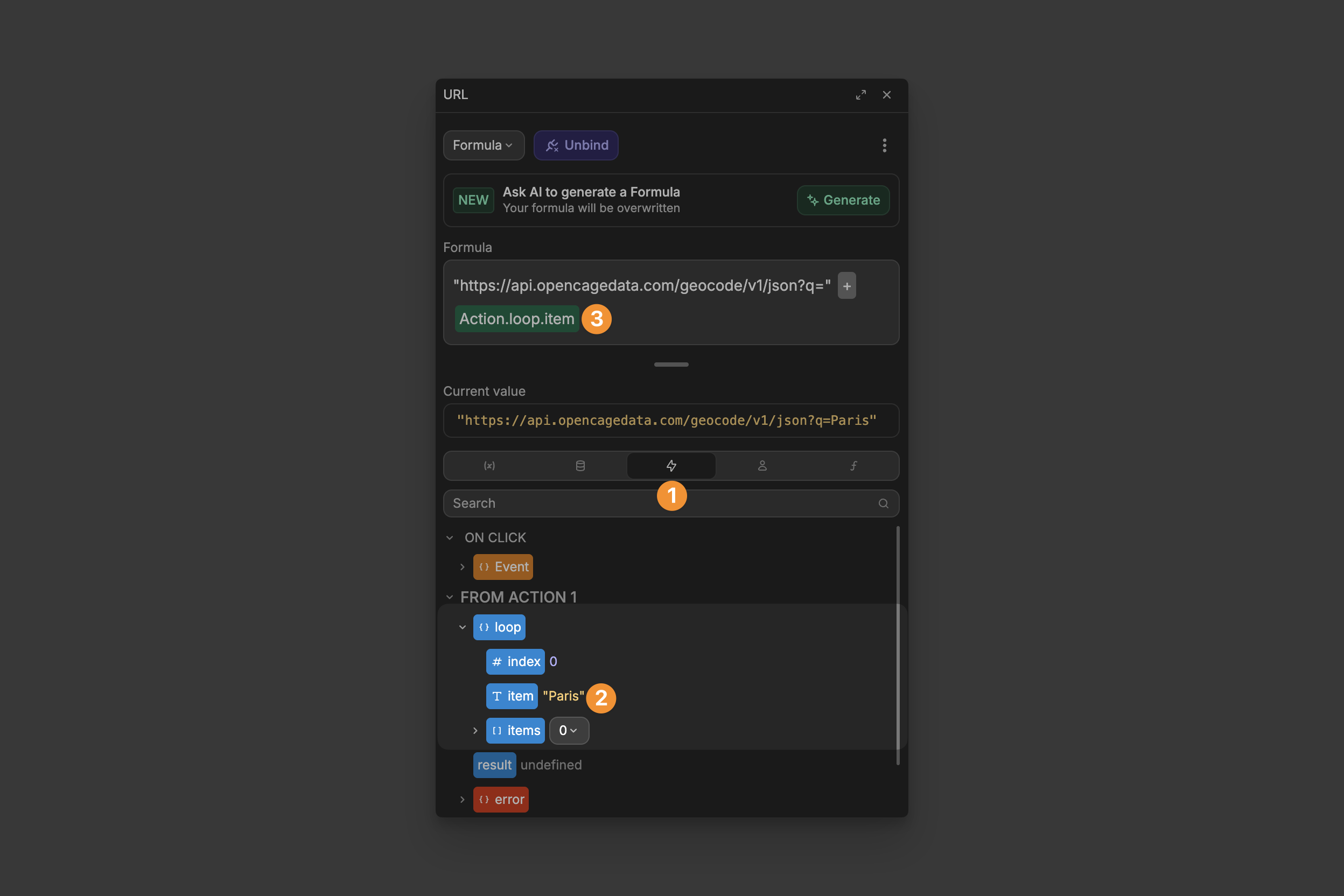
Action.loop.index— The position of the current item in the list (starting at 0)Action.loop.item— The current item being processedAction.loop.items— The entire list of items being processed
TIP
You will only be able to see the available loop information after the loop has run at least once. After binding your list of data to the loop, you can either test your loop action or test the entire workflow to then be able to access the loop information.
While
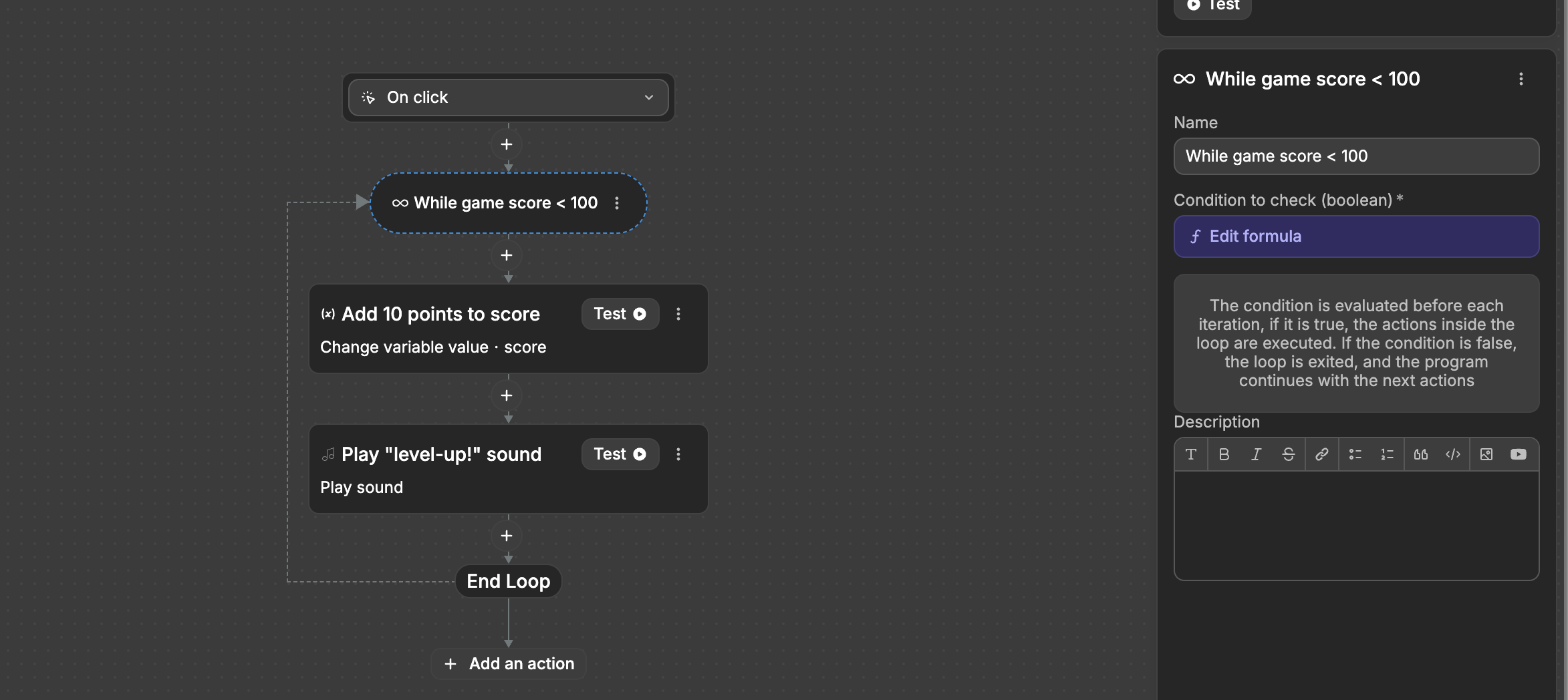
A While loop continues running an action as long as a specified condition is true. Unlike an Iterator that processes a list, a While loop checks a condition before each iteration and continues running until that condition becomes false.
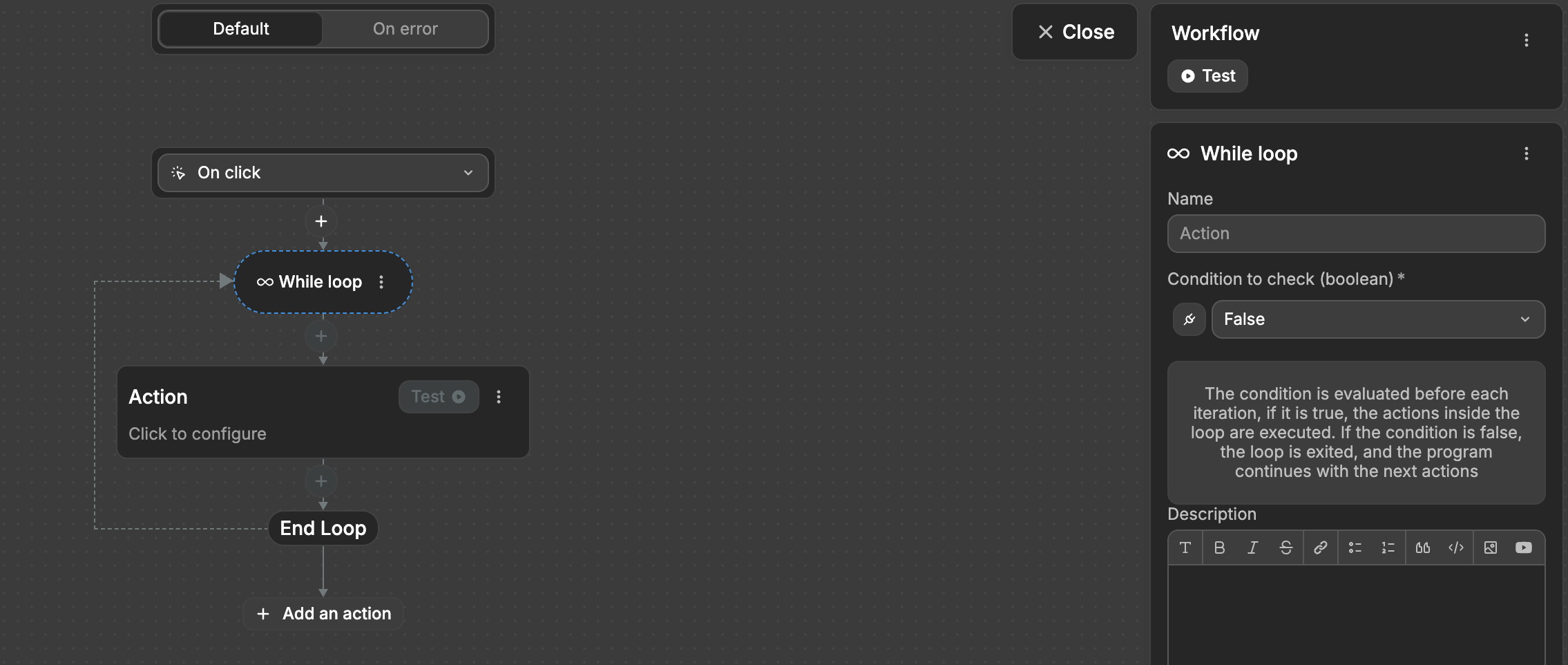
Example: Pagination
Imagine you're building an API Endpoint that needs to fetch all records from an external API that uses pagination. Here's how a While loop would work:
- Set a condition (like "hasMorePages === true")
- Check the condition
- If true, fetch the next page of data
- Update the page counter and hasMorePages flag
- Check the condition again
- Continue this cycle until the condition becomes false
To set up a While loop:
- Add a
Whileloop action to your workflow - Set the condition to check (must be a boolean true/false)
- Add the actions you want to repeat inside the loop
PREVENT INFINITE LOOPS
Always ensure your condition will eventually become false, or your loop will run indefinitely. If your loop never ends, it could cause performance issues or timeout your API Endpoint. Consider adding a maximum iteration counter as a safety measure.
Loop Control
Loop control actions allow you to change how a loop executes, giving you more precise control over your workflow. There are three main ways to control loop execution: Break loop, Continue loop, and Pass through condition.
Break loop
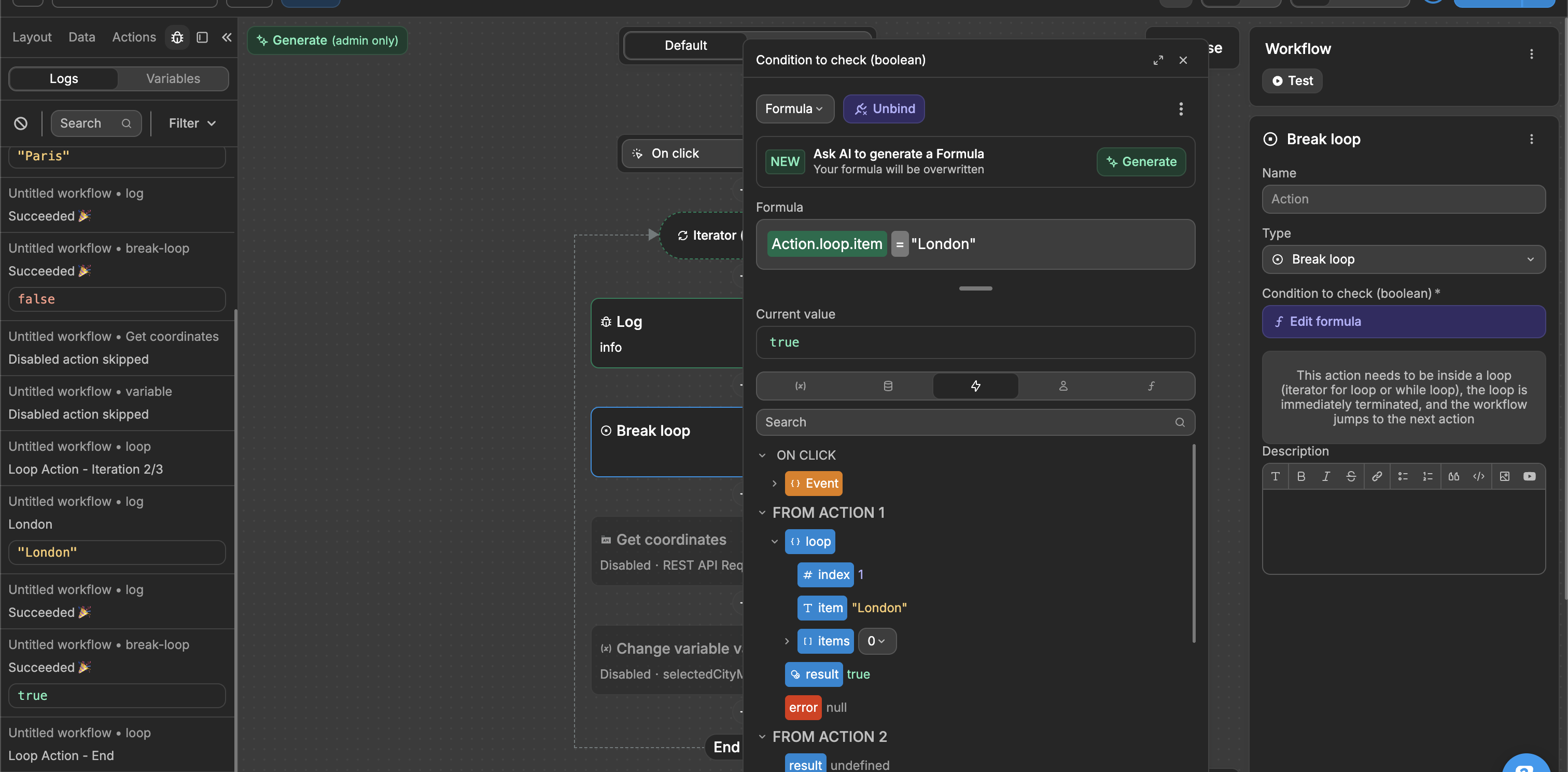
A Break loop action stops the loop immediately when its condition is met. This action only works inside Iterator or While loops and will skip any remaining iterations, continuing with the next action after the loop.
In the example below, we loop through a list of user IDs ["user1", "user2", "user3"]. Our Break loop condition is set to Action.loop.item === "user2". The workflow processes "user1", then "user2", but when it reaches "user2" the break condition becomes true and the loop stops. Since the loop ends at "user2", "user3" is never processed.
POSITION MATTERS
Place the Break loop action at the beginning of your loop actions. Any actions placed before Break loop will still execute before the break occurs.
Continue loop
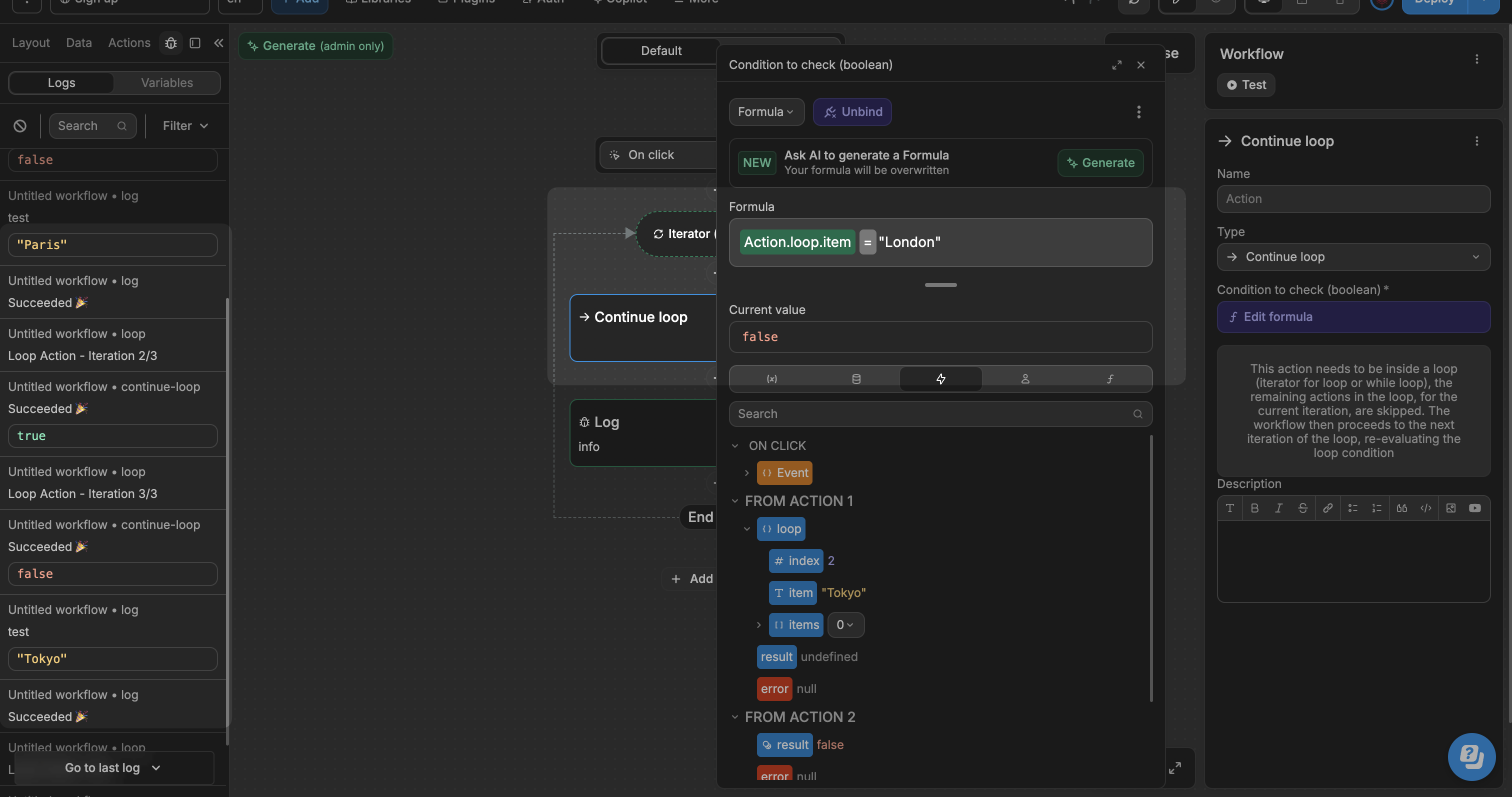
The Continue loop action skips the current loop iteration when its condition is met and moves on to the next item. This action only works inside Iterator or While loops.
In the example below, we loop through a list of order IDs ["order1", "order2", "order3"]. Our Continue loop condition is set to Action.loop.item === "order2". The workflow processes "order1", skips all actions when it hits "order2", then processes and logs "order3". As a result, "order2" is never processed.
PLACEMENT
Place the Continue loop action at the beginning of your loop actions. Any actions placed before Continue loop will still execute before the skip occurs.
Pass through condition
A Pass through condition controls which actions in your workflow execute. When the condition is false, all following actions are skipped. When true, the workflow continues normally.
While Pass through condition works in loops like Continue does, it can also be used anywhere in your workflow as a checkpoint to control which actions should run.
For instance, if a record doesn't meet certain criteria (false), all following actions are skipped. If it does meet the criteria (true), the workflow continues executing the next actions.
TIP
- Position your
Pass through conditionbefore any actions you want to conditionally execute. - Actions placed before
Pass through conditionwill always run regardless of the condition. - This action can be used outside loops
CONTINUE LEARNING
Learn how to handle errors in your API Endpoint loops.