

Appearance
Example data structures
This page is here to help you get comfortable with basic database structures by showing a few practical examples.
If this is your first time working with tables and relationships, database schemas can feel daunting at first. Seeing real-world patterns makes it easier to understand how tables connect, and why you might structure data one way instead of another.
Each example includes a visual schema, suggested columns, and the reasoning behind the relationships.
Before you start
These are general best practices that help keep your data structure clear and maintainable:
- Store each thing once — Keep each “type of thing” in its own table instead of repeating the same fields across multiple tables.
- Use relationships for connections — Prefer
Link to Another Record(orUser) columns over copying record IDs into text fields. - Keep “history” as history — For receipts like orders and invoices, store the values you need to keep forever (like “Unit price at purchase time”), even if the original record changes later.
- Add ownership when it matters — Track who created or owns a record with a
Usercolumn when it affects access, filtering, or collaboration.
Example 1: Team workspace app (SaaS)
This schema fits products like internal tools, project hubs, or SaaS apps where one person can belong to multiple workspaces.

Tables
workspaces
Suggested columns:
name(Text, required)created_at(Date, default to current time)created_by(User)
workspace_memberships
This is the link table that connects users to workspaces and stores per-workspace role data.
Suggested columns:
workspace(Link to Another Record →workspaces, required)user(User, required)role(Text, required) — Example values:admin,memberjoined_at(Date, default to current time)
Why this structure works
- Users can belong to many workspaces — The
workspace_membershipstable makes the connection explicit and flexible. - Roles stay scoped to a workspace — A user can be an
adminin one workspace and amemberin another.
Example 2: E-commerce store
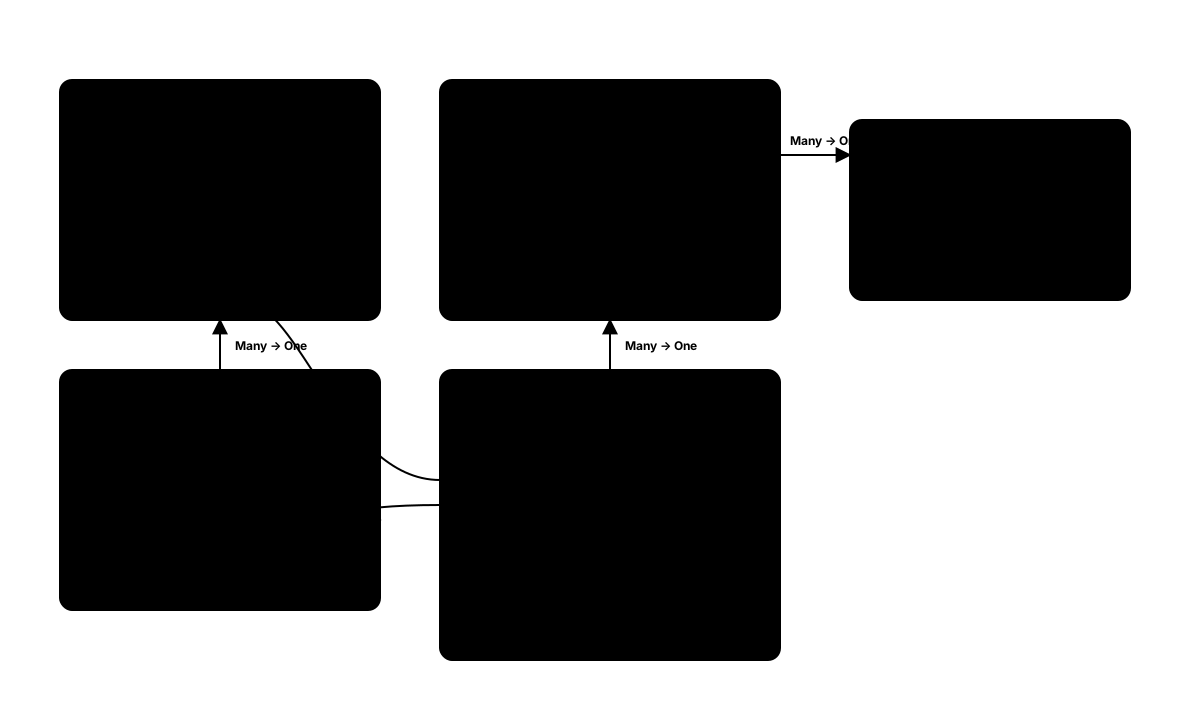
This schema fits stores where customers place orders made up of multiple items.
Tables
products
Suggested columns:
name(Text, required)description(Text)is_active(True/False, default to true)created_at(Date, default to current time)
product_variants (Optional but recommended)
Use this when a product can have multiple options (for example, sizes or colors).
Suggested columns:
product(Link to Another Record →products, required)sku(Text, required, unique)price(Number, required)inventory(Number)
orders
Suggested columns:
customer(User) — Or link to acustomerstable if you do not use WeWeb users for customers.status(Text, required) — Example values:draft,paid,shipped,refundedtotal_amount(Number)created_at(Date, default to current time)
order_products
This is the table that stores what was bought in an order.
Suggested columns:
order(Link to Another Record →orders, required)product(Link to Another Record →products)variant(Link to Another Record →product_variants)quantity(Number, required)unit_price(Number, required)product_name(Text) — A snapshot so past orders still display correctly if the product name changes.
Why this structure works
- One order can contain many items —
order_productsmakes the order composition clear and scalable. - You keep purchase history accurate — Snapshot fields like
unit_priceprevent “yesterday’s order” from changing when you update today’s product pricing.- Variants stay optional — Simple stores can skip
product_variantsand linkorder_products.productdirectly.
- Variants stay optional — Simple stores can skip
Example 3: Content + comments + tags
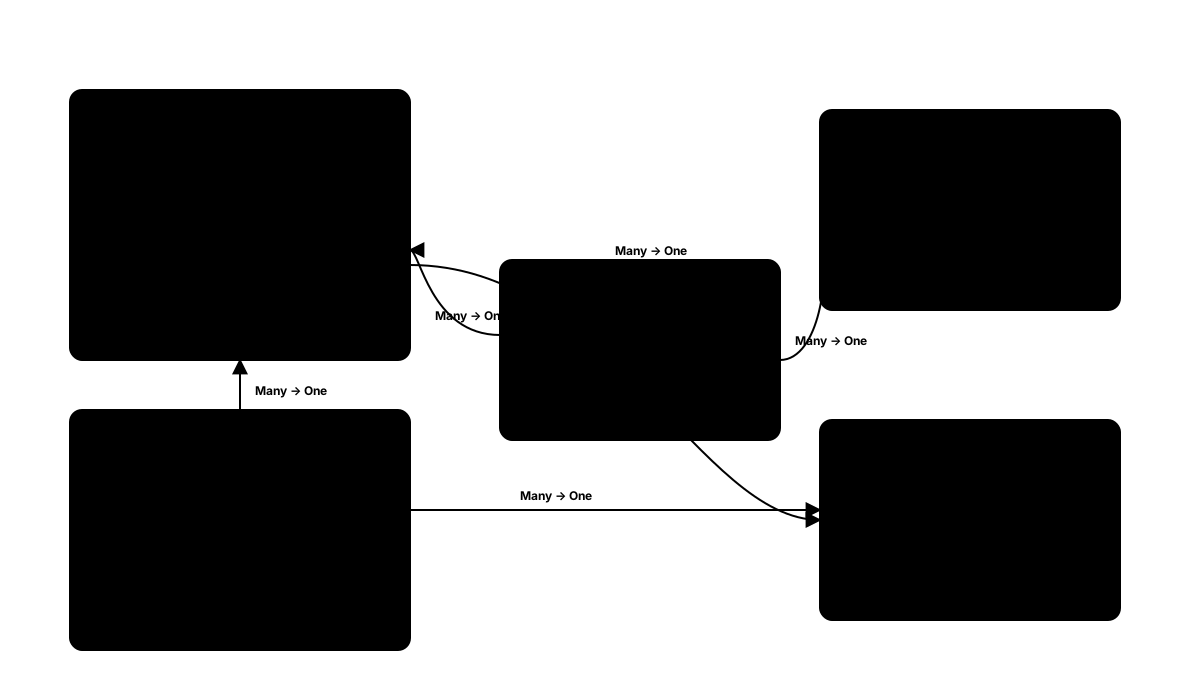
This schema fits blogs, knowledge bases, community posts, and changelogs.
Tables
posts
Suggested columns:
title(Text, required)body(Text)status(Text) — Example values:draft,publishedpublished_at(Date)author(User)created_at(Date, default to current time)
comments
Suggested columns:
post(Link to Another Record →posts, required)author(User)body(Text, required)created_at(Date, default to current time)
tags
Suggested columns:
name(Text, required, unique)slug(Text, required, unique)
post_tags
This is the link table that connects posts and tags (because a post can have many tags, and a tag can be used on many posts).
Suggested columns:
post(Link to Another Record →posts, required)tag(Link to Another Record →tags, required)
Recommended constraints:
- Make the pair (
post,tag) unique so the same tag is not added twice to the same post.
Why this structure works
- Tags remain reusable — You manage a single tag list and connect it to any post.
- Filtering is easier — You can create a view that retrieves posts by tag through the
post_tagstable. - Comments stay connected — Each comment points to exactly one post, which makes it simple to retrieve comments for a post.
Using these schemas in WeWeb
To build one of these schemas in your project:
- Go to
Data & API>Tables. - Click
Add Tableand create the tables for your schema. - Add columns, starting with the basic text/number/date fields.
- Add relationship columns using
Link to Another Record(andUserwhere needed). - (Optional) Create a view per “screen” of your app (for example, “My orders” or “Posts by tag”) and set the view
Middleware.
If you want more guidance on relationships and constraints, see Columns and relationships →.