

Appearance
Data Grid
Add the Data Grid to a Project
When you drag-and-drop the Data Grid Element on the Canvas, you will be asked if you want to import Variables:
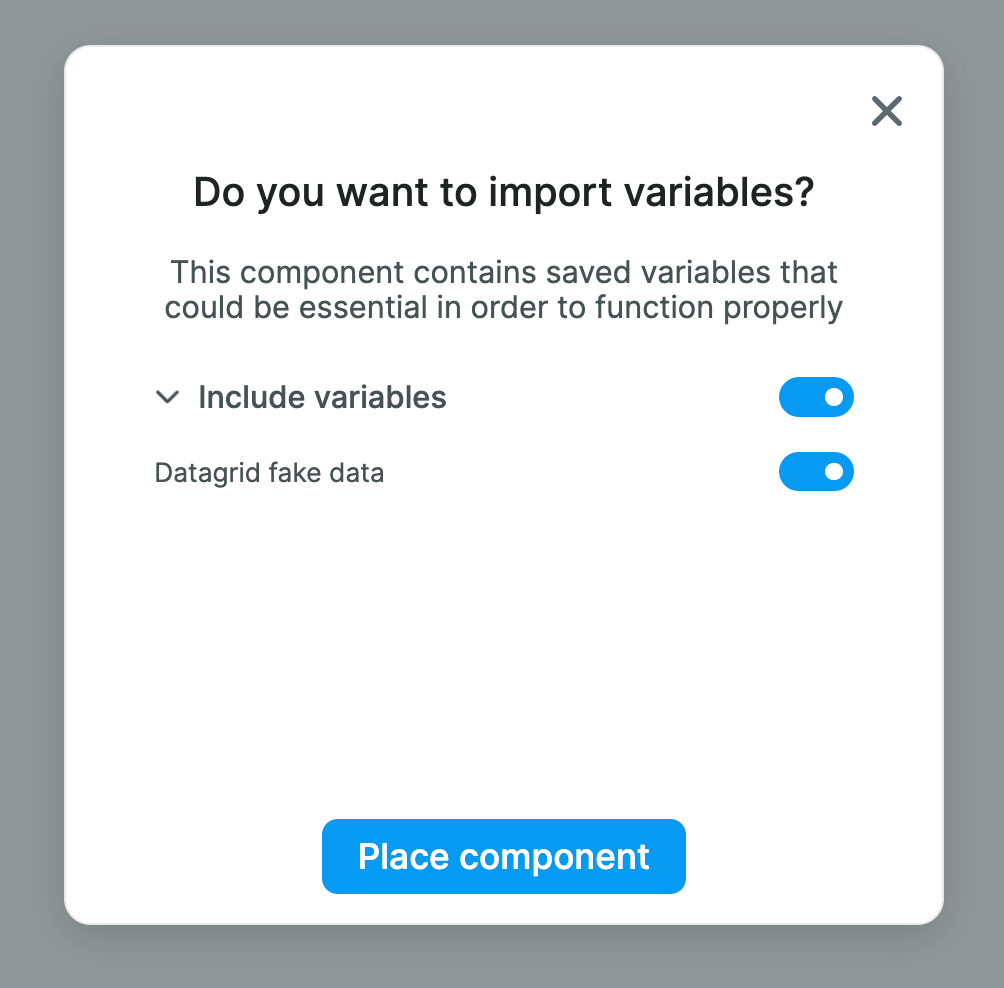
You don't have to but, if you do, the Element will come with a ready-made Variable that contains fake data:
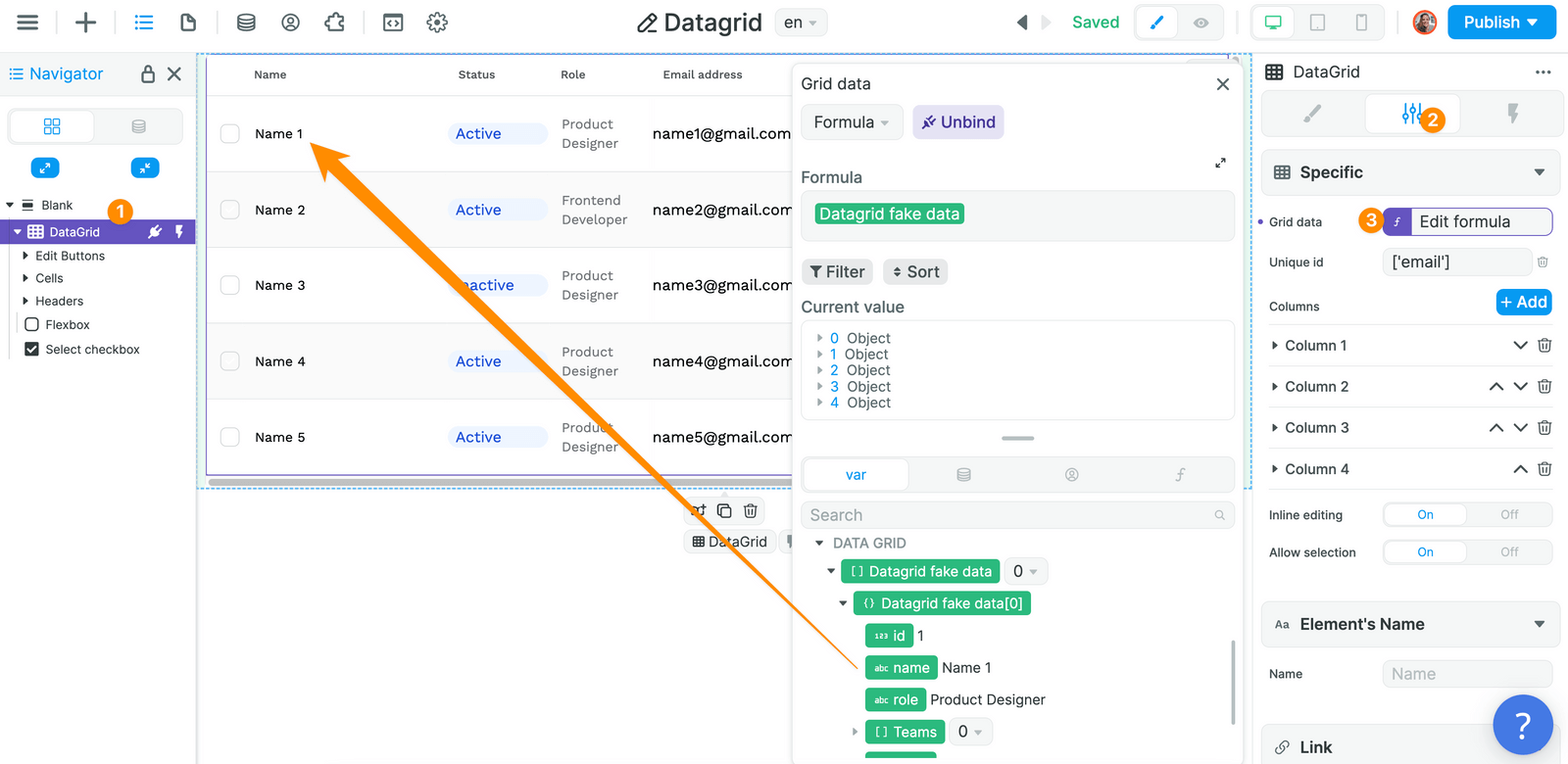
We did this to help you understand what kind of data the Element expects – in this case, a list of items – and how it works.
But let's have a look at how you can display your own data in the Data Grid.
Display Data in the Data Grid Element
To display real data in a Data Grid, we recommend using a table view from the Tables subtab in Data & API:
- Create a view on your table (with filters/sorting if needed).
- In
Interface, fetch that view in a workflow usingTable View: Fetch. - Bind the workflow result (the list of rows) to the Data Grid.
In the example below, we replaced the fake data with real rows:
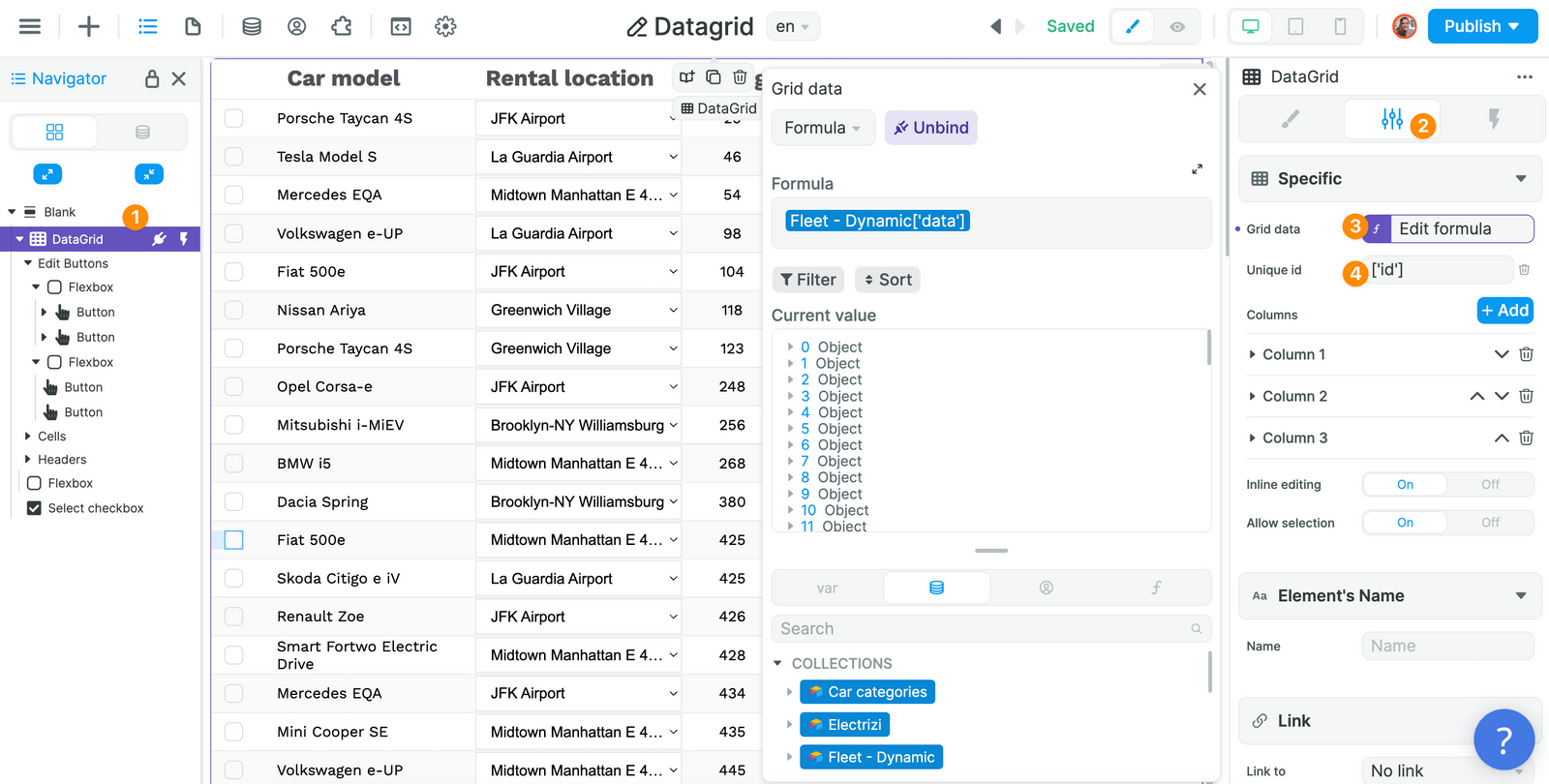
To ensure the Data Grid can identify which row is which, map the Unique id property to the row ID field (for example id from your table view result).
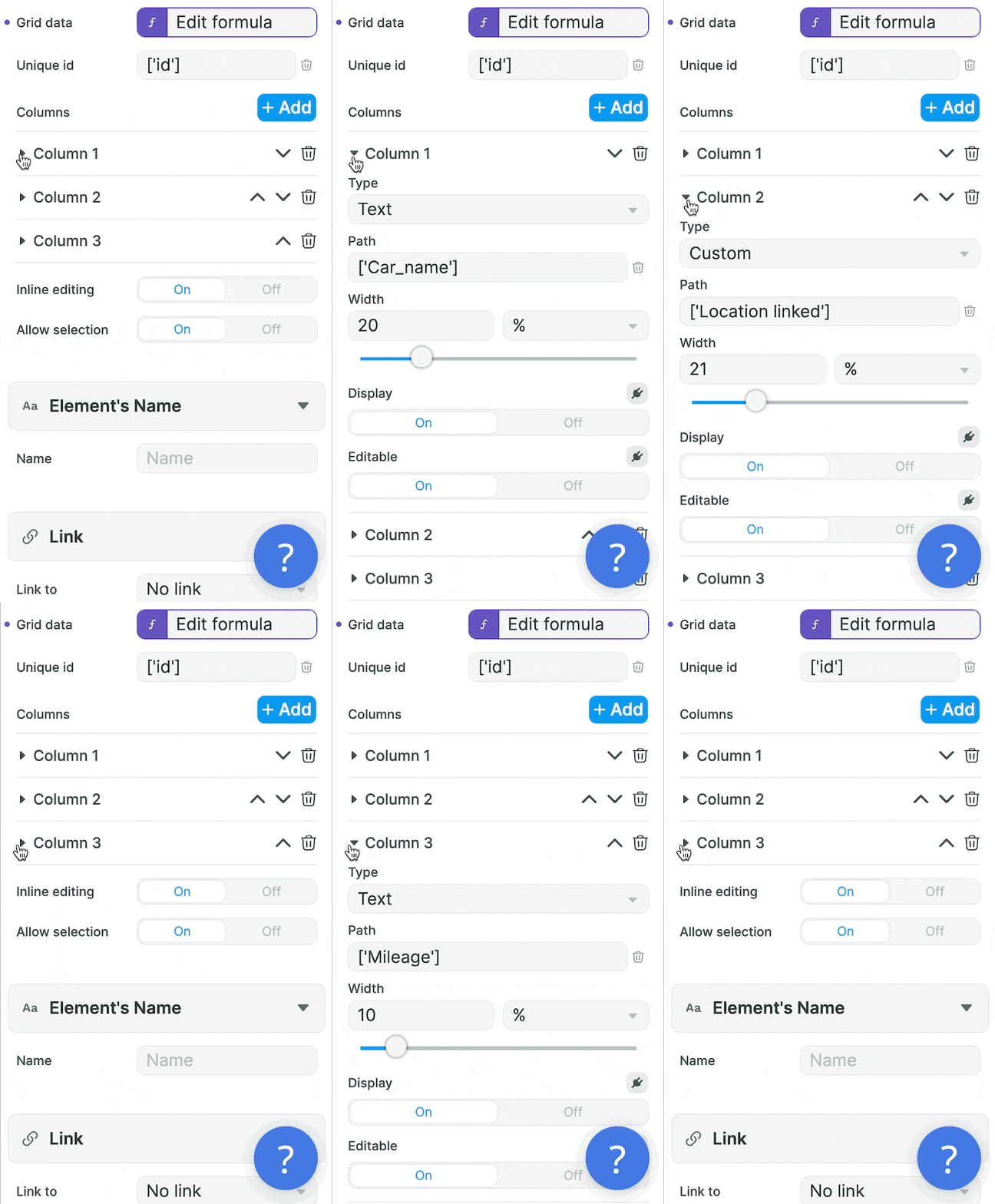
Then, we mapped each column in the Data Grid to a field in our database:
🚨 Warning 🚨
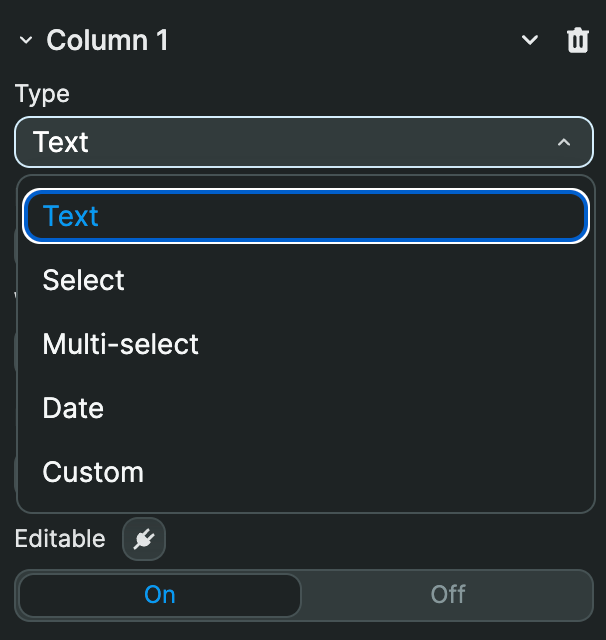
Inline editing is only available for field types that are built in the data grid. You can display other Elements using the
Customtype but users won't be able to update the values of these fields.
Let Users Edit or Delete a Record
If you want to edit or delete a record in your database, you'll need to enable the Inline editing option in the Data Grid:
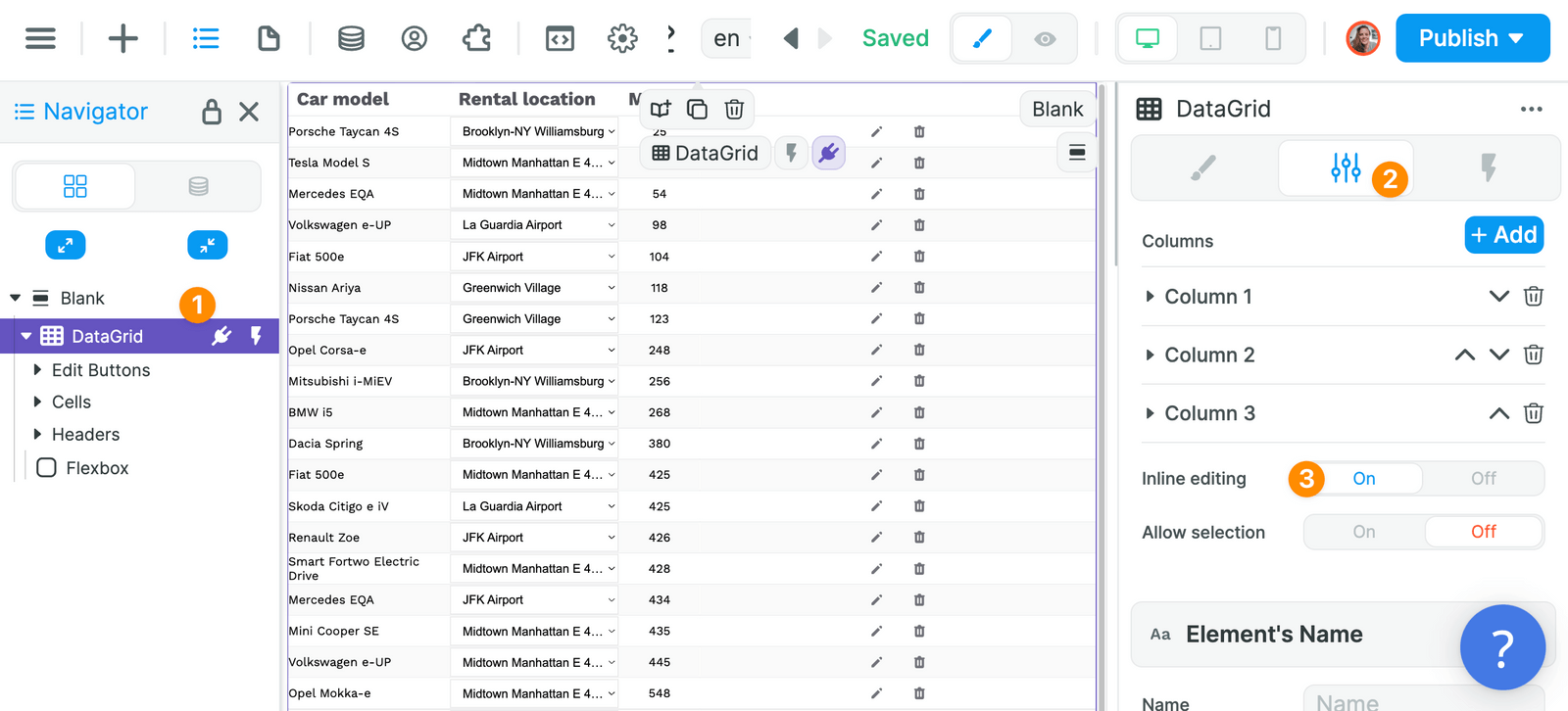
This will display the column with the little pencil (to edit) and bin (to delete) records.
When the user clicks on one of these icons, it will trigger the corresponding Workflow:
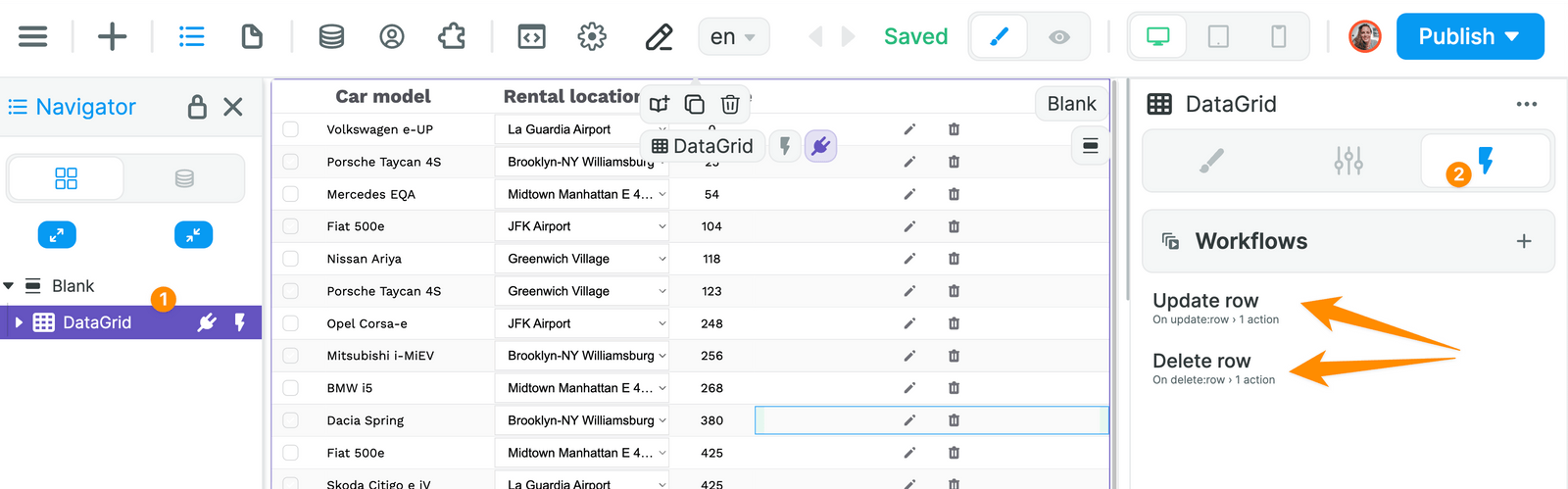
Note that the two triggers are:
- On update row, and
- On delete row.
If you delete them by mistake, you can recreate them using these triggers.
To update (or delete) a record, the first thing you'll need to do is tell your database what is the unique id of the item you selected:
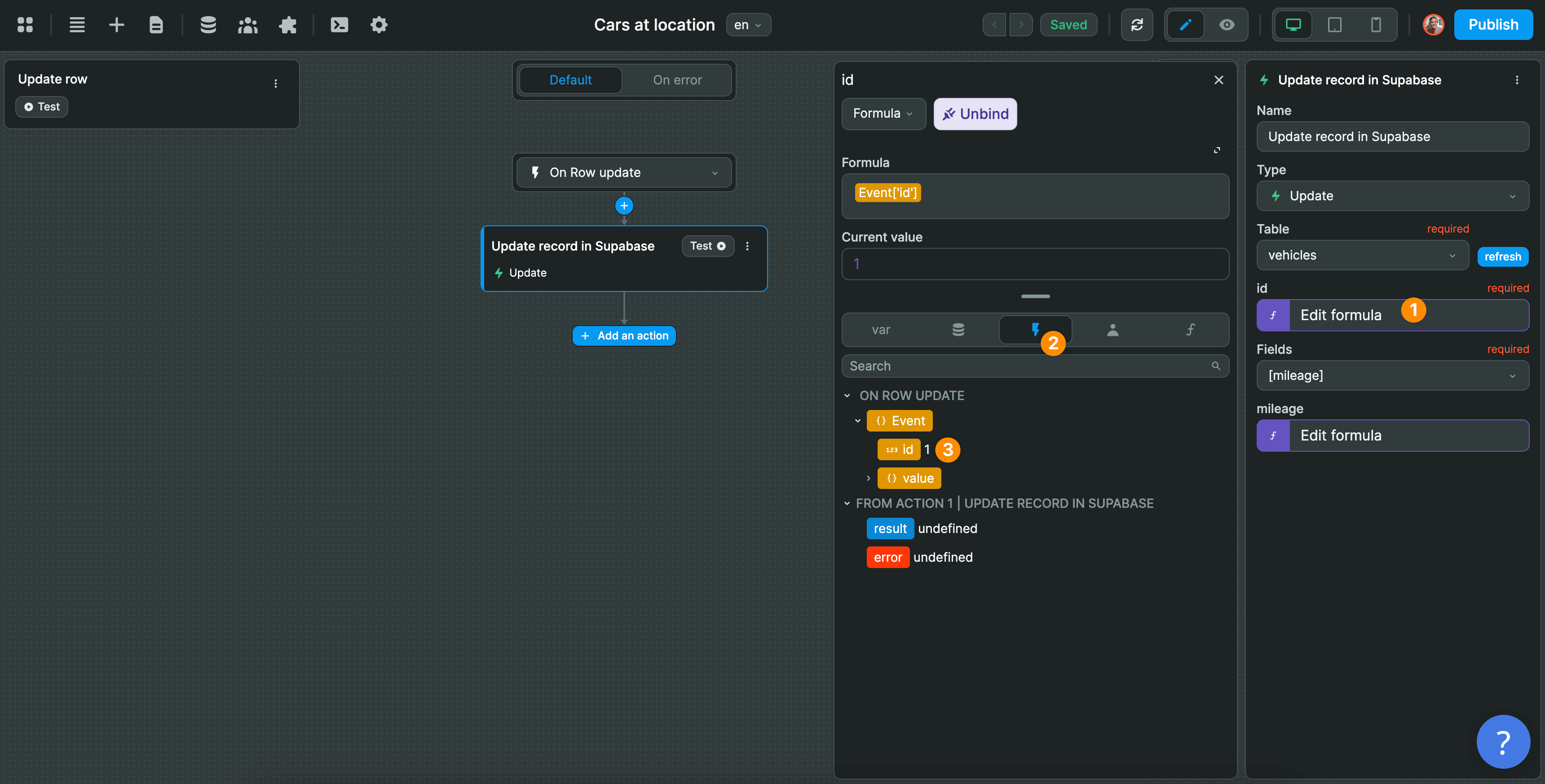
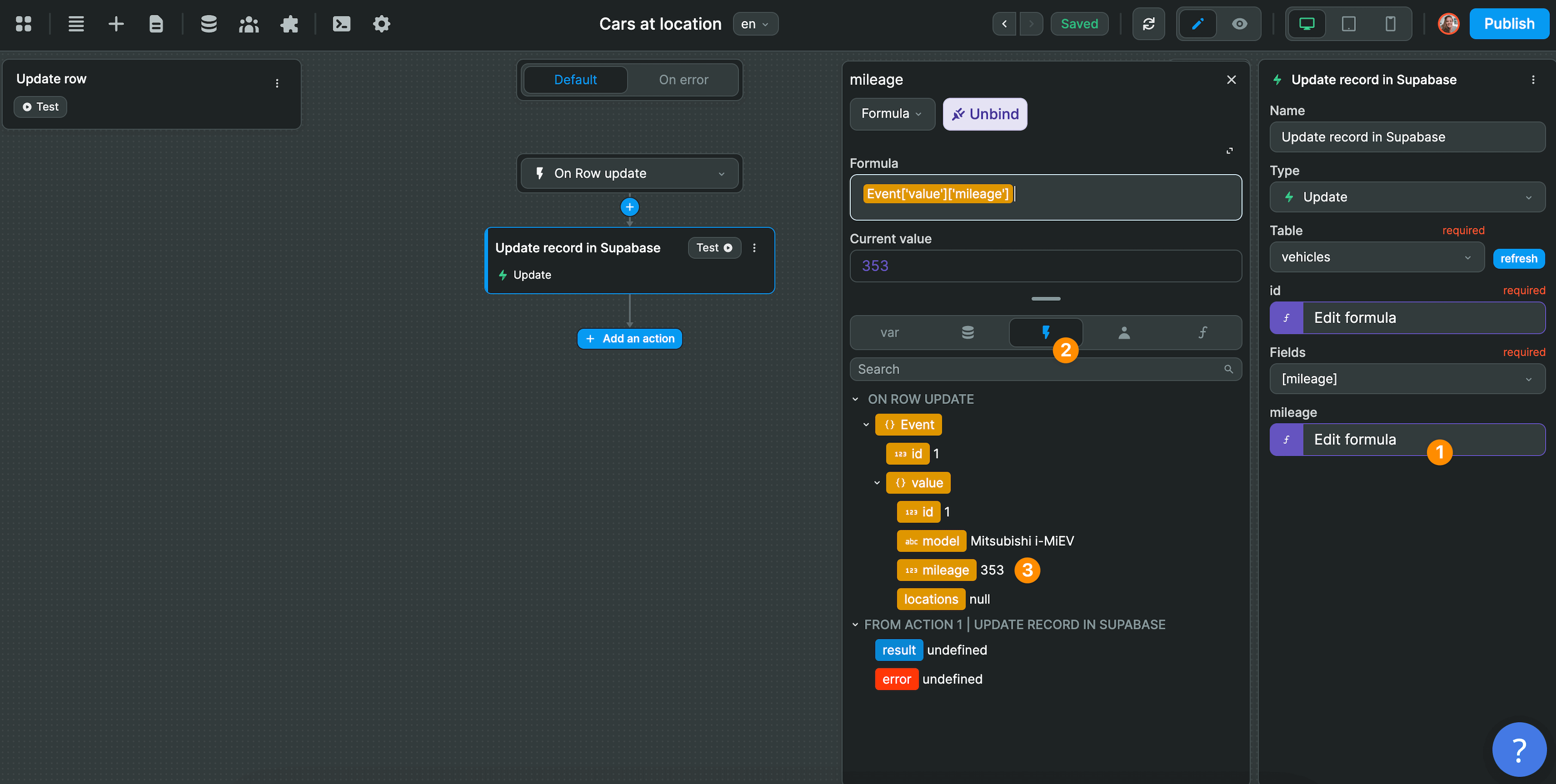
Then, you can update the fields you want in your database.
In the example below, we are updating our record with the value we have for the mileage field in our Data Grid:
TIP
With the "Allow selection" option enabled, you can let users select and delete multiple items at the same time. You'll find a step-by-step walkthrough on how to set this up at the end of the video above (hint: it requires a workflow with a for loop on the "Selected Rows" variable).