

Appearance
Understanding HTML, CSS, and JavaScript
When you visit a website, your browser downloads and processes three core technologies that work together to create the experience you see on screen: HTML, CSS, and JavaScript. Understanding these three technologies is essential for anyone building web applications, even when using a no-code tool like WeWeb.
How your browser loads a website
Before diving into HTML, CSS, and JavaScript, let's understand the journey from clicking a link to seeing a website on your screen:
DNS lookup: when you enter a URL, your browser first consults the Domain Name System (DNS) - essentially a phonebook for websites - to find the IP address of the server hosting the website.
Server connection: once your browser has the IP address, it connects to the server and requests the website's content.
Content delivery: the server responds by sending the necessary files (HTML, CSS, JavaScript, images, etc.) to your browser. This process is often optimized by Content Delivery Networks (CDNs).
Rendering: your browser processes these files in a specific order to render the webpage:
- First, it parses the HTML to build the Document Object Model (DOM)
- Then, it applies CSS styles to create the visual appearance
- Finally, it executes JavaScript to add interactivity
TIP
WeWeb automatically deploys your projects to a CDN when you publish, ensuring fast loading times for users around the world. This means your content is stored on servers in multiple locations globally, so users can access it from the server closest to them.
HTML: the structure
HTML (HyperText Markup Language) forms the foundation of every webpage. It defines the structure and content of the page using elements enclosed in tags.
What HTML does
HTML tells the browser what should be on the page. It creates the basic building blocks of a webpage, such as:
- Headings
- Paragraphs
- Images
- Links
- Forms
- Lists
- Tables
Basic HTML structure
A basic HTML document looks like this:
html
<!DOCTYPE html>
<html>
  <head>
    <title>My First Webpage</title>
  </head>
  <body>
    <h1>Welcome to My Website</h1>
    <p>This is a paragraph of text.</p>
    <img src="image.jpg" alt="An example image">
    <a href="https://example.com">Click here to visit Example.com</a>
  </body>
</html>
Each element serves a specific purpose:
<!DOCTYPE html>Declares the document type<html>Contains the entire webpage<head>Contains meta-information about the page<title>Sets the page title (shown in browser tabs)<body>Contains the visible content<h1>Creates a main heading<p>Creates a paragraph<img>Inserts an image<a>Creates a link
HTML elements and attributes
HTML elements can have attributes that provide additional information:
html
<div class="container" id="main-content">
  <p>This is an <strong>important</strong> message.</p>
</div>
In this example:
class="container"Andid="main-content"are attributes of the<div>element- The
<strong>element makes text bold and indicates importance
CSS: the style
CSS (Cascading Style Sheets) controls the presentation and layout of HTML elements. It determines how your webpage looks.
What CSS does
CSS tells the browser how the page should look. It controls:
- Colors
- Fonts
- Spacing
- Layout
- Animations
- Responsive design (how pages adapt to different screen sizes)
CSS syntax
CSS consists of selectors (which target HTML elements) and declarations (which specify how those elements should look):
css
/* Basic syntax */
selector {
  property: value;
}

/* Simple example */
h1 {
  color: blue;         /* Text color */
  font-size: 24px;     /* Text size */
  text-align: center;  /* Alignment */
}

.highlight {
  background-color: yellow;
  font-weight: bold;
}
In this example:
h1Targets all first-level headingscolor: blue;Makes the text blue.highlightTargets any element withclass="highlight"
CSS can be included directly in HTML files or in separate .css files that are linked to your HTML document.
JavaScript: the behavior
JavaScript brings interactivity to webpages. It allows the page to respond to user actions and change dynamically.
What JavaScript does
JavaScript tells the browser how users should be able to interact with the page. It enables:
- User interactions (clicks, form submissions, etc.)
- Dynamic content updates without reloading the page
- Animations and transitions
- Form validation
- API calls to fetch data from servers
- Storage of information in the browser
Basic JavaScript example
Here's a simple JavaScript example that shows an alert when a button is clicked:
html
<button id="myButton">Click Me</button>

<script>
  // Get a reference to the button element
  const button = document.getElementById('myButton');

  // Add an event listener for the click event
  button.addEventListener('click', function() {
    // Show an alert when the button is clicked
    alert('Button was clicked!');
  });
</script>
How they work together
Let's see how HTML, CSS, and JavaScript combine to create a simple interactive element:
1. HTML provides structure
html
<!DOCTYPE html>
<html>
<head>
  <title>Simple Example</title>
</head>
<body>
  <h1>Welcome to My Website</h1>
  <p>Click the button below:</p>
  <button id="colorButton">Change Color</button>
</body>
</html>
2. CSS adds style
css
body {
  font-family: Arial, sans-serif;
  text-align: center;
  margin-top: 50px;
}

button {
  background-color: blue;
  color: white;
  padding: 10px 20px;
  border: none;
  border-radius: 5px;
  cursor: pointer;
}
3. JavaScript adds interactivity
javascript
document.getElementById('colorButton').addEventListener('click', function() {
  // When button is clicked, change its background color to red
  this.style.backgroundColor = 'red';
});
In this simple example:
- HTML creates a heading, paragraph, and button
- CSS styles the text and button to make them visually appealing
- JavaScript adds the behavior that changes the button's color when clicked
This demonstrates the core principle of modern web development - separation of concerns:
- HTML for content and structure
- CSS for presentation
- JavaScript for behavior and interactivity
Working with HTML, CSS, and JavaScript in WeWeb
WeWeb provides a visual abstraction of these core web technologies, but understanding HTML, CSS, and JavaScript helps you work more effectively within the platform. In fact, the WeWeb editor's key panels directly map to these three technologies:
Add Element → HTML
The Add Element in WeWeb is where you build the structure of your application. When you drag and drop elements from this panel, you're essentially creating HTML elements behind the scenes:
- Dragging a Text element adds a
<p>or heading tag to your page - Adding an Image element generates an
<img>tag - Creating a Form adds
<form>and related input tags
Each element you add through this panel becomes part of your page's HTML structure, though you never have to write the raw HTML code.
Styling panel → CSS
The Styling panel in WeWeb provides an intuitive interface for styling your elements - the exact same properties you would control with CSS:
When you adjust properties like:
- Font size, color, and weight
- Padding and margins
- Background colors and images
- Border radius and shadows
You're actually modifying CSS properties applied to your elements. WeWeb translates your visual styling choices into clean, efficient CSS code.
Workflows → JavaScript
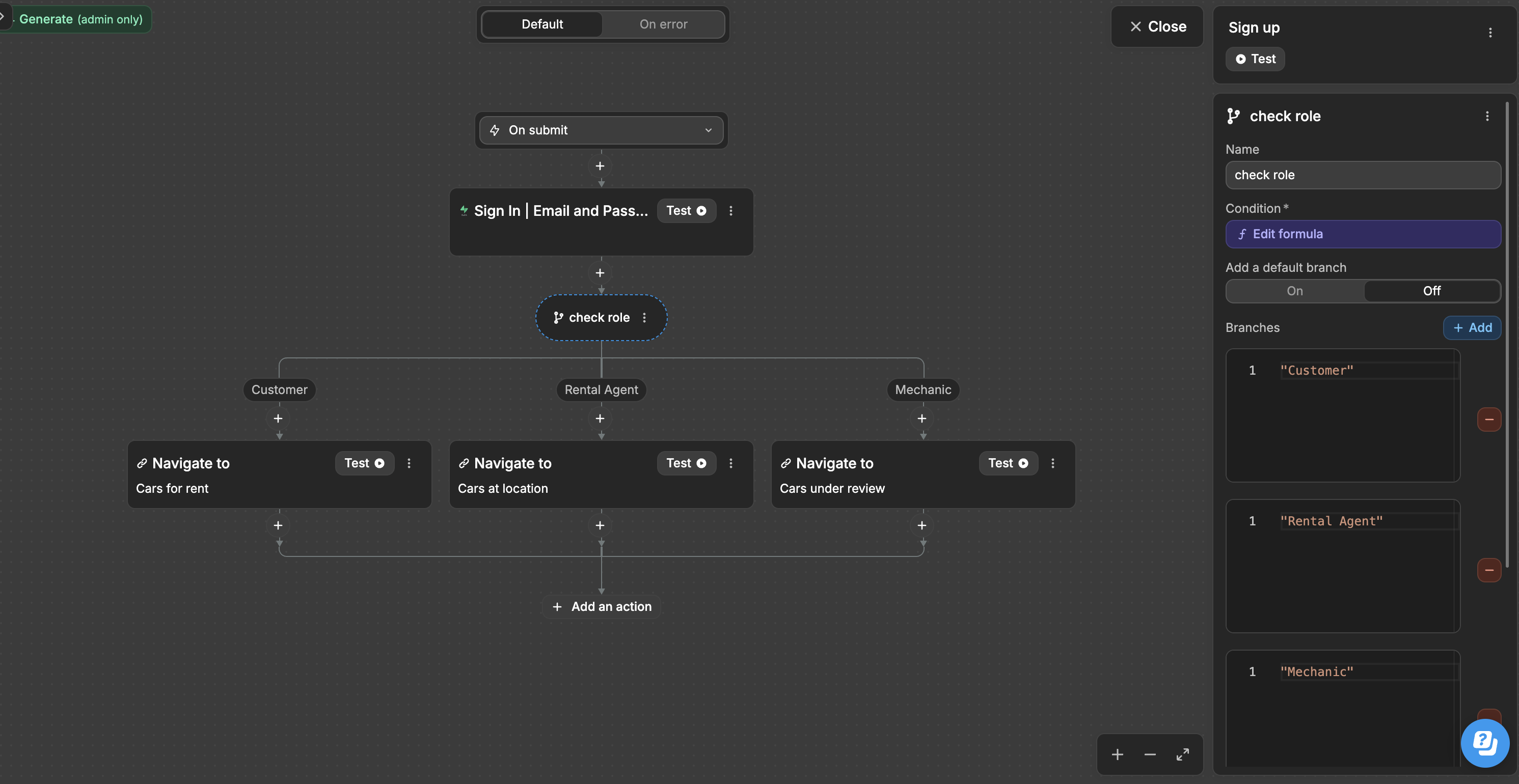
Workflows in WeWeb allow you to add interactivity and dynamic behavior to your application, similar to what you would achieve with JavaScript:
When you create a workflow that:
- Responds to a button click
- Validates form input
- Fetches data from an API
- Updates the UI based on user actions
You're defining JavaScript-like behavior without having to write code. WeWeb's workflow system provides a visual way to program the interactive aspects of your application.
Why understanding these technologies matters
Even though WeWeb abstracts away the code, understanding these core technologies helps you:
- Make better design decisions: knowing how CSS works helps you create more efficient styling
- Create logical component structures: understanding HTML hierarchy leads to better-organized applications
- Build powerful workflows: JavaScript knowledge helps you conceptualize more complex interactive behaviors
- Troubleshoot effectively: when something doesn't work as expected, knowledge of these technologies helps you identify and fix the issue
- Extend functionality: when you need custom solutions, you can leverage your understanding to implement custom code components
WeWeb's power comes from its ability to generate clean, efficient HTML, CSS, and JavaScript while providing a visual interface that makes web development accessible to everyone.
Conclusion
HTML, CSS, and JavaScript form the foundation of modern web development. Even when using a no-code platform like WeWeb, understanding these technologies helps you create better, more efficient web applications.
- HTML provides the structure and content
- CSS controls the presentation and layout
- JavaScript adds interactivity and dynamic behavior
These technologies work together to create the rich, interactive web experiences we enjoy today.
CONTINUE LEARNING
Now that you understand the basics of HTML, CSS, and JavaScript, learn how these front-end technologies connect to back-end systems: