

Appearance
Custom scripts
Custom scripts allow you to add custom HTML, CSS, and JavaScript code to your WeWeb application. This is useful for adding analytics tools, chat widgets, custom styling, or any third-party scripts that need to be included on all pages of your application.
WARNING
This is an advanced feature. Incorrect scripts can break your application. Always test thoroughly after adding custom scripts.
Accessing custom scripts
To configure custom scripts:
- Open the
Settingstab in the top bar and clickInterface Settings - Under the
Advancedsection, clickCustom scripts
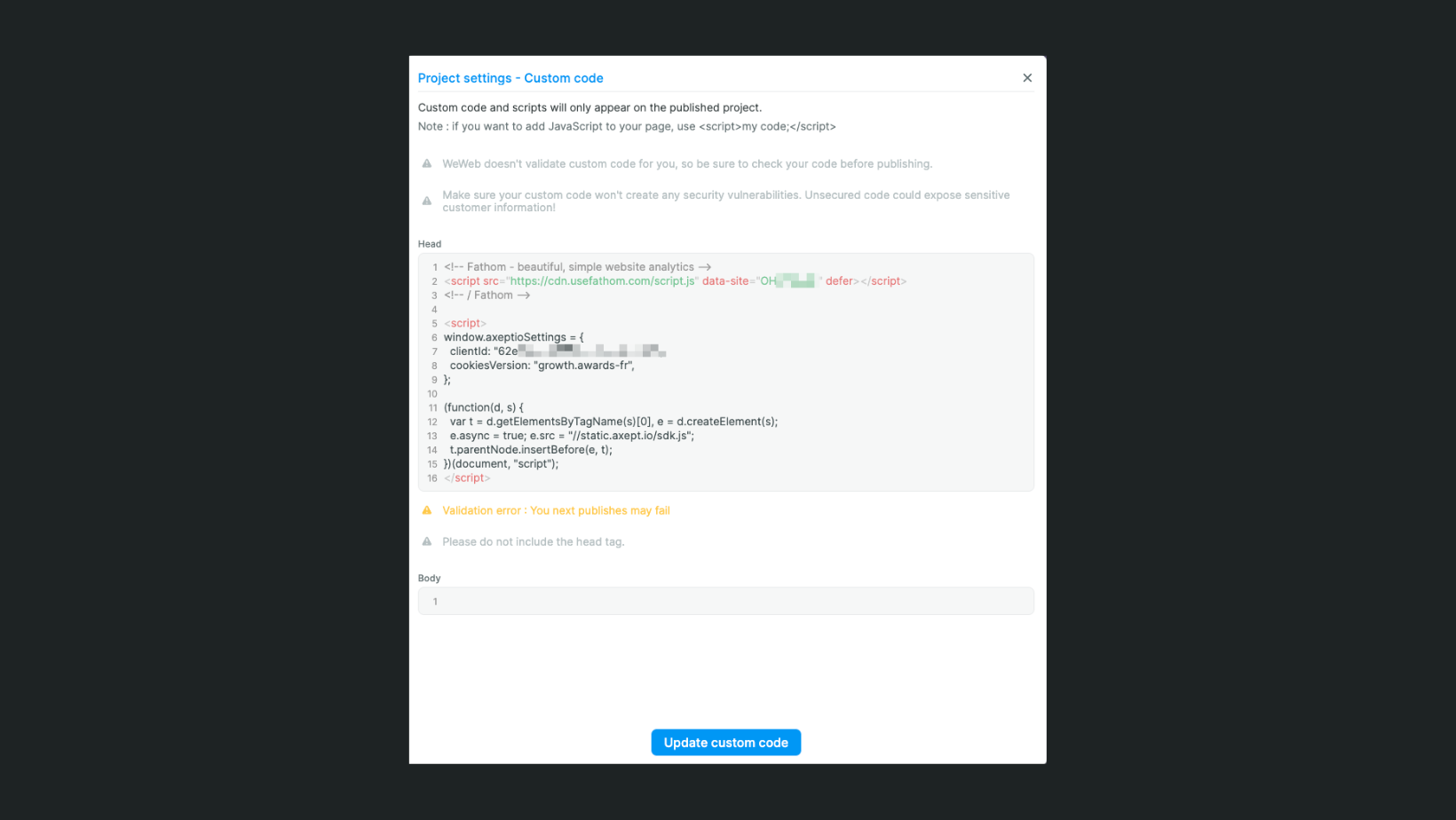
This opens the custom scripts configuration modal.
Why use custom scripts
Custom scripts are useful for:
- Analytics tracking — Google Analytics, Mixpanel, Segment, etc.
- Chat widgets — Intercom, Drift, Crisp, etc.
- Cookie consent — Axeptio, OneTrust, Cookiebot, etc.
- Tag managers — Google Tag Manager, Tealium, etc.
- Custom styling — Global CSS that applies to all pages
- Third-party integrations — Any script-based integration
- Marketing pixels — Facebook Pixel, LinkedIn Insight Tag, etc.
Script locations
You can add custom scripts in two locations:
Head scripts
Scripts added to the <head> section of your pages are loaded before the rest of the page content.
Use head scripts for:
- Critical CSS that prevents layout shifts
- Scripts that must run before page render
- Meta tags and analytics that need early initialization
- Font loading scripts
Body scripts
Scripts added before the closing </body> tag are loaded after the page content.
Use body scripts for:
- Non-critical scripts
- Chat widgets and popups
- Analytics that don't need immediate execution
- Heavy scripts that might slow down initial page load
WARNING
Custom scripts will only be applied in the live, published version of your application. They will not be applied in the editor.
Adding custom scripts
To add a custom script:
- Open Custom scripts settings
- Choose either Head or Body location
- Paste your code in the appropriate text area
- Save your changes
WARNING
When adding custom code, do not include <html>, <head>, or <body> tags. WeWeb handles these tags automatically.
Script types
Analytics scripts
Google Analytics example:
html
<script async src="https://www.googletagmanager.com/gtag/js?id=G-XXXXXXXXXX"></script>
<script>
  window.dataLayer = window.dataLayer || [];
  function gtag(){dataLayer.push(arguments);}
  gtag('js', new Date());
  gtag('config', 'G-XXXXXXXXXX');
</script>
Location: Head or Body (head for earlier tracking)
Chat widgets
Intercom example:
html
<script>
  window.intercomSettings = {
    api_base: "https://api-iam.intercom.io",
    app_id: "YOUR_APP_ID"
  };
</script>
<script>
(function(){var w=window;var ic=w.Intercom;if(typeof ic==="function"){ic('reattach_activator');ic('update',w.intercomSettings);}else{var d=document;var i=function(){i.c(arguments);};i.q=[];i.c=function(args){i.q.push(args);};w.Intercom=i;var l=function(){var s=d.createElement('script');s.type='text/javascript';s.async=true;s.src='https://widget.intercom.io/widget/YOUR_APP_ID';var x=d.getElementsByTagName('script')[0];x.parentNode.insertBefore(s, x);};if(document.readyState==='complete'){l();}else if(w.attachEvent){w.attachEvent('onload',l);}else{w.addEventListener('load',l,false);}}})();
</script>
Location: Body (non-critical widget)
Custom CSS
Example:
html
<style>
  /* Global custom styles */
  body {
    font-smoothing: antialiased;
    -webkit-font-smoothing: antialiased;
  }

  .custom-class {
    /* Your custom styles */
  }
</style>
Location: Head (for critical styles) or Body (for non-critical styles)
Best practices
Script placement
- Head — Only critical scripts that must load early
- Body — Everything else to improve initial page load speed
Troubleshooting
Script not loading
If a script isn't loading:
- Check the browser console for errors
- Verify the script URL is correct
- Check for syntax errors in your code
- Ensure there are no closing tags in the wrong place
Removing custom scripts
To remove custom scripts:
- Open Custom scripts settings
- Find the script you want to remove
- Delete the code
- Save your changes
- Republish your application