

Appearance
App languages
App languages allow you to build multilingual applications in WeWeb. You can add multiple languages and define which one should be the default for your users.
Accessing app languages
To configure app languages:
- Open the
Settingstab in the top bar and clickInterface Settings - Click
App languages
This opens the languages configuration modal.
Adding a new language
To add a new language to your app:
- Click the
Add languagebutton - Select the language from the list
- Configure the language settings
- Save your changes
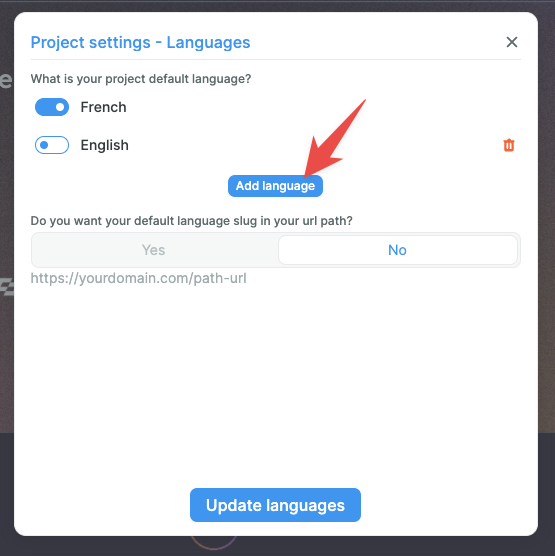
Once added, you'll be able to provide translations for all text content in your application for that language.
Default language
The default language is the fallback language that will be displayed if a user's browser language doesn't match any of your configured app languages.
To set a language as default:
- Find the language in your languages list
- Toggle the default setting for that language
- Only one language can be set as default at a time
For example, if your app supports English and French, and English is set as default:
- Users with English browsers will see English
- Users with French browsers will see French
- Users with any other browser language will see English (the default)
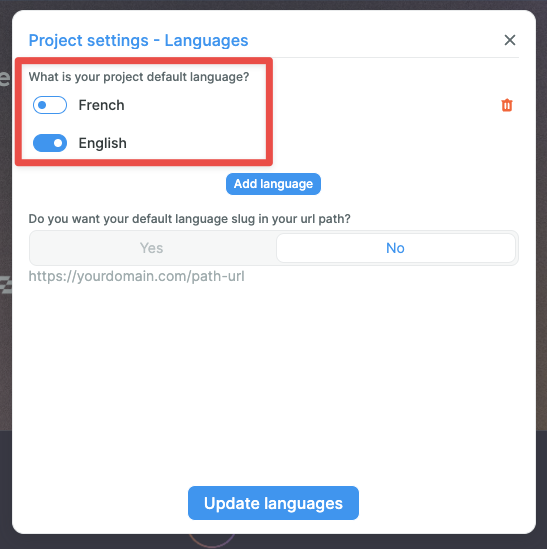
In this example, if a user's browser isn't set to either English or French, the app will revert to English.
Language in URL paths
By default, WeWeb creates URLs like this: https://{yourdomain}/{page-path}
To navigate between languages, the language code (e.g., fr, en, es) is added before the path: https://{yourdomain}/{lang}/{page-path}
You can choose whether to include the language code in URLs for the default language:
Exclude default language from URL — Your default language URLs will not include the language code
- Example:
https://{yourdomain}/about(default language) - Example:
https://{yourdomain}/fr/about(French)
- Example:
Include default language in URL — All URLs will include the language code, including the default
- Example:
https://{yourdomain}/en/about(English default) - Example:
https://{yourdomain}/fr/about(French)
- Example:
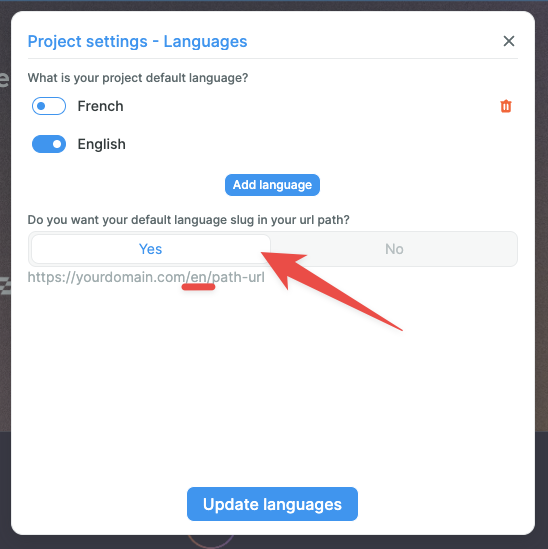
By setting this option to Yes, the language code will also appear in the URLs for the default language.
Translating content
After adding languages to your project, you can provide translations for:
- Text elements — Each text element can have different content for each language
- Page metadata — Titles, descriptions, and other SEO metadata per language
- Dynamic content — Use language-specific values in variables and table views
TIP
When you switch languages in the editor (using the language selector in the top bar), you can edit the content specific to that language.
Managing languages
Enabling languages on pages
You can choose which languages are available on specific pages:
- Open the page settings
- Navigate to the languages section
- Toggle which languages should be available for that page
This is useful when certain pages don't need translations or aren't ready in all languages yet.
Removing a language
To remove a language from your app:
- Open the app languages settings
- Find the language you want to remove
- Click the remove/delete option
- Confirm the removal
WARNING
Removing a language will delete all translations for that language. This action cannot be undone.
Best practices
Language codes
WeWeb uses standard language codes (ISO 639-1):
enFor EnglishfrFor FrenchesFor SpanishdeFor German- And so on
SEO considerations
For better SEO with multilingual content:
- Use separate URLs for each language (WeWeb handles this automatically)
- Ensure each language version has proper metadata
- Consider the default language setting based on your primary audience
- Use the language code in URLs for clarity
Content strategy
When building multilingual apps:
- Start with your primary language and complete the content
- Add other languages incrementally
- Keep translations consistent across pages
- Test each language version thoroughly
- Consider using professional translation services for important content
Browser language detection
WeWeb automatically detects the user's browser language and displays the appropriate version of your app if that language is available. If not, it falls back to the default language.
The detection works by:
- Checking the user's browser language preference
- Matching it against your available app languages
- Displaying that language version if available
- Falling back to the default language if not available
Users can typically change languages using a language selector you add to your application interface.