

Appearance
URL Parameters Panel
The URL Parameters panel in the canvas header lets you configure and test path and query parameters for your pages without leaving the canvas. This panel provides a quick way to set up dynamic URLs and preview how your page will look with different parameter values while you're building.
Understanding URLs
Before configuring parameters in the URL Parameters panel, it's helpful to understand how URLs work in WeWeb and the two types of parameters you can use.
URL Structure
A complete URL in WeWeb can contain both path parameters and query parameters:
https://yourdomain.com/marketplace/{{category|all}}?sort=price_asc&inStock=trueBreaking this down:
yourdomain.com— Your domain (your website's main address)/marketplace/— Static path segment{{category|all}}— Path parameters (dynamic segments in the URL path)?sort=price_asc&inStock=true— Query parameters (optional parameters after the?)
Simple URLs
When you create a page in WeWeb, it automatically gets a simple URL. These URLs are straightforward and static, meaning they don't change.
For example, in the URL https://yourdomain.com/products:
yourdomain.comIs your domain/productsIs the path to your specific page
Some examples of simple URLs:
| URL | Description |
|---|---|
/about | Your About page |
/products | Your Products page |
/contact | Your Contact page |
PATH RESTRICTIONS
Path may only contain a-z, 0-9, _, - and /, and can only start and end with a-z or 0-9.
Dynamic URLs with Path Parameters
Sometimes you need URLs that can change based on what content you're showing. Path parameters let you create dynamic segments within your URL path.
For example:
- Template:
products/category/{{param|default}} - Real URL:
products/category/smartphones - Another URL:
products/category/beauty
Path parameters are best for:
- Product detail pages —
/products/{{id|1}} - User profiles —
/users/{{username|guest}} - Blog posts —
/blog/{{category|news}}/{{slug|latest}} - Required content identification — When the parameter defines the primary content of the page
Dynamic URLs with Query Parameters
Query parameters are optional values appended to your URL using ? and & symbols. Unlike path parameters, they don't change the page routing.
For example:
- Base URL:
products - With queries:
products?sort=price_asc&category=electronics&inStock=true
Query parameters are best for:
- Filtering and sorting —
?sort=price_asc&inStock=true - Search terms —
?q=laptop&category=electronics - Pagination —
?page=2&limit=20 - Tracking and analytics —
?ref=homepage&campaign=summer - Authentication flows —
?token=abc123(password resets) - Optional data — Data that changes frequently or isn't required for the page to function
Path Parameters vs Query Parameters
Choose path parameters when:
- The parameter identifies the primary content (product ID, user ID, post slug)
- The parameter is required for the page to function
- The parameter represents a hierarchical structure
Choose query parameters when:
- The parameters are optional (filters, sorting, search)
- Parameters change frequently or dynamically
- You need multiple optional filters (e.g.,
?price=low&color=blue&brand=apple)
You can use both types together for maximum flexibility:
/products/{{category|all}}?sort=price_asc&inStock=true&brand=appleOpening the URL Parameters Panel
To open the URL Parameters panel:
- In the top bar, open the
Interfacetab - Select the page you want to configure from the canvas header
- Click the
URL Parametersbutton in the canvas header (displays the current page path) - The panel will open showing your current URL configuration
SECTIONS ONLY SHOW WHEN NEEDED
If your page does not use path parameters yet, the Path parameters section may be hidden until you add one. The same applies to Query parameters: you’ll only see the list once you add at least one query parameter to test.
The panel displays:
URL: The base path for your pageURL Preview: Shows the complete URL with all parameters appliedPath parameters: Dynamic segments in your URL pathQuery parameters: Optional parameters appended to the URL with?and&
Understanding Path Parameters
Path parameters are dynamic segments within your URL path that change based on the content you're displaying. They're perfect for creating detail pages, category views, or any page that needs to display different content based on the URL.
How Path Parameters Work
Path parameters use the syntax {{parameterName|defaultValue}} directly in your URL path. For example:
| URL Pattern | Example URL | Use Case |
|---|---|---|
products/{{id|123}} | products/456 | Product detail page |
blog/{{category|news}}/{{slug|latest}} | blog/tech/ai-trends | Blog post with category |
users/{{username|guest}} | users/john_doe | User profile page |
Configuring Path Parameters
To add path parameters:
- Open the
URL Parameterspanel from the canvas header - In the
Path parameterssection, click+ Add path parameter - Enter the parameter details:
Name: The parameter identifier (for example,id,username,category)Default value: The value used when previewing in the editor or when no value is provided
- The
URLfield automatically updates with the parameter using{{name|default}}syntax - Use the
Current valuefield to test with different values in the editor (updates the preview URL)
Testing Path Parameters in the Editor
Use the Current value field to test how your page looks with different parameter values:
- Enter a test value in the
Current valuefield - The URL Preview updates to show the complete URL
- Your page content updates if you've bound elements to the path parameter
- Test multiple scenarios by changing the current value
For example, if you're building a product detail page with path products/{{id|123}}:
- Set
Current valueto456to preview how product 456 displays - Set
Current valueto789to preview how product 789 displays - The
URL Previewshowshttps://yourdomain.com/products/456(or789)
Accessing Path Parameters in Your App
Path parameters are automatically available throughout your page.
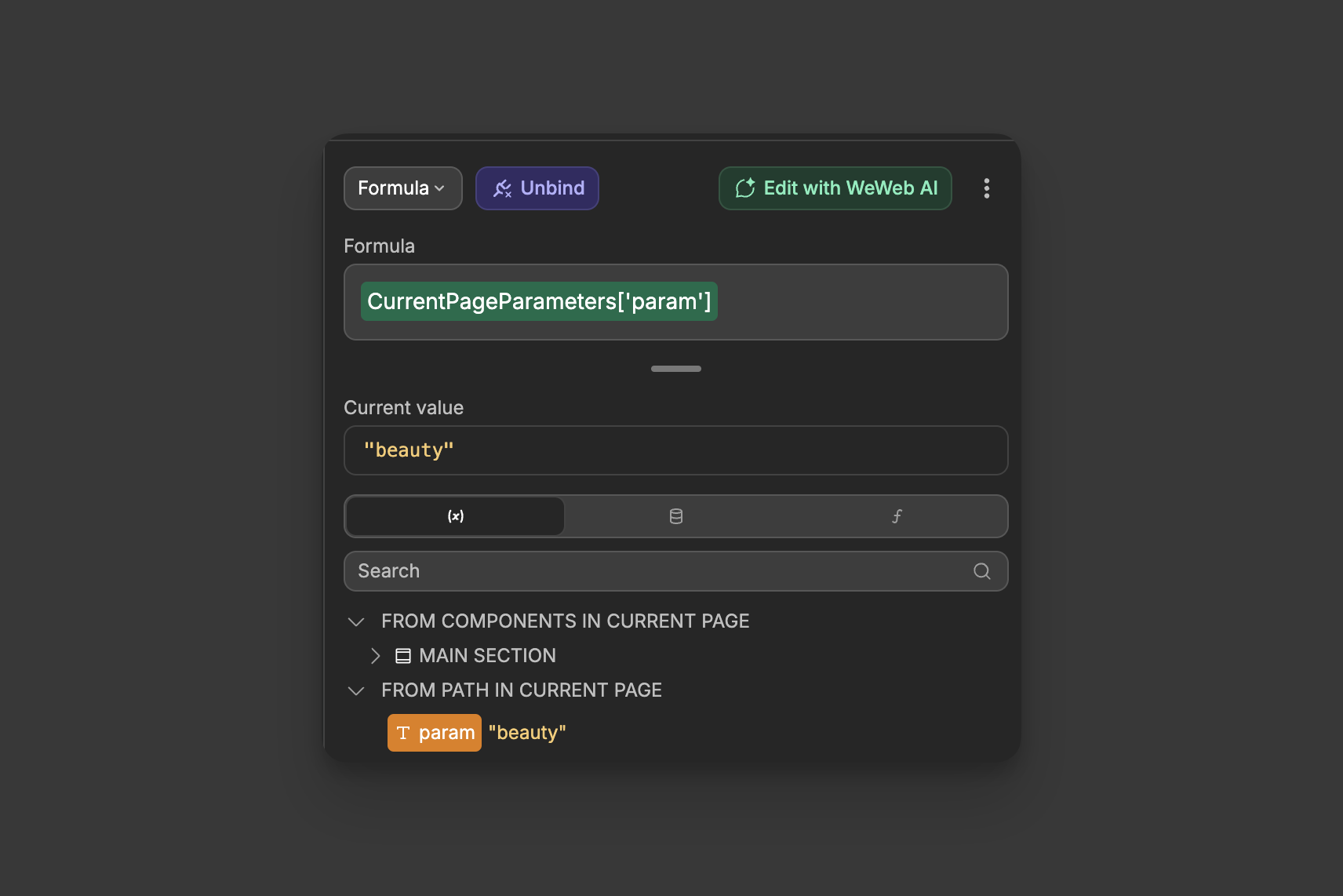
Access them in the binding window: open the Page tab → From path in current page → select your parameter.
Common use cases:
- Fetch specific records — use the path parameter in an API URL or table view filter
- Conditional display — show or hide elements based on a path parameter value
- Filter table views or API endpoints — pass the path parameter into your filter or request
HOME PAGE LIMITATION
You cannot add path parameters to your home page because it's the root / page.
If you need dynamic content on your root URL:
- Create a separate page (for example,
Main) with your path parameters (like{{id|1}}) - Add an
On page loadworkflow to your home page that redirects to theMainpage - Users visiting
yourdomain.comwill be redirected toyourdomain.com/1 - Users can then access
yourdomain.com/2,yourdomain.com/3, etc.
Understanding Query Parameters
Query parameters are optional values appended to your URL using ? and & symbols. Unlike path parameters, they don't change the page routing and are perfect for filtering, sorting, searching, or tracking.
How Query Parameters Work
Query parameters follow this pattern: ?key1=value1&key2=value2
| URL with Query Parameters | Parameters | Use Case |
|---|---|---|
products?sort=price_asc | sort=price_asc | Sort products by price |
search?q=laptop&category=electronics | q=laptop, category=electronics | Search with filters |
reset-password?token=abc123 | token=abc123 | Password reset flow |
products?page=2&limit=20 | page=2, limit=20 | Pagination |
Configuring Query Parameters
To add query parameters:
- Open the
URL Parameterspanel from the canvas header - Scroll to the
Query parameterssection - Click
+ Add query parameter - Enter:
Name: The query parameter key (for example,sort,filter,q)Current value: The test value to use in the editor
The URL Preview automatically updates to show your complete URL with query parameters appended.
Testing Query Parameters in the Editor
Use the URL Parameters panel to test different query parameter combinations:
- Add multiple query parameters by clicking
+ Add query parameter - Enter test values in the
Current valuefields - The
URL Previewshows the complete URL with all parameters (for example,?sort=price_asc&category=electronics) - Test different scenarios by changing values or removing parameters
- Click the
Resetbutton to clear all current test values
Accessing Query Parameters in Your App
Query parameters must be captured using Query variables. Here's how they work:
Creating Query Variables
- In the left panel of the
Interfacetab, open theVariablestab - Click
+ Add variable - Select
Queryas the variable type - Enter the
namethat matches your query parameter (must match exactly, for example,sort,token,category) - Access the variable throughout your app via the data explorer
QUERY VARIABLES ARE THE BRIDGE
Query variables are the bridge between URL query parameters and your app logic. When you create a Query variable named category, it automatically captures the value from ?category=electronics in the URL. This two-way binding means:
- URL → Variable: When the URL changes, the variable updates automatically
- Variable → URL: When you change the variable value in a workflow, the URL updates automatically
VARIABLE NAME MUST MATCH EXACTLY
The Query variable name must match the query parameter name exactly, including case sensitivity:
- Query variable
sortcaptures?sort=price_asc - Query variable
userIDcaptures?userID=123
- Query variable
Sortdoes NOT capture?sort=price_asc - Query variable
userIddoes NOT capture?userID=123
Common Use Cases for Query Variables
Filters and sorting: ?sort=price_asc&inStock=true
- Create Query variables:
sortandinStock - Bind your Table View or API Endpoint filter/sort to these variables
- When users change filters, update the variables with workflows
- The URL updates automatically, making the filtered view shareable
Search terms: ?q=laptop
- Create Query variable:
q - Bind your search input to the
qvariable - Bind your API search request to
qas well - When users type and search, update
qto update the URL
Authentication flows: ?token=abc123 for password resets
- Create Query variable:
token - On page load, read
tokenand call your password reset API - The token comes from the email link users clicked
Tracking and analytics: ?ref=homepage&campaign=summer
- Create Query variables:
refandcampaign - Track where users came from
- Send these values to analytics tools
QUERY PARAMETERS FOR SHAREABLE LINKS
Query parameters are perfect for creating shareable filtered or sorted views of your data. When users apply filters or sorting, update query variables using workflows. The URL updates automatically, and users can share or bookmark the exact view they're seeing.
For example:
- User filters products: URL becomes
products?category=electronics&sort=price_asc - User shares this URL with a colleague
- Colleague opens the URL and sees the same filtered, sorted view
URL Preview
The URL Preview at the top of the panel shows the complete URL that will be generated with your current parameter configuration. This preview updates in real-time as you:
- Modify path parameter current values
- Add or change query parameters
- Update the base URL path
Use the URL Preview to:
- Verify syntax: Ensure your URL is correctly formatted
- Test combinations: See how different parameter combinations create URLs
- Copy for testing: Copy the preview URL to test in a browser or share with team members
The preview shows your domain (for example, https://yourdomain.com/) followed by your page path and all parameters.
Saving and Applying Changes
When you configure parameters in the URL Parameters panel:
Path parameter changes (
URLfield modifications):- Click the
Savebutton to apply changes to your page configuration - The new URL structure is saved to your page settings
- Changes persist across editor sessions
- Click the
Current value changes (testing values):
- Updates apply immediately without clicking Save
- Used for editor preview only
- Reset when you close and reopen the editor
Query parameter configuration:
- Current values are for testing only in the editor
- To persist query parameters in production, you must:
- Create Query variables with matching names
- Use
Navigate toactions orLink toproperties with queries configured - Update query variables with workflows
Resetting Parameter Values
Click the Reset button in the URL Parameters panel to:
- Clear all
Current valuefields for path parameters (reverts to default values) - Remove all test query parameters
- Return the
URL Previewto its base state with default values
This is useful when you want to start fresh with testing or verify how your page looks with default parameter values.
Common Use Cases
Product Detail Page
Create a product page that displays different products based on the URL:
- Create a page called
products - In the
URL Parameterspanel, click+ Add path parameter - Set
Nametoproduct_idandDefault valueto1 - Test with different
Current valueentries (2, 3, 4) to preview different products - Bind your table view or API endpoint using the path parameter from the binding window (
Page→From path in current page) - Navigate to this page with different IDs (for example,
/products/123,/products/456) to show different products
Blog with Category Filtering
Create a blog page that can filter by category using query parameters:
- Create a page called
blog - Create a Query variable named
categoryin theVariablespanel - In the
URL Parameterspanel: Add a query parameter calledcategory,Current value=tech - Bind your blog Table View or API Endpoint filter to the
categoryQuery variable - Add navigation links (for example, "Tech", "News", "Updates") that:
- Use
Navigate toaction - Direct the user to the
blogpage - Set the
categoryquery parameter to the respective value
- Use
- When users click "Tech", the URL becomes
blog?category=techand thecategoryvariable updates automatically, filtering the blog posts
User Profile Pages
Create user profile pages with usernames in the URL:
- Create a page called
users - In the
URL Parameterspanel, add a path parameter calledusernamewith a default value ofguest - Test with different
Current valueentries to preview different profiles - Bind your table view or API endpoint using the
usernamepath parameter - Display user-specific content bound to that data
Search Results with Filters
Create a search page with multiple filter options:
- Create a page called
search - In the
Variablespanel, create the Query variables:q,category, andsort - In the
URL Parameterspanel: Add the query parametersq,category,sortwith test values - Bind your Table View or API Endpoint to these Query variables for filtering and sorting
- When users change filters or search terms, update the Query variables with workflows
- The URL updates automatically (for example,
/search?q=laptop&category=electronics&sort=price_asc)