Appearance
Backups
In the Backups tab of a project, you can see all the different versions of the Editor that you can potentially rollback to.
Backups tab
From your workspace dashboard, you can access a project's backups by going to the project's Settings > Backups:
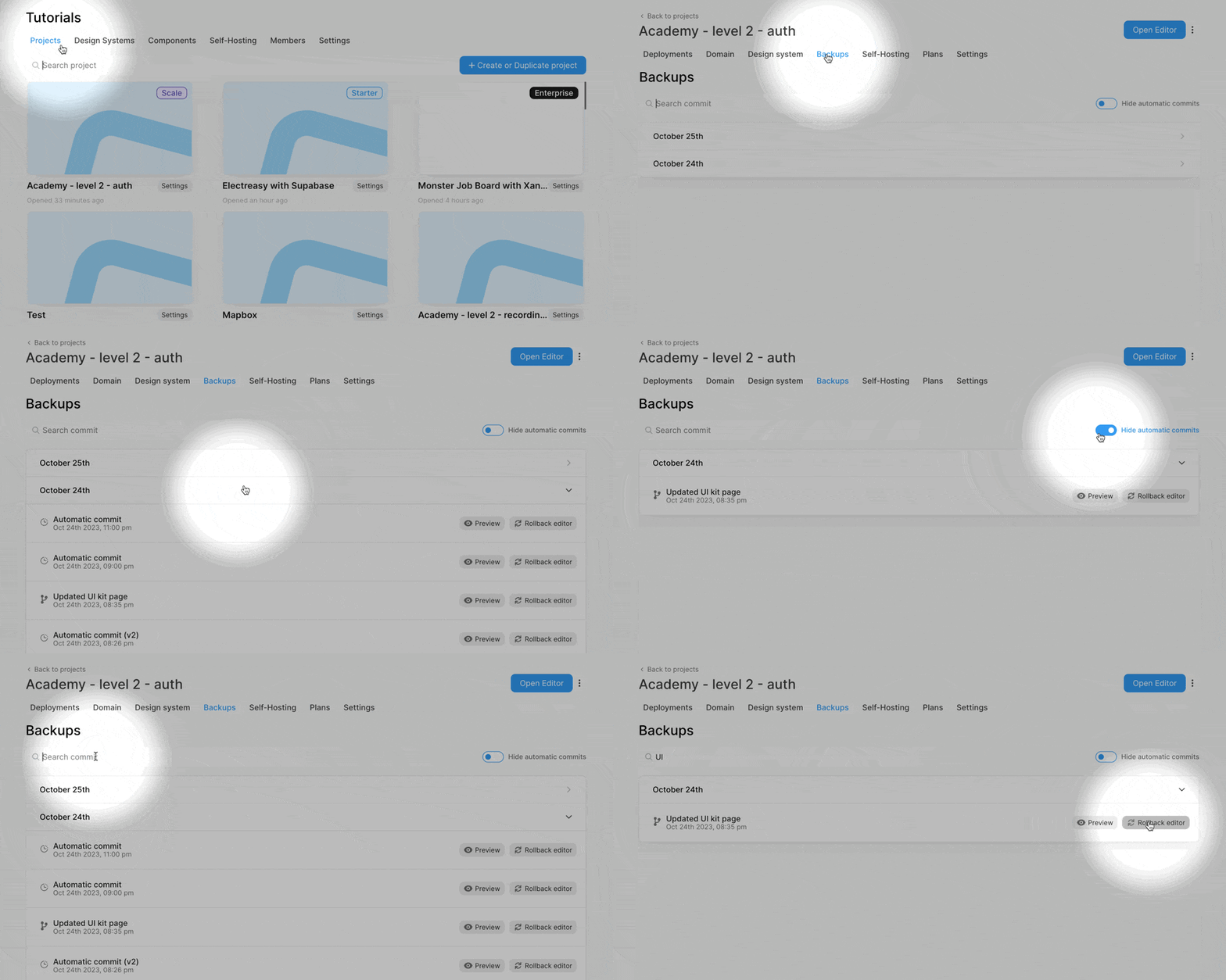
In the example above, you can see:
- We have several backups of the project over two different days
- Many backups are automatic, and
- There is one manual backup with a custom message
- Some backups reference a version in their name
(v1)and(v2)
We can:
- Hide automatic backups,
- Search for a specific backup,
- Preview a specific version of the Editor, and
- Rollback to a specific version of the Editor.
Automatic backups
WeWeb generates automatic backups of your project Editor:
- Once a day if you're on an Essential plan,
- Once an hour if you're on a Pro plan, and
- Every time you publish your app in staging or in production.
TIP
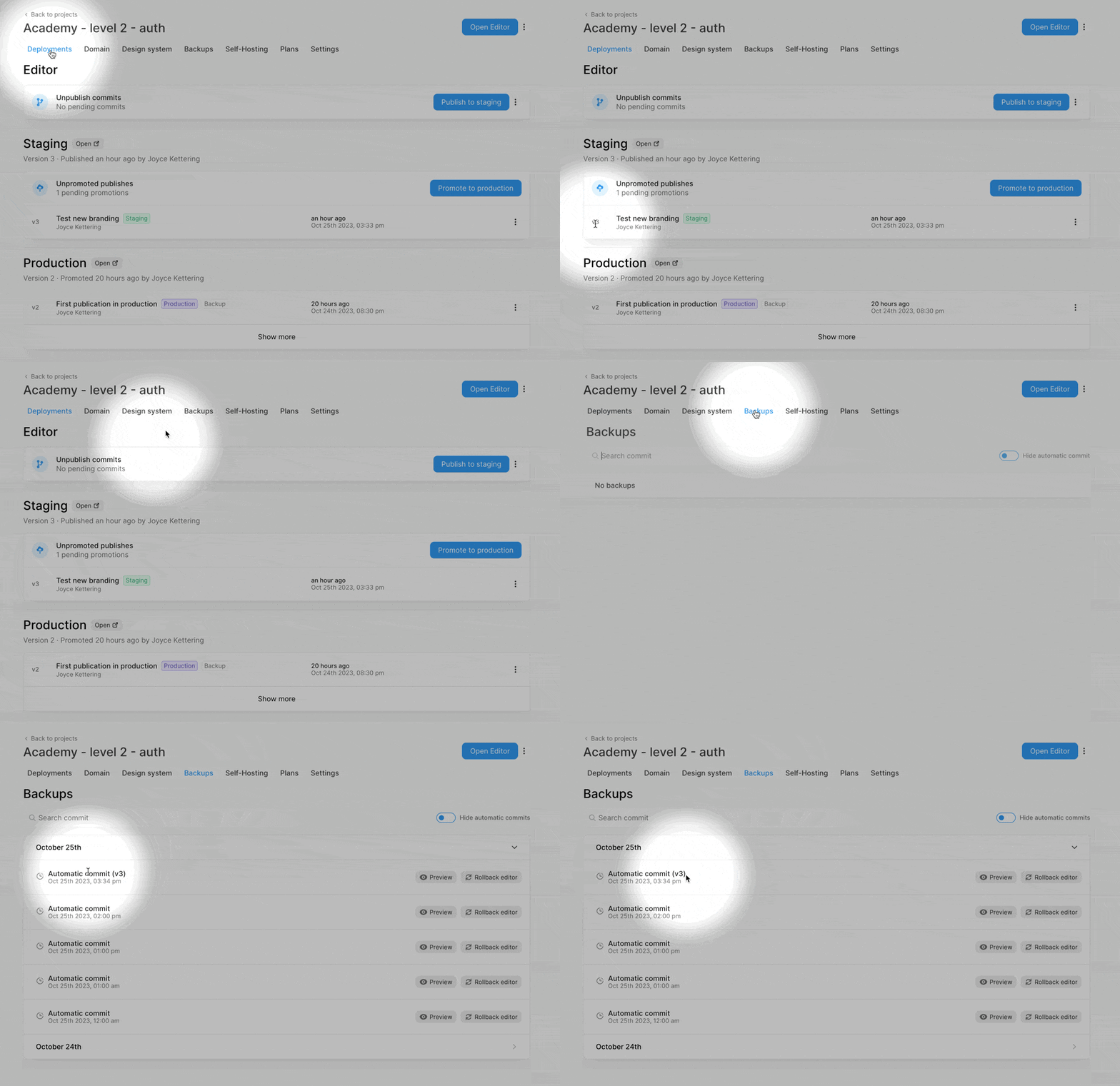
The backups that are linked to a publication will display the publication version in their name.
In the example below, in the Publications tab, you can see we published a v3 of our app in staging. As a result, an automatic backup of the Editor is available in the Backups tab (with the (v3) reference in its name):
Manual backups
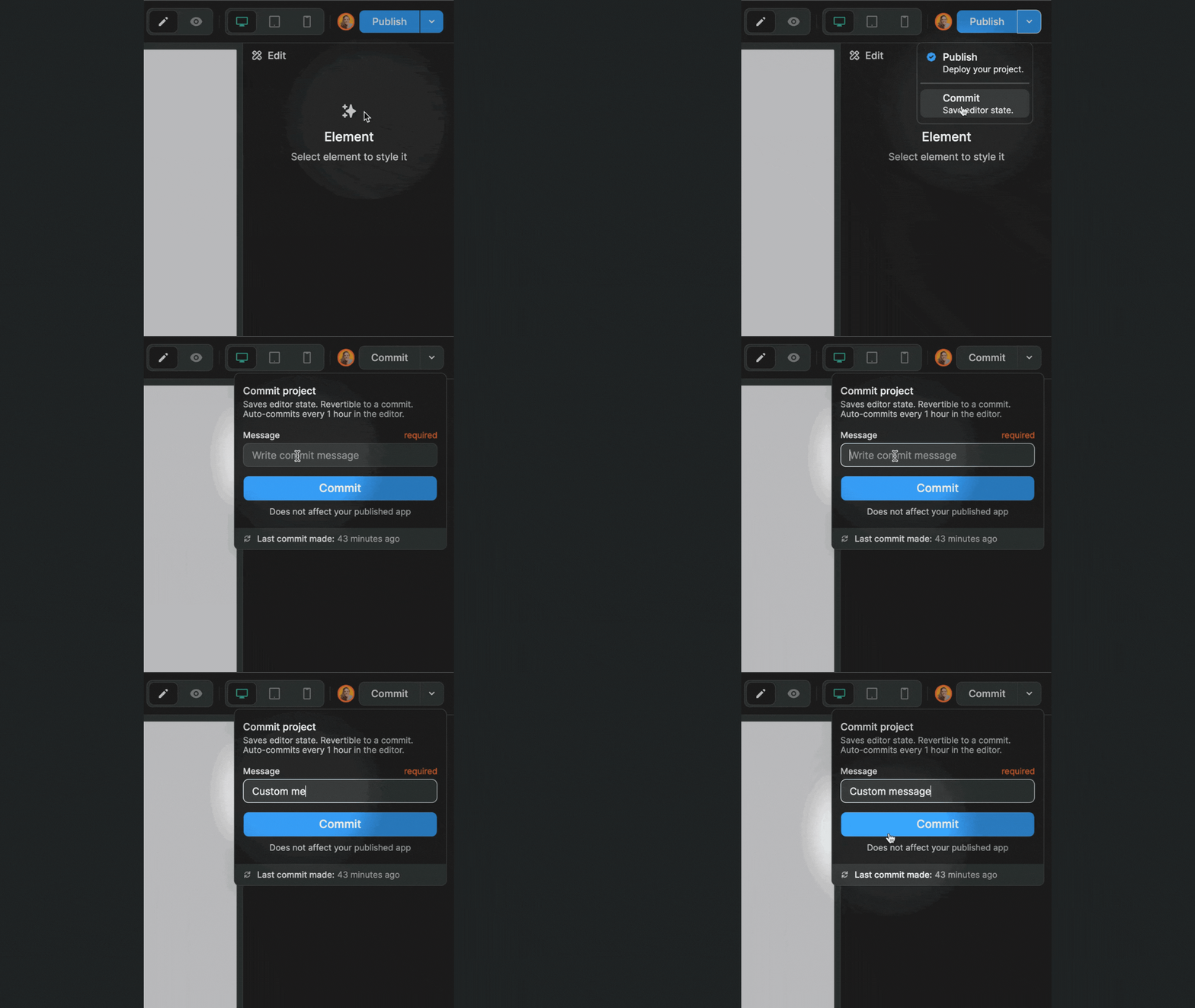
When you're inside a project, you can create a manual backup of the Editor with a custom message to describe the update by going to the Create Editor Backup button inside the Editor: