

Appearance
Headers
The Headers settings allow you to control how your WeWeb application can be embedded in iframes and configure custom HTTP headers for security, caching, and other purposes.
Accessing headers settings
To configure headers:
- Open the
Settingstab in the top bar and clickInterface Settings - Under the
Advancedsection, clickHeaders
This opens the headers configuration modal.
Iframe embedding
By default, once published, your WeWeb app can be embedded in an iframe on other websites. You can control this behavior to protect your application from clickjacking attacks or to limit where your app can be displayed.
Embedding options
In Headers settings, choose one of these iframe options:
Allow— Your app can be embedded in iframes on any websiteAllow on same domain name— Your app can only be embedded on pages from the same domainBlock— Your app cannot be embedded in any iframe
TIP
These settings apply after your next publish to production. A Hosting or Seat plan is required.
Setting iframe embedding
To configure iframe embedding:
- Open Headers settings
- Find the iframe embedding section
- Select your preferred option
- Save your changes
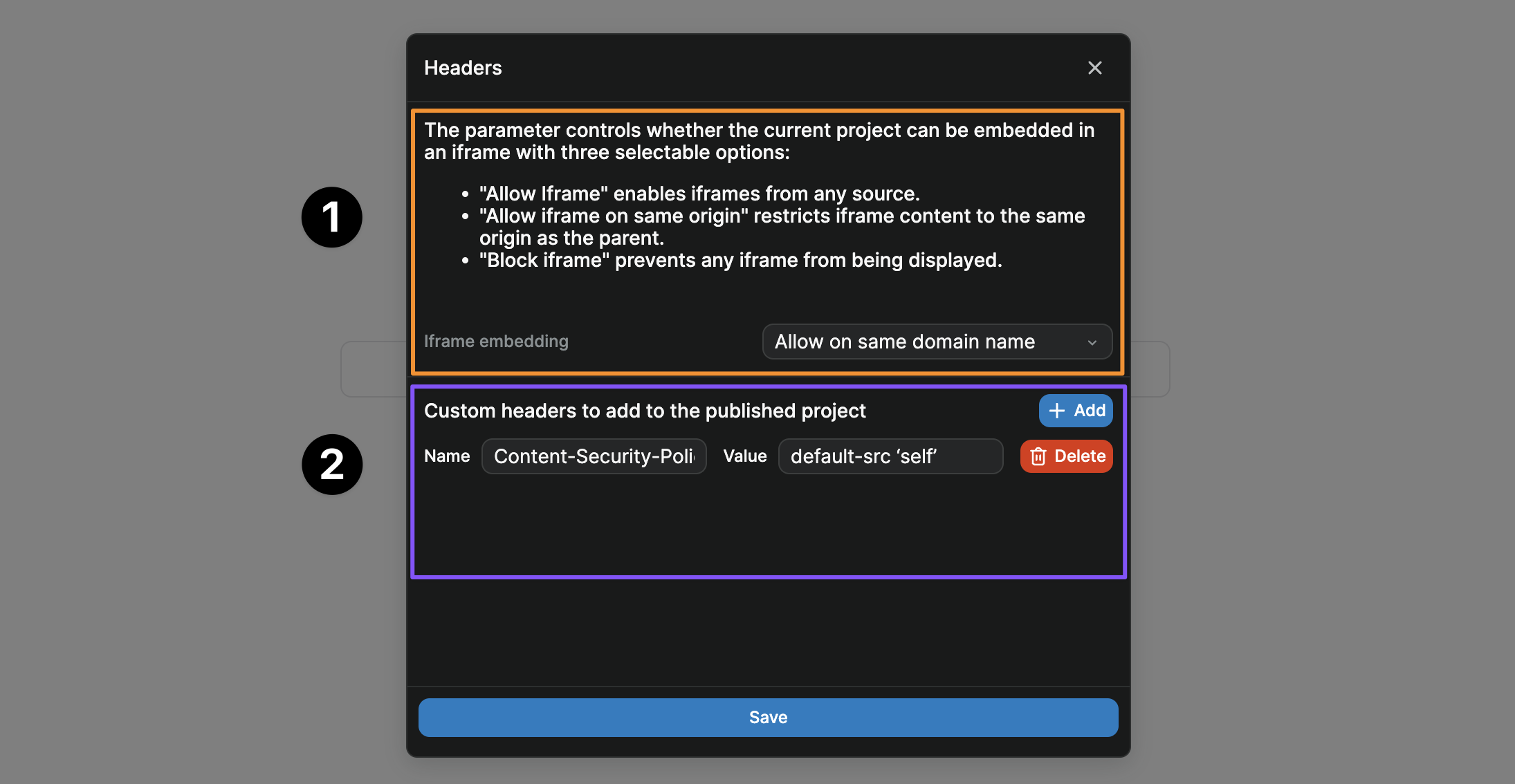
In the example above, you can see the iframe embedding options and the custom headers section where you can add custom headers to your published project.
TIP
Unless you have a specific need for your app to be embedded in iframes, it's recommended to either block embedding or allow it only on the same domain for security purposes.
When to allow iframe embedding
Allow iframe embedding when:
- Your app is designed to be embedded in other sites
- You're building widgets or embeddable components
- You have a specific integration that requires iframe embedding
Block or restrict iframe embedding when:
- Building a standard web application
- Handling sensitive data or authentication
- Security is a primary concern
Custom headers
Custom headers allow you to add HTTP response headers to your published application. These headers can control security policies, caching behavior, and other browser behaviors.
Adding a custom header
To add a custom header:
- Open Headers settings
- Find the custom headers section
- Click
Add - Enter the header name
- Enter the header value
- Save your changes
Testing custom headers
After adding custom headers:
- Publish your application
- Open your published app in a browser
- Open the browser's developer tools
- Go to the Network tab
- Refresh the page
- Click on the main document request
- Check the Response Headers to verify your custom headers are present
Removing custom headers
To remove a custom header:
- Open Headers settings
- Find the header you want to remove
- Click the remove/delete option
- Save your changes