

Appearance
Redirections
Redirections allow you to forward users from one URL to another, either within your application or to external websites. This is essential for SEO, especially when migrating from an old site to your WeWeb application or restructuring your URL patterns.
Accessing redirections
To configure redirections:
- Open the
Settingstab in the top bar and clickInterface Settings - Under the
Advancedsection, clickRedirections
This opens the redirections configuration modal.
Why use redirections
Redirections are useful for:
- SEO preservation — Maintain search engine rankings when changing URLs
- Site migration — Forward traffic from old URLs to your new WeWeb app
- URL restructuring — Change your URL structure without breaking external links
- Marketing campaigns — Create short, memorable URLs that redirect to specific pages
- Preventing broken links — Ensure external links to old URLs still work
Creating a redirection
To create a new redirection:
- Open the Redirections settings
- Click
Add redirectionor similar button - Configure the redirection settings:
- Source path
- Target type
- Target destination
- HTTP status code
- Save the redirection
Redirection configuration
Source path
The source is the path you want to redirect from. Enter only the path portion, not the full URL.
Examples:
/old-page— Redirects fromyourdomain.com/old-page/blog/old-article— Redirects fromyourdomain.com/blog/old-article/products/item-123— Redirects fromyourdomain.com/products/item-123
TIP
Do not include the domain name in the source path. WeWeb automatically applies redirections to your published domain.
Target type
Choose where to redirect users:
Page (Internal)
- Redirect to a page within your WeWeb application
- Select the destination page from a dropdown
- Maintains users within your app
External URL
- Redirect to any URL on the web
- Enter the full URL including protocol (https://)
- Can redirect to other websites or applications
Target destination
For internal pages:
- Select the destination page from your WeWeb app
- The URL will be automatically constructed
For external URLs:
- Enter the complete URL including
https:// - Example:
https://example.com/new-location
HTTP status code
Choose the appropriate HTTP status code for your redirect:
301 — Moved Permanently
- The old URL has permanently moved to the new location
- Search engines transfer page rank and link juice to the new URL
- Browser caches the redirect
- Use for: SEO-friendly permanent changes
302 — Found (Temporary Redirect)
- The redirect is temporary
- Search engines don't transfer page rank
- Browsers don't cache the redirect
- Use for: Temporary redirects, A/B testing, maintenance pages
303 — See Other
- Redirect to a different resource
- Typically used after form submissions
- Use for: Post-submission redirects
307 — Temporary Redirect
- Similar to 302 but more strict
- Method and body of the original request are preserved
- Use for: Temporary redirects where request method must be preserved
308 — Permanent Redirect
- Similar to 301 but more strict
- Method and body of the original request are preserved
- Use for: Permanent redirects where request method must be preserved
TIP
90% of the time, when you want to do an SEO redirect, use a 301 redirect to forward search engine rankings and link value to the new URL.
Here's an example of creating a redirection:
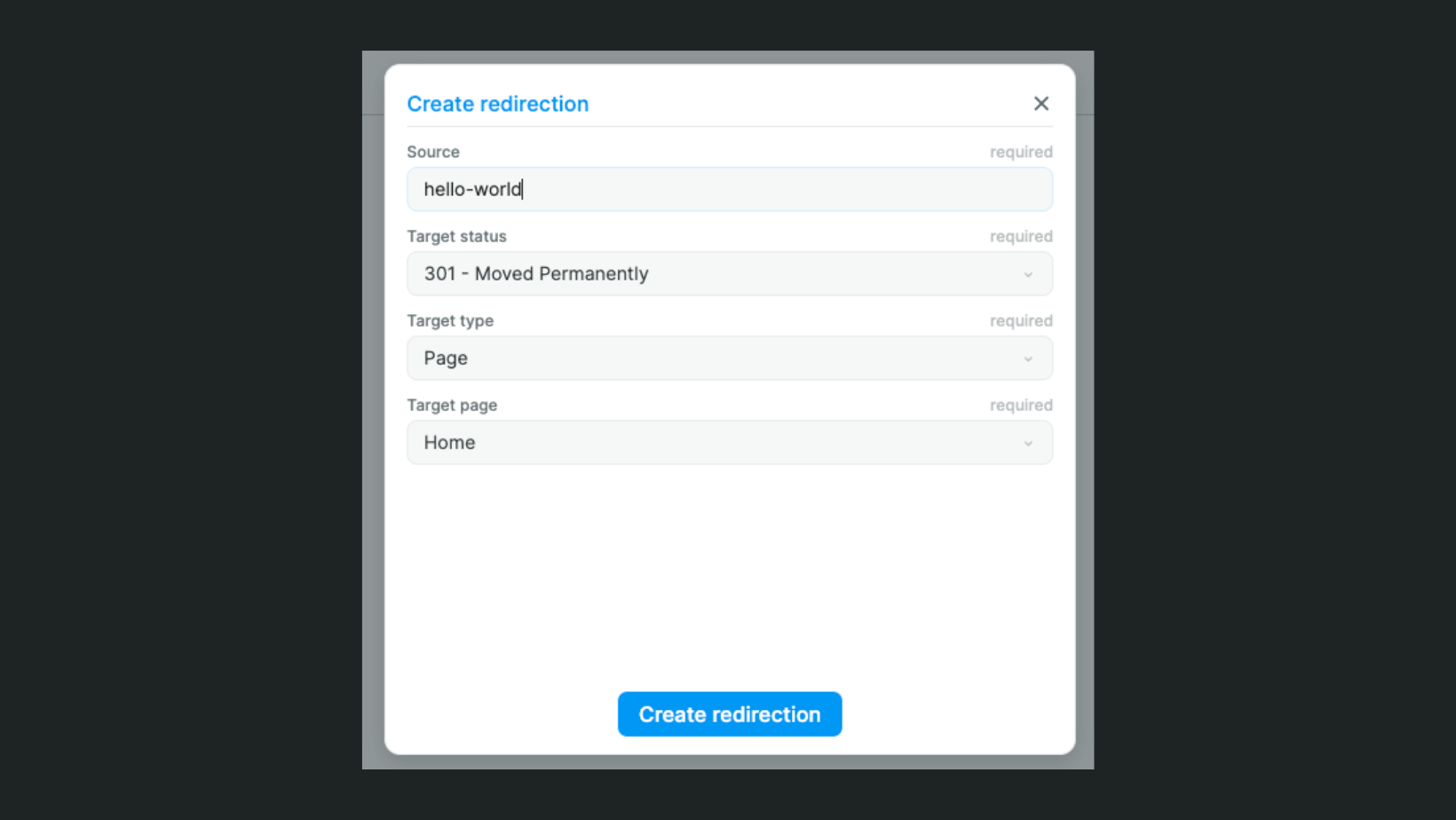
In this example:
SourceIs the path you want to redirect (not the full URL but the path after the domain name)Target statusIs the HTTP status code you want to trigger on redirectTarget typeIsPageto redirect to a page in your app orExternal URLto redirect to any URL on the webTarget pageOrTarget URLis the page in your WeWeb project or external URL you want to redirect to
Example redirections
Simple page redirect
Scenario: You renamed a page and want to preserve the old URL.
Source: /about-us
Target Type: Page
Target: About (new page name)
Status: 301 Moved Permanently
Blog migration
Scenario: Moving from an old blog platform to WeWeb.
Source: /blog/2023/my-first-post
Target Type: Page
Target: Blog Post (with appropriate ID)
Status: 301 Moved Permanently
External redirect
Scenario: Redirecting a path to an external service.
Source: /support
Target Type: External URL
Target: https://support.example.com
Status: 301 Moved Permanently
Marketing short link
Scenario: Creating a short, memorable URL for marketing.
Source: /promo
Target Type: Page
Target: Special Offer Landing Page
Status: 302 Found
Managing redirections
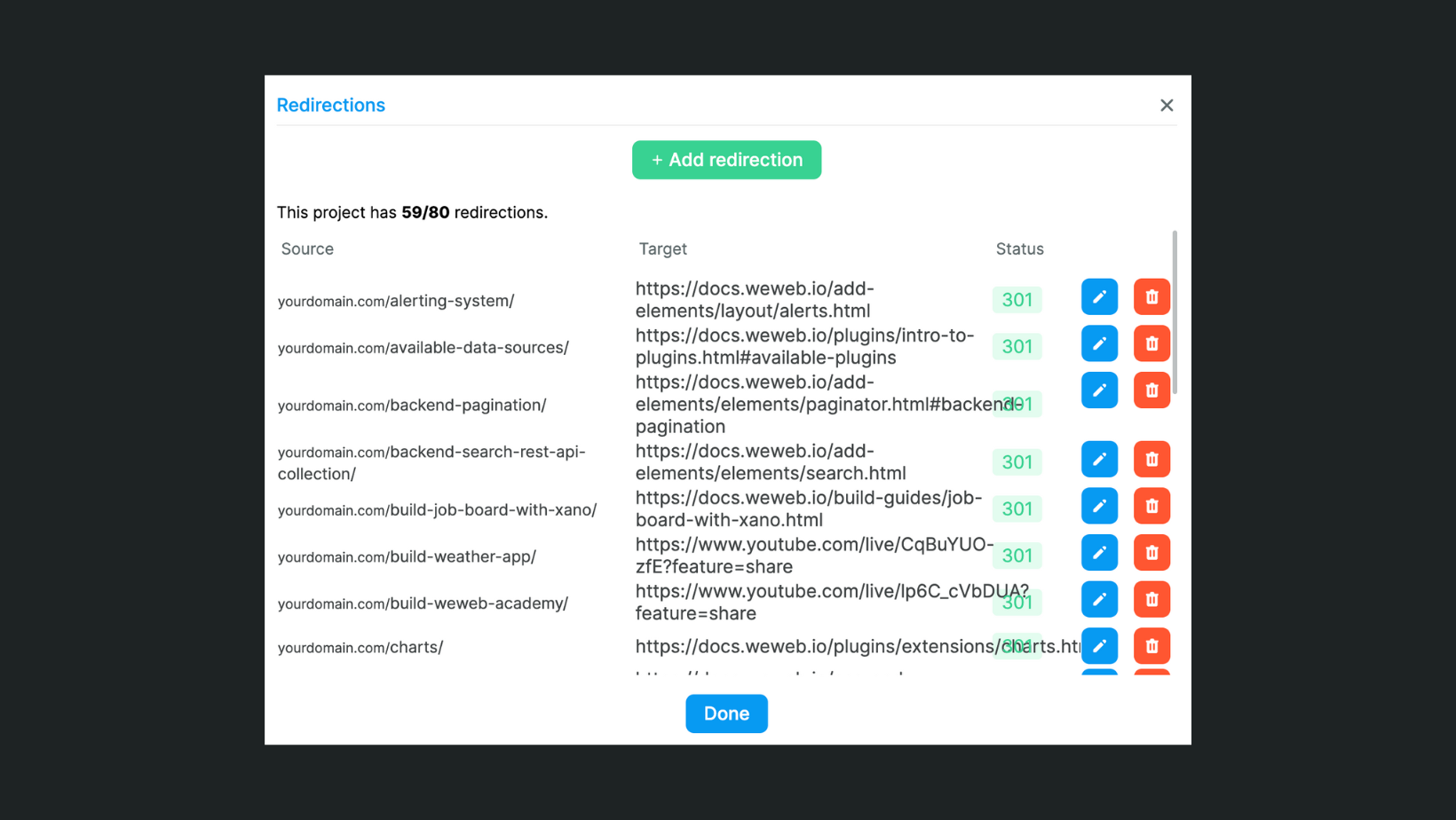
Viewing all redirections
Once you've added redirections, they appear in a list showing:
- Source path
- Target destination
- Status code
- When it was created
Editing redirections
To edit an existing redirection:
- Open the Redirections settings
- Find the redirection in the list
- Click edit
- Modify the settings
- Save changes
Deleting redirections
To remove a redirection:
- Open the Redirections settings
- Find the redirection in the list
- Click delete or remove
- Confirm the deletion
Testing redirections
After creating redirections:
- Publish your application — Redirections only work on published apps
- Test the old URL — Visit the source URL
- Verify the redirect — Ensure you're redirected to the correct destination
- Check the status code — Use browser developer tools to verify the HTTP status code
- Test with parameters — If applicable, test URLs with query parameters
WARNING
Redirections only work on published applications. They will not function in preview mode.