Appearance
Calendly
Add plugin
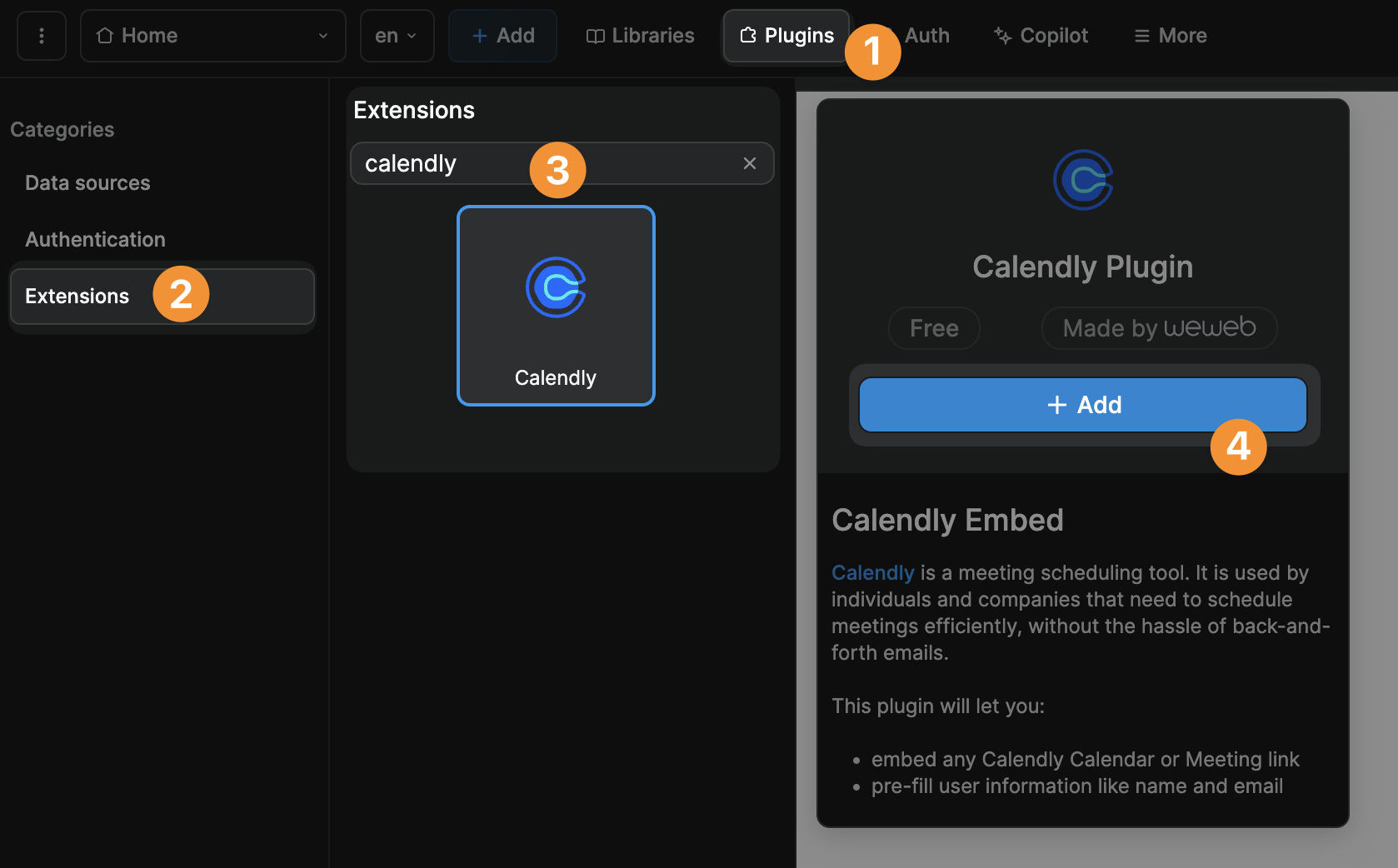
Go to Plugins > Extensions, search for the Calendly plugin and add it to your project:
Add element
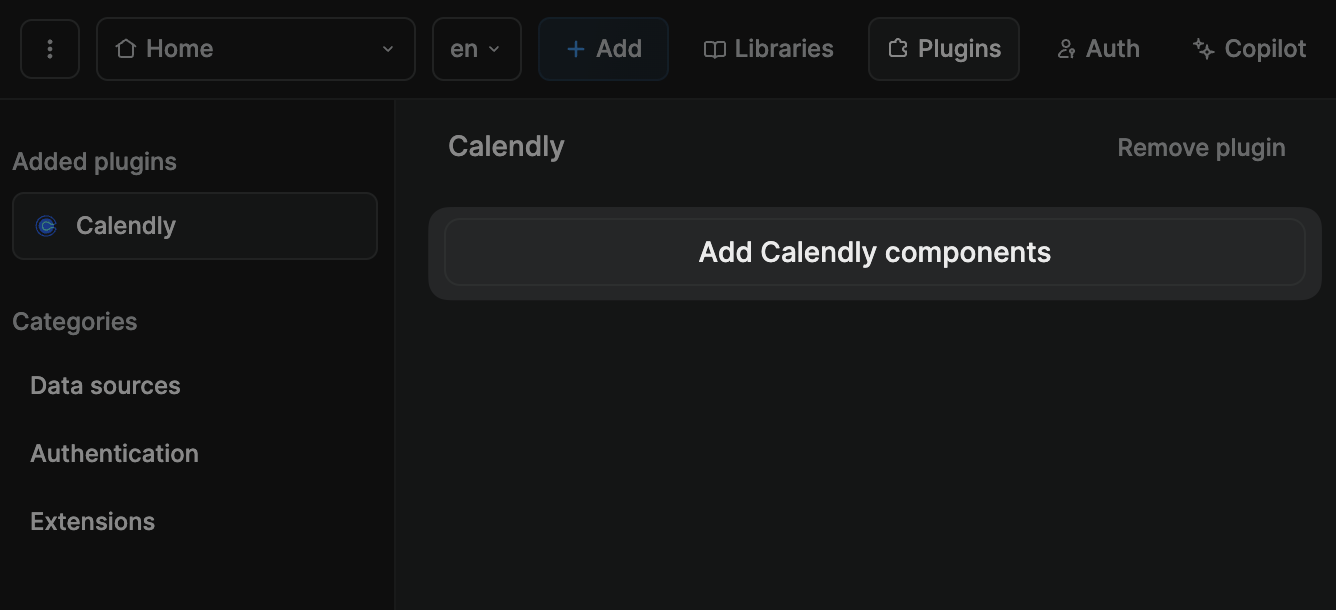
To add a Calendly embed element on a WeWeb page, click on the Add Calendly components button at plugin level:
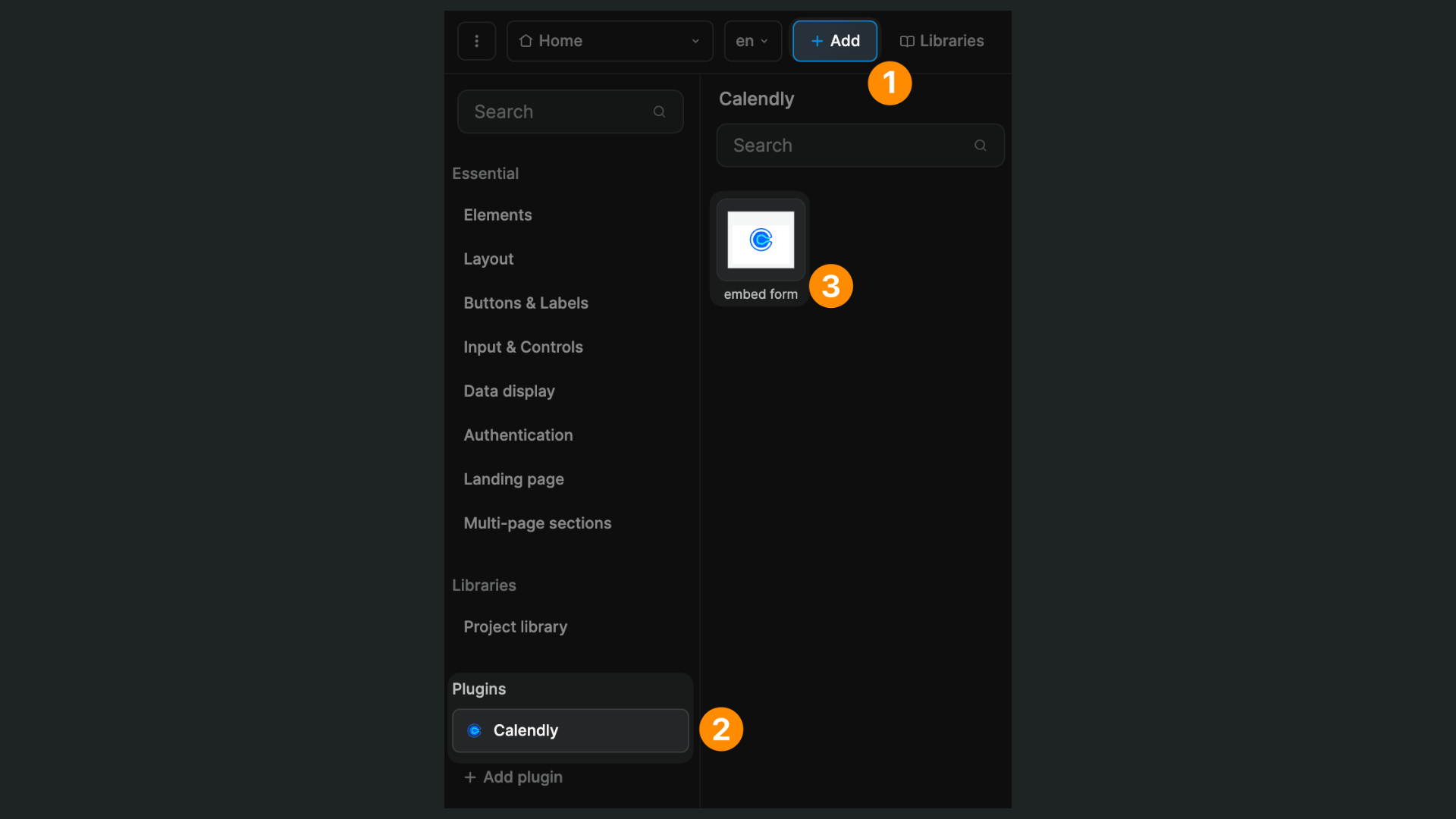
Or, in the Calendly plugin configuration panel, click Add Calendly components and drag the element onto the page:
Display calendar
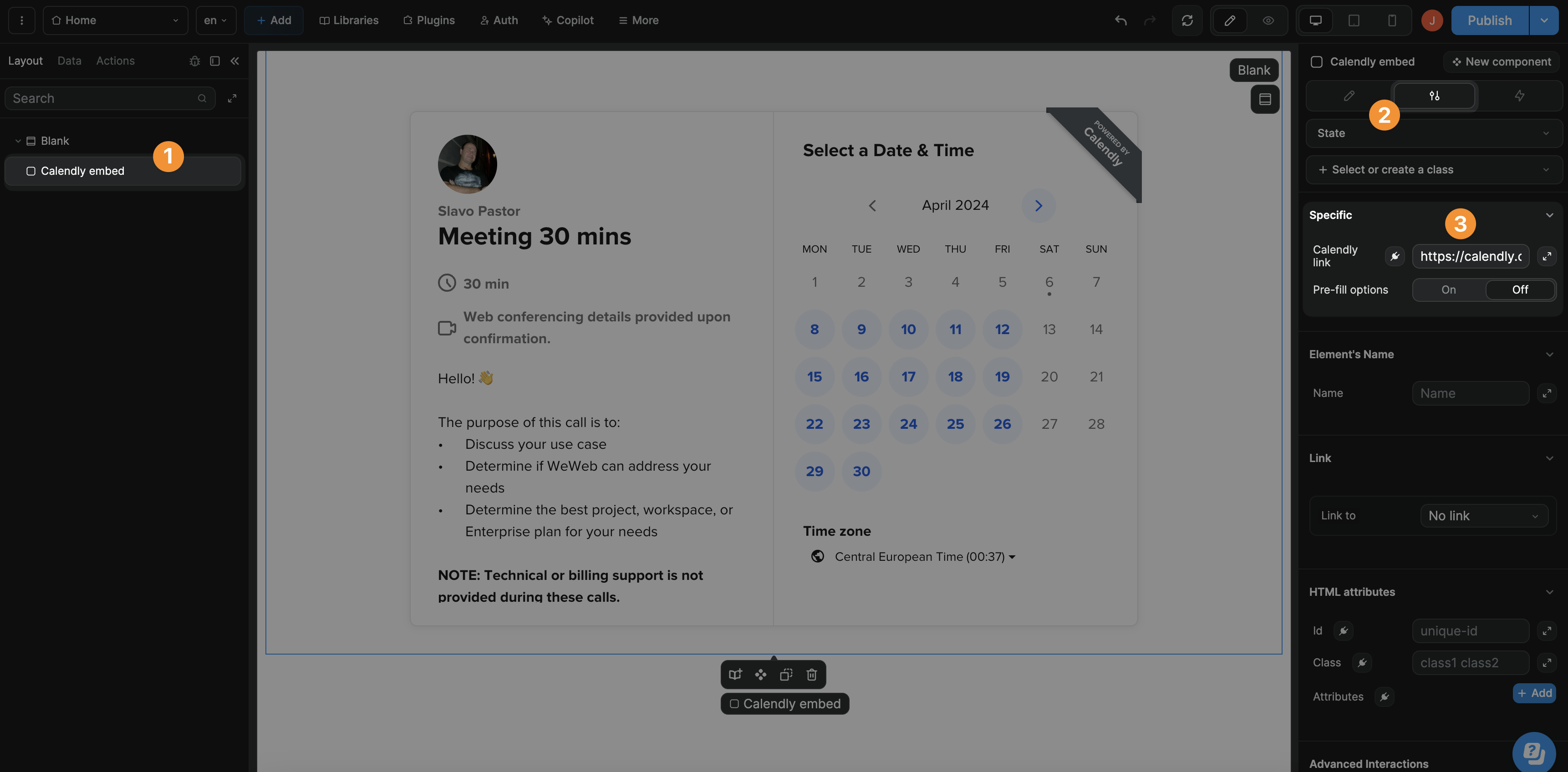
To display a Calendly calendar:
- Click on the Calendly embed element on your page,
- Go to the element's settings tab, and
- Paste the URL of the Calendly calendar you wish to display.
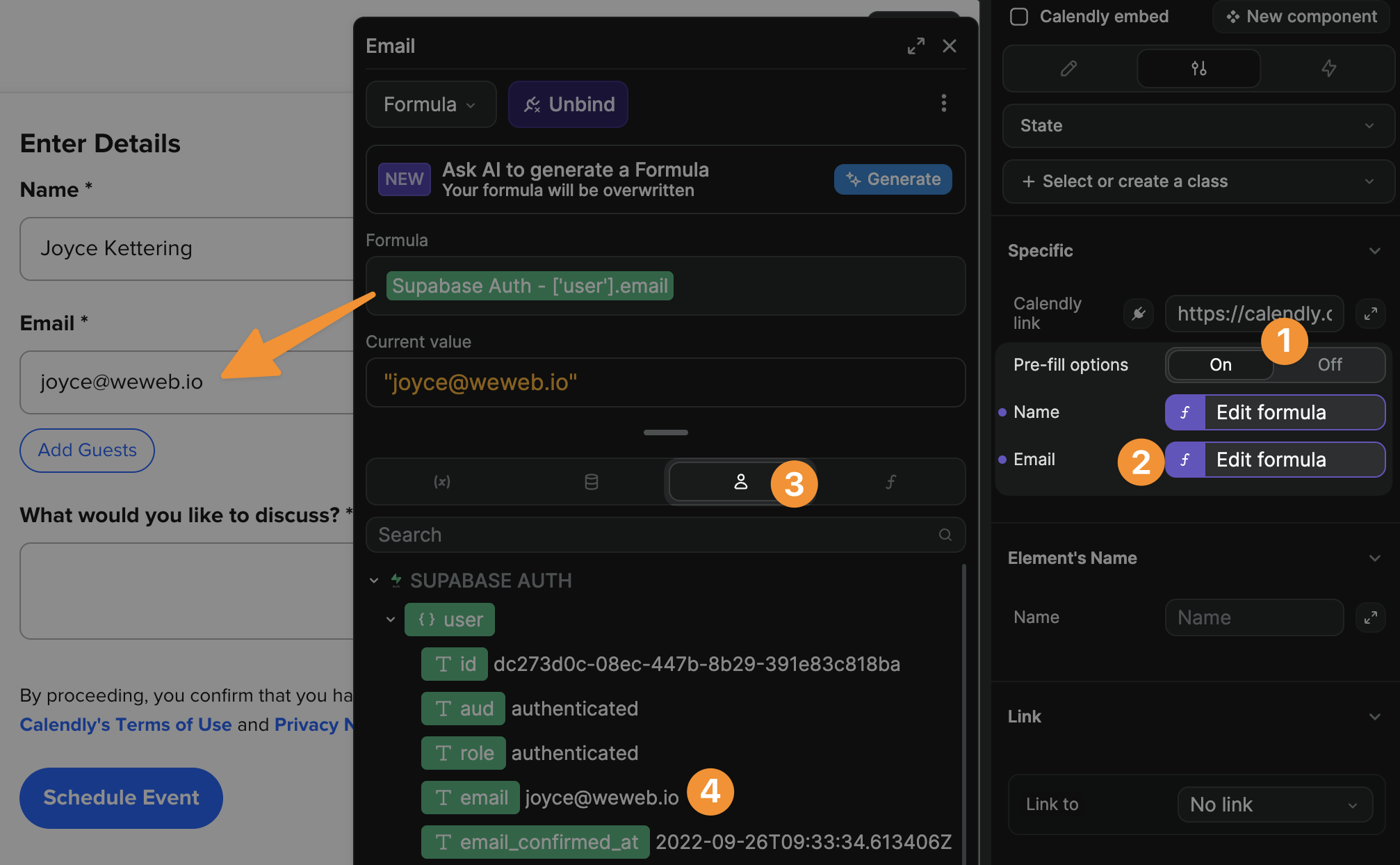
Pre-fill options
When the Pre-fill options setting is On, you can provide the name and email that will be pre-filled on the details page of your Calendly booking form: