

Appearance
Display table view data
Before you can display table view data on a page, make sure you have:
- Created a table view in the
Data & APItab that fetches the records you want to show
Learn more about table views →
Once your table view is set up, you can bind its data to elements on a page.
Step 1 - Repeat a list on a container
In WeWeb, you can repeat a list of records on layout containers such as a flexbox or a columns element.
In this example, we use a columns element:
- Select the columns element in the
Layout Tree. - Turn on
Repeat Items. - Bind
Itemsto your table view'sdataarray (in the binding window:Data→Table Views→ your view →data).
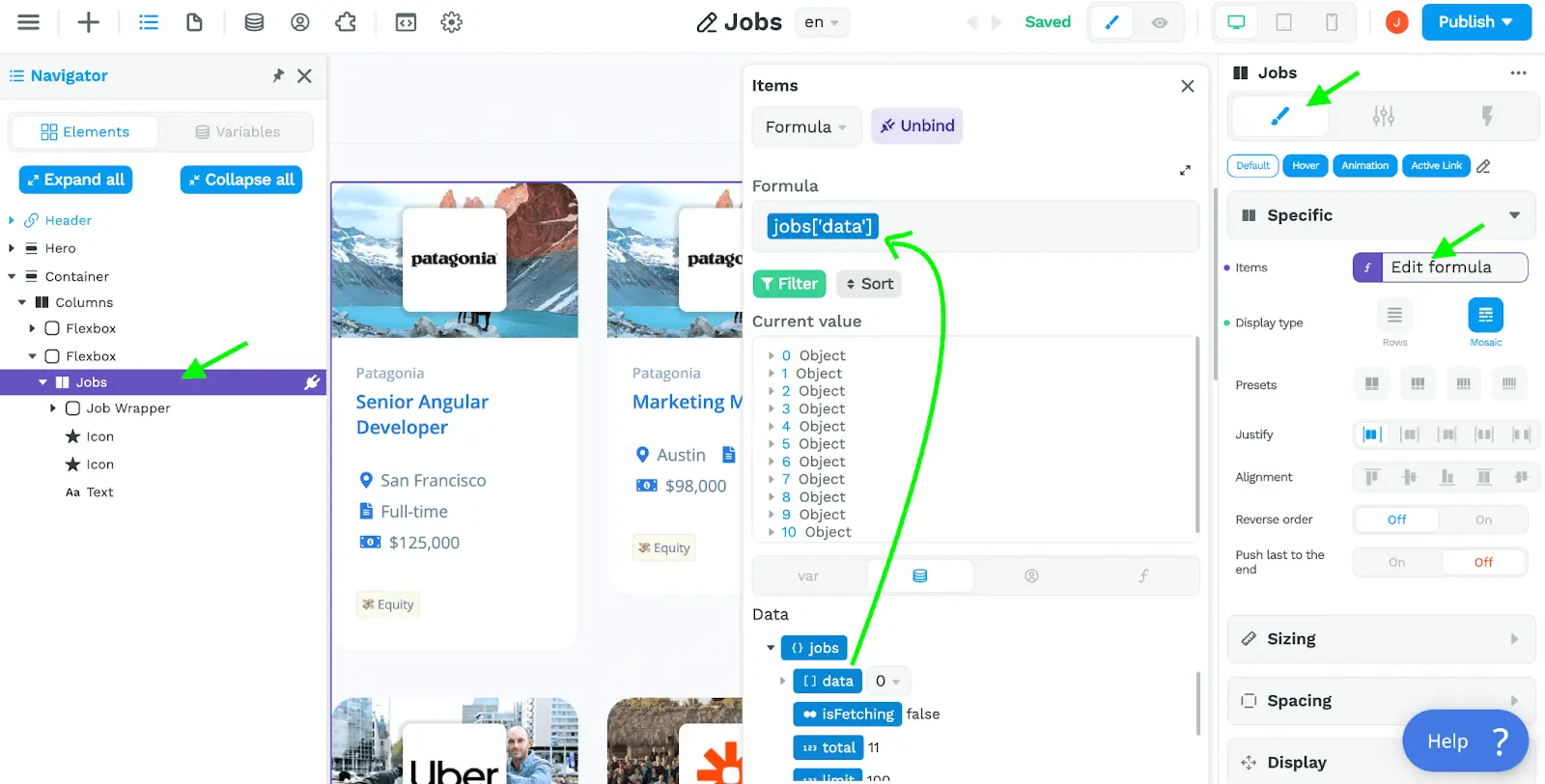
You must bind to a list of items (an array), not the full table view object.
Learn more about the Array data type →
Step 2 - Bind fields from a repeated item
When you repeat a list on a container, the first child becomes a repeated item (a template for each record).
If you want to show several fields from one record — like a job title, company name, and salary — put those elements inside a wrapper container under the repeated container.
In the example below, below the "Jobs" columns element where we bound the list, there is a container named "Job Wrapper". Inside it are elements bound to specific fields:
- Company logo
- Company name
- Job title
- Job location
- Contract type
- Salary
- List of perks
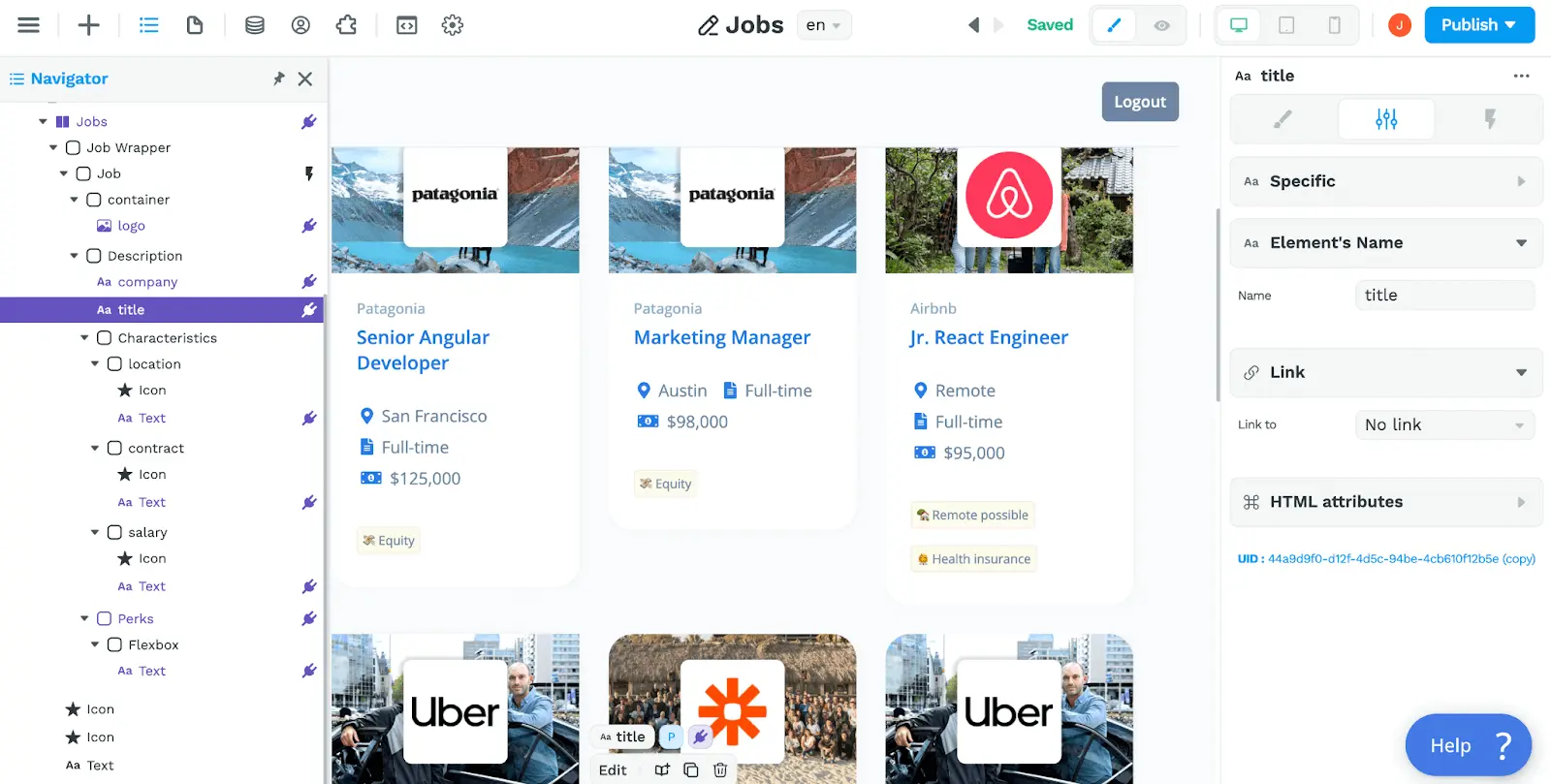
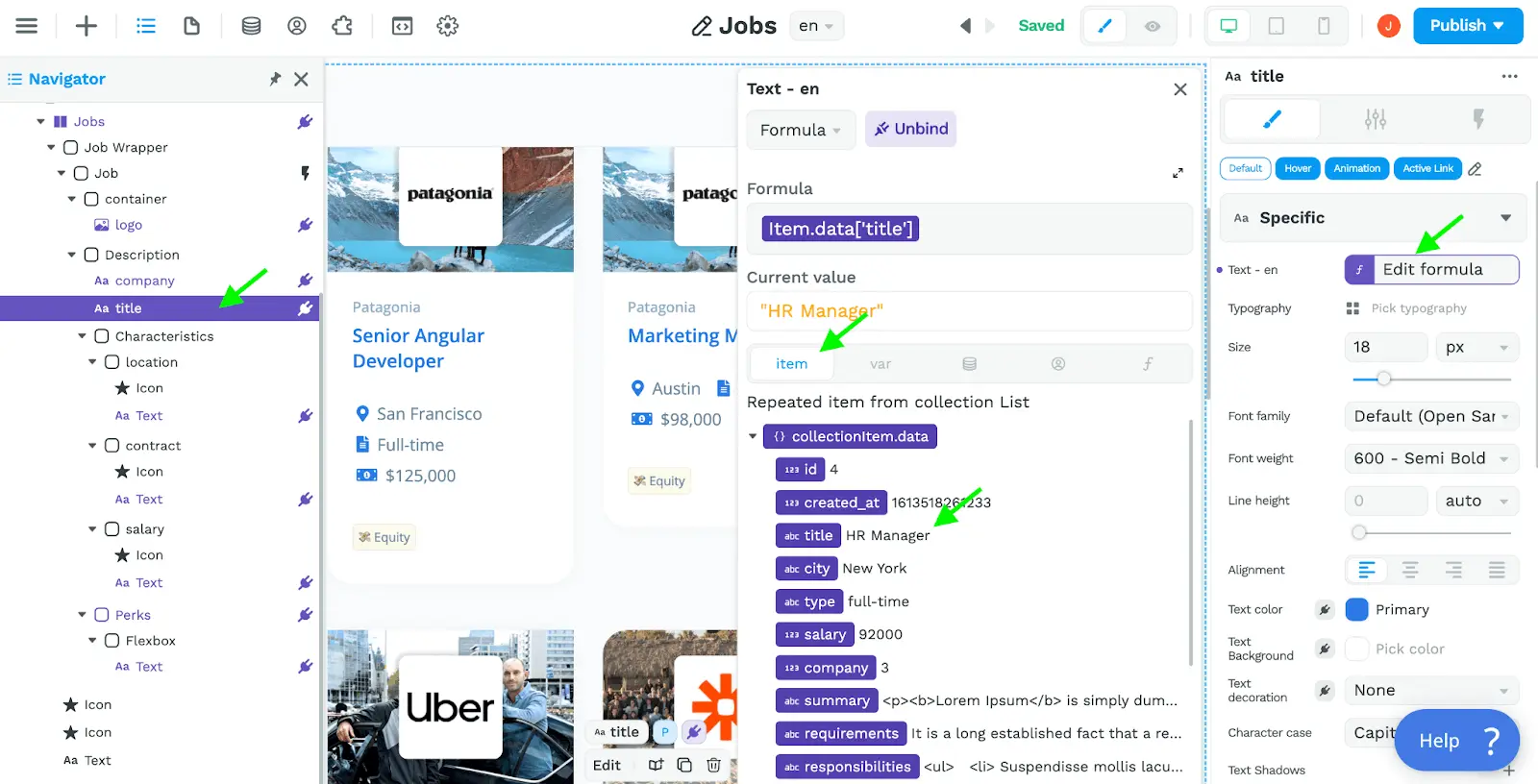
Bind each field from the current row. Select an element inside the repeated template, open its binding, and at the bottom of the binding window expand item.data, then choose the field you need:
TIP
You can rename any container in the element Settings tab. When repeat is enabled, a purple icon appears in the Layout Tree and on the canvas so you can spot where list data is bound.